> ## Documentation Index
> Fetch the complete documentation index at: https://docs.threataware.com/llms.txt
> Use this file to discover all available pages before exploring further.
# Action Center
> Automate remediation — Continuous Actions for always-on hygiene, Snapshot Actions for time-bound projects
**Tier:** Action Center (including automatic ticket creation) is included in the **Protect** tier. Customers on Connect or Discover can build saved views and export them, but cannot create Continuous or Snapshot Actions.
## The Action Center
The **Action Center** at `/action-center` is Protect's automation hub. It transforms *"we have a list of devices to fix"* into *"these devices are auto-tracked through to remediation, with MTTR and Success Rate reported."*
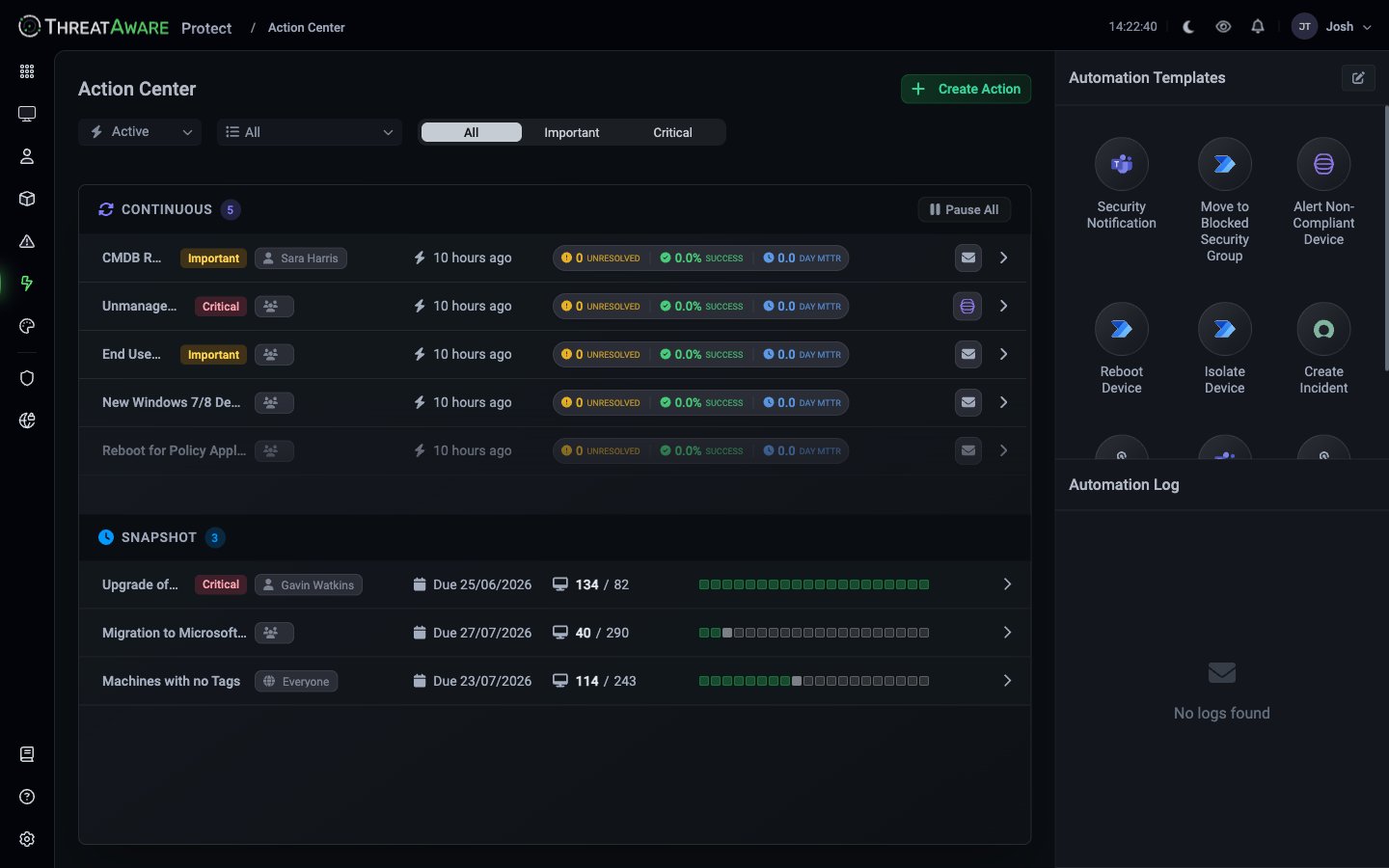 ### Page layout
| Region | What's there |
| -------------------------------------- | ------------------------------------------------------------------------------------------------------------------------------------------------------ |
| **Top filters** | `Active ▾` (state) • `All ▾` (severity) • `All / Important / Critical` chips |
| **Top-right** | `+ Create Action` (green) |
| **Continuous (N)** | Always-on actions, with per-row metrics |
| **Snapshot (N)** | Time-bound actions with deadlines and progress |
| **Right panel — Automation Templates** | Pre-built templates: Security Notification, Move to Blocked Security Group, Alert Non-Compliant Device, Reboot Device, Isolate Device, Create Incident |
| **Right panel — Automation Log** | Every automation execution with success/failure |
## Continuous Actions
A **Continuous Action** runs forever. Devices entering the matching query are added automatically; devices leaving are removed. The classic example is *"any End-User laptop without CrowdStrike."*
### Per-row metrics (Continuous)
Each Continuous Action shows:
| Metric | Meaning |
| -------------- | ---------------------------------------------------------------- |
| **Name** | Action title |
| **Priority** | Important / Critical / standard |
| **Owner** | Assigned user or team |
| ⚡ **time ago** | When the Action last triggered |
| **UNRESOLVED** | Devices currently in the matching set |
| **SUCCESS %** | Of devices that have ever entered, what proportion have resolved |
| **DAY MTTR** | Mean time to remediation in days |
| ✉️ icon | Automation channel(s) configured |
| `>` | Drill-down |
### Use cases for Continuous
* **Coverage hygiene** — *"ensure every End-User device has CrowdStrike"*
* **Broken-agent recovery** — *"alert when an Endpoint Detection and Response (EDR) agent stops reporting"*
* **New-device onboarding** — *"every device under 7 days old should hit baseline by day 14"*
* **Configuration drift** — *"any device that loses BitLocker should trigger a ticket"*
## Snapshot Actions
A **Snapshot Action** captures the set of devices matching at creation time and tracks remediation against that fixed set. New devices that later match *aren't* added. Useful for projects with a fixed scope.
### Per-row layout (Snapshot)
| Element | Meaning |
| ---------------- | ---------------------------------------- |
| **Name** | Action title |
| **Priority** | Critical / Important / standard |
| **Owner** | Assigned user or team |
| **Due date** | Configured deadline |
| **N / Total** | Resolved / Total devices |
| **Progress bar** | Visual progress with green / amber / red |
Three examples:
| Action | Owner | Due | Progress |
| ------------------------- | ----------------- | ---------- | --------- |
| Upgrade of... (Critical) | Gavin Watkins | 25/06/2026 | 134 / 182 |
| Migration to Microsoft... | *Everyone* (team) | 27/07/2026 | 40 / 290 |
| Machines with no Tags | *Everyone* | 23/07/2026 | 114 / 243 |
### Use cases for Snapshot
* **OS migrations** — *"1,234 Windows 10 devices need to be on Windows 11 by Q4"*
* **Decommissioning waves** — *"these 87 devices are scheduled for replacement"*
* **Compliance remediation** — *"this batch of devices flagged in audit must be resolved by Friday"*
* **Acquisition integration** — *"these new acquired devices need our security baseline"*
## Tags drive Action targeting
Tags are how you scope an Action to the right cohort. `tags:End-User`, `tags:Server`, `tags:Acme-Acquired` — these clauses make the difference between an Action that catches the right devices and one that fires noise.
Most well-designed trigger queries combine a **tag clause** (the population) with a **Vital clause** (the failure condition):
```text theme={null}
tags:End-User AND system.crowdstrike.required:true AND system.crowdstrike.deployed:false
```
Because tag membership is rule-driven, new devices joining the tag are automatically picked up by the Continuous Action that targets it — no manual maintenance. See [Tags & Logic Engine](/tags-and-logic-engine) for how to design tag rules that hold up under estate growth.
## Creating an Action
The flow always starts with a query:
In **Devices**, [Users](/user-inventory), or [Issues](/issues), build the filter that captures the cohort you want to remediate.
The footer's `Create Action` button (sometimes the green `+ Create Action` on the Action Center page).
* **Name** — descriptive, mentioning the target outcome (`Deploy CrowdStrike to End-User Laptops`)
* **Priority** — Critical / Important / standard
* **Type** — **Continuous** (always-on) or **Snapshot** (fixed scope)
* **Deadline** (Snapshot only)
* **Owner / Assigned Team**
Tick one or more channels (see [Automation Types](#automation-types) below).
* **Minimum time in view** — debounce so devices in transient state don't trigger
* **Resolution criteria** — explicit definition of "fixed" beyond just leaving the query
* **Additional fields** — extra device properties to include in automation payloads
Save the Action. It starts immediately — first cycle runs within minutes.
## Automation types
The simplest path. Send an email per device entering the Action, or a daily/weekly digest.
* Recipient(s) — comma-separated
* Subject — supports `{{FieldName}}` interpolation
* Body — supports `{{FieldName}}` interpolation and the `{{DeviceLink}}` shortcut
* Optional: digest mode (one summary email instead of per-device)
Best for: *"alert the security team when a new gap appears"* — no ticketing system needed.
Create tickets in **ServiceNow**, **Halo Service Desk**, **Freshservice**, or **Datto Autotask PSA (Professional Services Automation)**.
* Ticket type / category
* Priority
* Assignment group
* Title / description templates (with `{{Field}}` interpolation)
* Custom fields
For ServiceNow, two-way sync: closing the ticket resolves the device automatically.
Best for: *"this gap is real work, route to the team that owns it"*.
Webhook-based notifications to a Microsoft Teams channel or Slack channel.
* Channel webhook URL
* Message template (Markdown / Adaptive Card)
Best for: *"team awareness with low friction"* — typically pairs with another channel like tickets.
Send the device payload to a Power Automate flow. From there, you can chain anything in the Microsoft 365 ecosystem — Intune deployments, AD attribute updates, SharePoint workflows, approval flows.
The Action calls a "When HTTP request is received" trigger. Pass the device fields as JSON; the flow does the rest.
Best for: *"complex remediation with conditional branches"*.
POST the device payload to any URL.
* Method (POST by default)
* Headers (including auth)
* Body template with `{{Field}}` interpolation
* JSON / form encoded
Best for: *"connecting to systems we don't have a first-class template for"* — Tines, Demisto, AWS Lambda, internal APIs.
## Automation templates
The right-hand panel ships with pre-built configurations for common automation patterns — Security Notification, Move to Blocked Security Group, Alert Non-Compliant Device, Reboot Device, Isolate Device, Create Incident. Click any template to start a Create Action flow with that automation pre-filled.
See [Automation Templates](/automation-templates) for the full catalogue, defaults, and customisation guidance.
## Advanced configuration
Debounce against transient state. A device must stay in the query for X hours before the automation fires.
Typical settings:
* **Agent offline triggers** — 48 hours (agents update; brief absence shouldn't fire)
* **New device baseline** — 24 hours (deployment may still be in progress)
* **Configuration drift** — 4 hours (policy propagation time)
* **Critical alerts** — 0 (fire immediately)
Default resolution = "device no longer matches query". Sometimes that's wrong — a device leaving the query because it went offline isn't actually fixed.
Use explicit resolution criteria:
```text theme={null}
Trigger: system.crowdstrike.required:true AND system.crowdstrike.deployed:false
Resolution: system.crowdstrike.deployed:true AND system.crowdstrike.functioning:true AND system.crowdstrike.configuredCorrectly:true
```
Forces the Action to wait for a *good* state, not just *any* state.
Device fields to include in the automation payload — useful when downstream systems need context.
Common picks:
* `metadata.serial_number` — for warranty lookup
* `lastUser.email` — to notify owner
* `lastUser.department` — for ticket routing
* `lastUser.jobTitle` — for context in escalations
* `publicIp` — for network troubleshooting
## Action lifecycle
| # | Stage | When |
| - | ------------------------------ | ------------------------ |
| 1 | Action created | Settings → Action Center |
| 2 | Device matches query | Hourly evaluation |
| 3 | Minimum-time-in-view countdown | Configurable per Action |
| 4 | Automation fires | Email / Ticket / Webhook |
| 5 | Device receives remediation | Manual or automated |
| 6 | Resolution criteria met | Next sync evaluation |
| 7 | Device leaves Action | Success Rate ticks up |
| 8 | MTTR recalculated | Visible on Action card |
## Pausing and disabling automations
Two levels of kill switch are surfaced in the live Action Center:
| Scope | Where | Notes |
| ----------------------------------- | ------------------------------------------------------------------------- | ----------------------------------------------------------------------------------------------------------------------------------------- |
| **Global — all Continuous Actions** | Action Center → top of the Continuous section → **Pause All** button | Halts every Continuous Action in the tenant. Snapshot Actions do not have a Pause All button (they are time-bound and resolve naturally). |
| **Per-Action** | Open an Action → header → **Pause** / **Edit** / **Archive** / **Delete** | An individual Action can be paused, edited, archived, or deleted. Paused Actions still appear in the list but do not fire automations. |
There is **no Snapshot-section equivalent of Pause All** in the current build — pause Snapshot work item-by-item, or delete the Action to halt it entirely.
## Automation Log
The right-panel **Automation Log** records every automation execution:
* Action name
* Device acted on
* Channel (email / ticket / webhook)
* Success / failure
* Response from external system (for tickets, the ticket number; for webhooks, the response code)
* Retry count
Filter by:
* Action name
* Channel
* Success / failure
* Time range
Use for debugging webhooks (was the payload accepted?), reconciling against the destination system (did the ticket appear?), and SLA reporting (how many automations fired this week?).
## Best practices
The first version of any Action should send an email. Validate the cohort is correct, then layer in tickets / webhooks once you trust the query.
For all triggers tied to "stopped reporting" or "configuration changed", set at least 24-48 hours. Saves you from chasing devices that recover on their own during maintenance windows.
Default resolution is "no longer matches" which silently equates offline with fixed. Always specify a positive resolution state for safety.
OS migrations, decommissioning, compliance pushes — Snapshot. Always-on coverage validation, broken-agent recovery, drift detection — Continuous.
Set a recurring slot to scan failed automations. Patterns of failure (one ticket type always failing, one webhook always timing out) point to systemic issues you'd otherwise miss.
## Cross-references
Deep dive
Deep dive
Pre-built starting points
The detection source
Vitals drives most queries
Target the right cohort
Configure outbound channels
### Page layout
| Region | What's there |
| -------------------------------------- | ------------------------------------------------------------------------------------------------------------------------------------------------------ |
| **Top filters** | `Active ▾` (state) • `All ▾` (severity) • `All / Important / Critical` chips |
| **Top-right** | `+ Create Action` (green) |
| **Continuous (N)** | Always-on actions, with per-row metrics |
| **Snapshot (N)** | Time-bound actions with deadlines and progress |
| **Right panel — Automation Templates** | Pre-built templates: Security Notification, Move to Blocked Security Group, Alert Non-Compliant Device, Reboot Device, Isolate Device, Create Incident |
| **Right panel — Automation Log** | Every automation execution with success/failure |
## Continuous Actions
A **Continuous Action** runs forever. Devices entering the matching query are added automatically; devices leaving are removed. The classic example is *"any End-User laptop without CrowdStrike."*
### Per-row metrics (Continuous)
Each Continuous Action shows:
| Metric | Meaning |
| -------------- | ---------------------------------------------------------------- |
| **Name** | Action title |
| **Priority** | Important / Critical / standard |
| **Owner** | Assigned user or team |
| ⚡ **time ago** | When the Action last triggered |
| **UNRESOLVED** | Devices currently in the matching set |
| **SUCCESS %** | Of devices that have ever entered, what proportion have resolved |
| **DAY MTTR** | Mean time to remediation in days |
| ✉️ icon | Automation channel(s) configured |
| `>` | Drill-down |
### Use cases for Continuous
* **Coverage hygiene** — *"ensure every End-User device has CrowdStrike"*
* **Broken-agent recovery** — *"alert when an Endpoint Detection and Response (EDR) agent stops reporting"*
* **New-device onboarding** — *"every device under 7 days old should hit baseline by day 14"*
* **Configuration drift** — *"any device that loses BitLocker should trigger a ticket"*
## Snapshot Actions
A **Snapshot Action** captures the set of devices matching at creation time and tracks remediation against that fixed set. New devices that later match *aren't* added. Useful for projects with a fixed scope.
### Per-row layout (Snapshot)
| Element | Meaning |
| ---------------- | ---------------------------------------- |
| **Name** | Action title |
| **Priority** | Critical / Important / standard |
| **Owner** | Assigned user or team |
| **Due date** | Configured deadline |
| **N / Total** | Resolved / Total devices |
| **Progress bar** | Visual progress with green / amber / red |
Three examples:
| Action | Owner | Due | Progress |
| ------------------------- | ----------------- | ---------- | --------- |
| Upgrade of... (Critical) | Gavin Watkins | 25/06/2026 | 134 / 182 |
| Migration to Microsoft... | *Everyone* (team) | 27/07/2026 | 40 / 290 |
| Machines with no Tags | *Everyone* | 23/07/2026 | 114 / 243 |
### Use cases for Snapshot
* **OS migrations** — *"1,234 Windows 10 devices need to be on Windows 11 by Q4"*
* **Decommissioning waves** — *"these 87 devices are scheduled for replacement"*
* **Compliance remediation** — *"this batch of devices flagged in audit must be resolved by Friday"*
* **Acquisition integration** — *"these new acquired devices need our security baseline"*
## Tags drive Action targeting
Tags are how you scope an Action to the right cohort. `tags:End-User`, `tags:Server`, `tags:Acme-Acquired` — these clauses make the difference between an Action that catches the right devices and one that fires noise.
Most well-designed trigger queries combine a **tag clause** (the population) with a **Vital clause** (the failure condition):
```text theme={null}
tags:End-User AND system.crowdstrike.required:true AND system.crowdstrike.deployed:false
```
Because tag membership is rule-driven, new devices joining the tag are automatically picked up by the Continuous Action that targets it — no manual maintenance. See [Tags & Logic Engine](/tags-and-logic-engine) for how to design tag rules that hold up under estate growth.
## Creating an Action
The flow always starts with a query:
In **Devices**, [Users](/user-inventory), or [Issues](/issues), build the filter that captures the cohort you want to remediate.
The footer's `Create Action` button (sometimes the green `+ Create Action` on the Action Center page).
* **Name** — descriptive, mentioning the target outcome (`Deploy CrowdStrike to End-User Laptops`)
* **Priority** — Critical / Important / standard
* **Type** — **Continuous** (always-on) or **Snapshot** (fixed scope)
* **Deadline** (Snapshot only)
* **Owner / Assigned Team**
Tick one or more channels (see [Automation Types](#automation-types) below).
* **Minimum time in view** — debounce so devices in transient state don't trigger
* **Resolution criteria** — explicit definition of "fixed" beyond just leaving the query
* **Additional fields** — extra device properties to include in automation payloads
Save the Action. It starts immediately — first cycle runs within minutes.
## Automation types
The simplest path. Send an email per device entering the Action, or a daily/weekly digest.
* Recipient(s) — comma-separated
* Subject — supports `{{FieldName}}` interpolation
* Body — supports `{{FieldName}}` interpolation and the `{{DeviceLink}}` shortcut
* Optional: digest mode (one summary email instead of per-device)
Best for: *"alert the security team when a new gap appears"* — no ticketing system needed.
Create tickets in **ServiceNow**, **Halo Service Desk**, **Freshservice**, or **Datto Autotask PSA (Professional Services Automation)**.
* Ticket type / category
* Priority
* Assignment group
* Title / description templates (with `{{Field}}` interpolation)
* Custom fields
For ServiceNow, two-way sync: closing the ticket resolves the device automatically.
Best for: *"this gap is real work, route to the team that owns it"*.
Webhook-based notifications to a Microsoft Teams channel or Slack channel.
* Channel webhook URL
* Message template (Markdown / Adaptive Card)
Best for: *"team awareness with low friction"* — typically pairs with another channel like tickets.
Send the device payload to a Power Automate flow. From there, you can chain anything in the Microsoft 365 ecosystem — Intune deployments, AD attribute updates, SharePoint workflows, approval flows.
The Action calls a "When HTTP request is received" trigger. Pass the device fields as JSON; the flow does the rest.
Best for: *"complex remediation with conditional branches"*.
POST the device payload to any URL.
* Method (POST by default)
* Headers (including auth)
* Body template with `{{Field}}` interpolation
* JSON / form encoded
Best for: *"connecting to systems we don't have a first-class template for"* — Tines, Demisto, AWS Lambda, internal APIs.
## Automation templates
The right-hand panel ships with pre-built configurations for common automation patterns — Security Notification, Move to Blocked Security Group, Alert Non-Compliant Device, Reboot Device, Isolate Device, Create Incident. Click any template to start a Create Action flow with that automation pre-filled.
See [Automation Templates](/automation-templates) for the full catalogue, defaults, and customisation guidance.
## Advanced configuration
Debounce against transient state. A device must stay in the query for X hours before the automation fires.
Typical settings:
* **Agent offline triggers** — 48 hours (agents update; brief absence shouldn't fire)
* **New device baseline** — 24 hours (deployment may still be in progress)
* **Configuration drift** — 4 hours (policy propagation time)
* **Critical alerts** — 0 (fire immediately)
Default resolution = "device no longer matches query". Sometimes that's wrong — a device leaving the query because it went offline isn't actually fixed.
Use explicit resolution criteria:
```text theme={null}
Trigger: system.crowdstrike.required:true AND system.crowdstrike.deployed:false
Resolution: system.crowdstrike.deployed:true AND system.crowdstrike.functioning:true AND system.crowdstrike.configuredCorrectly:true
```
Forces the Action to wait for a *good* state, not just *any* state.
Device fields to include in the automation payload — useful when downstream systems need context.
Common picks:
* `metadata.serial_number` — for warranty lookup
* `lastUser.email` — to notify owner
* `lastUser.department` — for ticket routing
* `lastUser.jobTitle` — for context in escalations
* `publicIp` — for network troubleshooting
## Action lifecycle
| # | Stage | When |
| - | ------------------------------ | ------------------------ |
| 1 | Action created | Settings → Action Center |
| 2 | Device matches query | Hourly evaluation |
| 3 | Minimum-time-in-view countdown | Configurable per Action |
| 4 | Automation fires | Email / Ticket / Webhook |
| 5 | Device receives remediation | Manual or automated |
| 6 | Resolution criteria met | Next sync evaluation |
| 7 | Device leaves Action | Success Rate ticks up |
| 8 | MTTR recalculated | Visible on Action card |
## Pausing and disabling automations
Two levels of kill switch are surfaced in the live Action Center:
| Scope | Where | Notes |
| ----------------------------------- | ------------------------------------------------------------------------- | ----------------------------------------------------------------------------------------------------------------------------------------- |
| **Global — all Continuous Actions** | Action Center → top of the Continuous section → **Pause All** button | Halts every Continuous Action in the tenant. Snapshot Actions do not have a Pause All button (they are time-bound and resolve naturally). |
| **Per-Action** | Open an Action → header → **Pause** / **Edit** / **Archive** / **Delete** | An individual Action can be paused, edited, archived, or deleted. Paused Actions still appear in the list but do not fire automations. |
There is **no Snapshot-section equivalent of Pause All** in the current build — pause Snapshot work item-by-item, or delete the Action to halt it entirely.
## Automation Log
The right-panel **Automation Log** records every automation execution:
* Action name
* Device acted on
* Channel (email / ticket / webhook)
* Success / failure
* Response from external system (for tickets, the ticket number; for webhooks, the response code)
* Retry count
Filter by:
* Action name
* Channel
* Success / failure
* Time range
Use for debugging webhooks (was the payload accepted?), reconciling against the destination system (did the ticket appear?), and SLA reporting (how many automations fired this week?).
## Best practices
The first version of any Action should send an email. Validate the cohort is correct, then layer in tickets / webhooks once you trust the query.
For all triggers tied to "stopped reporting" or "configuration changed", set at least 24-48 hours. Saves you from chasing devices that recover on their own during maintenance windows.
Default resolution is "no longer matches" which silently equates offline with fixed. Always specify a positive resolution state for safety.
OS migrations, decommissioning, compliance pushes — Snapshot. Always-on coverage validation, broken-agent recovery, drift detection — Continuous.
Set a recurring slot to scan failed automations. Patterns of failure (one ticket type always failing, one webhook always timing out) point to systemic issues you'd otherwise miss.
## Cross-references
Deep dive
Deep dive
Pre-built starting points
The detection source
Vitals drives most queries
Target the right cohort
Configure outbound channels