> ## Documentation Index
> Fetch the complete documentation index at: https://docs.threataware.com/llms.txt
> Use this file to discover all available pages before exploring further.
# Device Explorer
> The globe-of-devices home — live integration sync, real-time activity log, command bar
## What it is
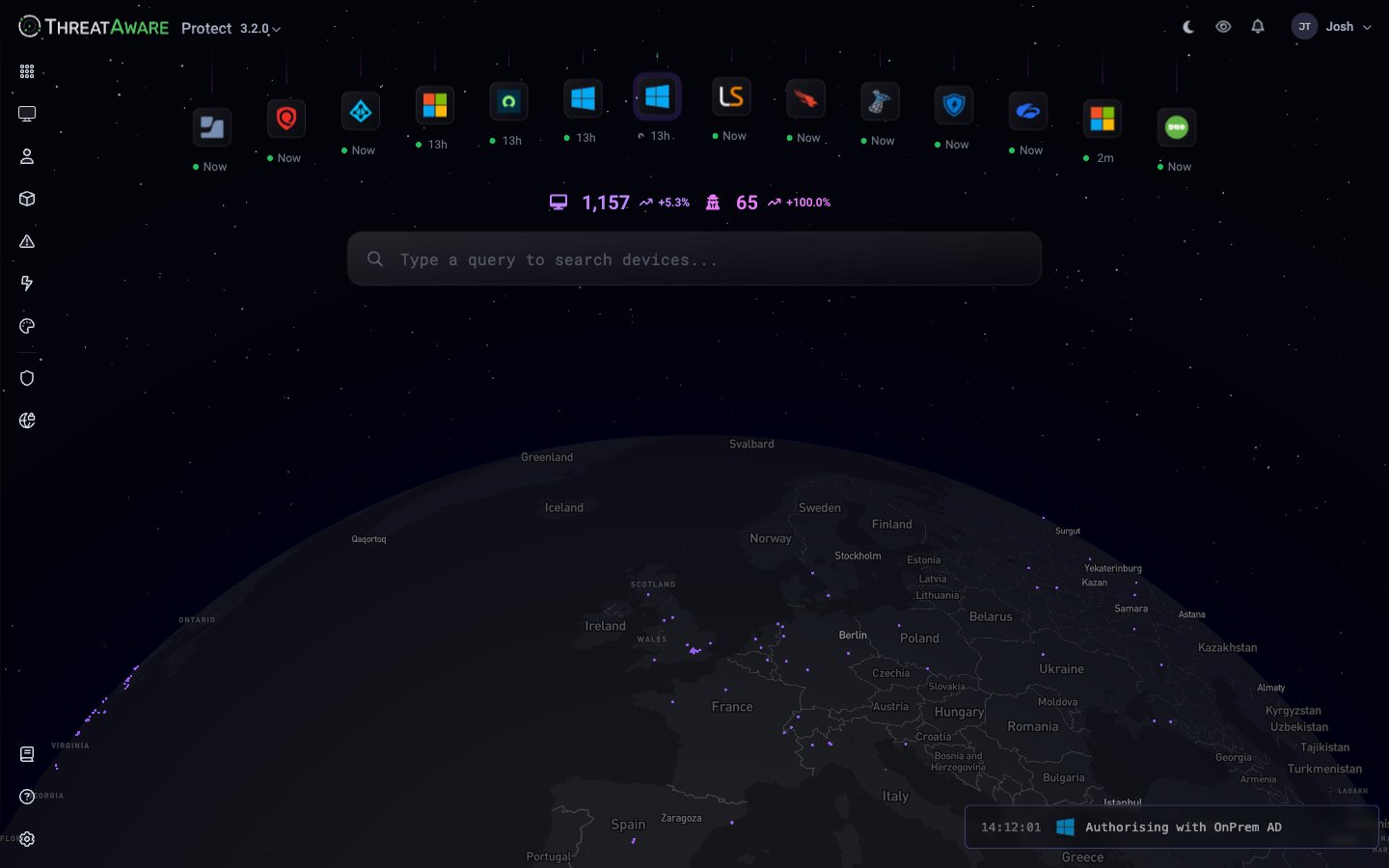
The **Device Explorer** at `/device-explorer` is the visual landing page for Protect. It surfaces three things at a glance:
1. **Where in the world** your devices are
2. **Which integrations are syncing right now**, and how recently each one ran
3. **A live activity feed** of what the platform is doing this very second
 Many customers set Device Explorer as the default landing page (in [Settings → Misc → Change default homepage](/settings/misc) — choose `Device Explorer`).
## Anatomy
### Integration sync row
Across the top, every connected integration shows as an icon with its time-since-last-sync:
| Indicator | Meaning |
| --------------------- | ------------------------------------- |
| `Now` | Last sync within the last few minutes |
| `12m` / `47m` / `53m` | Time since last successful sync |
| Greyed icon | Integration disconnected or paused |
Click any icon to jump to **Settings → Integrations** (titled "Systems" inside Settings) with that integration selected.
### Estate counters
Two large counters sit at the top-right of the page:
* **Identified** with delta arrow — total identified devices in the estate (e.g. `1,152 ↗ +4.4%`)
* **Stealth** with delta — devices discovered outside of existing management platforms (e.g. `60 ↗ +100.0%`). See [whats-new](/whats-new) for the Stealth Devices capability.
### Command bar
`Type a query to search devices...` — a unified search box that supports:
* Free-text device-name search (`ACS-31-`)
* The full [query language](/reference/query-syntax) (`os:Windows AND tags:End-User`)
* Natural-language input (interpreted by AI in tenants with AI access enabled)
Hitting Enter takes you to **Devices** filtered to the matching set.
### Global map
A 3D map rendering of your estate. Dots represent device clusters at each geographic location. Hover for the country and device count, click to filter the inventory.
The map data comes from IP geolocation — see [Glossary](/reference/glossary) for how Protect resolves device location.
### Activity feed
Bottom-right shows a streaming feed of platform events:
```text theme={null}
14:11:29 Setting up authentication request for OnPrem AD
14:11:57 Pulled 1,205 records from Qualys Scans
14:12:01 Authorising with OnPrem AD
14:12:04 Vitals recalculated for 88 devices
```
This is the same data as [Audit Log](/settings/audit-log) but filtered to active system operations and rendered live. Use it during onboarding to confirm sync activity is happening.
## When to use Device Explorer vs. Devices
| You want to… | Use |
| ------------------------------------------- | --------------------------------------------------------------- |
| Confirm integrations are healthy and recent | **Device Explorer** (the sync row at the top is unmissable) |
| See where devices live geographically | **Device Explorer** |
| Pivot a query into a saved view | **Devices** (Device Explorer routes to Devices when you search) |
| See per-device detail | **Devices** → click a row |
| Check overall security posture % | **Dashboard** |
## Tips
**Make the map work for you.** Hovering shows device count by region. If you operate across multiple offices, a quick map check confirms inventory shows up where it should before you go hunting in the inventory.
**Set Device Explorer as homepage for the SOC.** Analysts get an immediate confidence check that data is flowing, before they dive into Issues or the inventory.
## Next steps
Master the inventory grid
The full search syntax
Connect more sources
Many customers set Device Explorer as the default landing page (in [Settings → Misc → Change default homepage](/settings/misc) — choose `Device Explorer`).
## Anatomy
### Integration sync row
Across the top, every connected integration shows as an icon with its time-since-last-sync:
| Indicator | Meaning |
| --------------------- | ------------------------------------- |
| `Now` | Last sync within the last few minutes |
| `12m` / `47m` / `53m` | Time since last successful sync |
| Greyed icon | Integration disconnected or paused |
Click any icon to jump to **Settings → Integrations** (titled "Systems" inside Settings) with that integration selected.
### Estate counters
Two large counters sit at the top-right of the page:
* **Identified** with delta arrow — total identified devices in the estate (e.g. `1,152 ↗ +4.4%`)
* **Stealth** with delta — devices discovered outside of existing management platforms (e.g. `60 ↗ +100.0%`). See [whats-new](/whats-new) for the Stealth Devices capability.
### Command bar
`Type a query to search devices...` — a unified search box that supports:
* Free-text device-name search (`ACS-31-`)
* The full [query language](/reference/query-syntax) (`os:Windows AND tags:End-User`)
* Natural-language input (interpreted by AI in tenants with AI access enabled)
Hitting Enter takes you to **Devices** filtered to the matching set.
### Global map
A 3D map rendering of your estate. Dots represent device clusters at each geographic location. Hover for the country and device count, click to filter the inventory.
The map data comes from IP geolocation — see [Glossary](/reference/glossary) for how Protect resolves device location.
### Activity feed
Bottom-right shows a streaming feed of platform events:
```text theme={null}
14:11:29 Setting up authentication request for OnPrem AD
14:11:57 Pulled 1,205 records from Qualys Scans
14:12:01 Authorising with OnPrem AD
14:12:04 Vitals recalculated for 88 devices
```
This is the same data as [Audit Log](/settings/audit-log) but filtered to active system operations and rendered live. Use it during onboarding to confirm sync activity is happening.
## When to use Device Explorer vs. Devices
| You want to… | Use |
| ------------------------------------------- | --------------------------------------------------------------- |
| Confirm integrations are healthy and recent | **Device Explorer** (the sync row at the top is unmissable) |
| See where devices live geographically | **Device Explorer** |
| Pivot a query into a saved view | **Devices** (Device Explorer routes to Devices when you search) |
| See per-device detail | **Devices** → click a row |
| Check overall security posture % | **Dashboard** |
## Tips
**Make the map work for you.** Hovering shows device count by region. If you operate across multiple offices, a quick map check confirms inventory shows up where it should before you go hunting in the inventory.
**Set Device Explorer as homepage for the SOC.** Analysts get an immediate confidence check that data is flowing, before they dive into Issues or the inventory.
## Next steps
Master the inventory grid
The full search syntax
Connect more sources