> ## Documentation Index
> Fetch the complete documentation index at: https://docs.threataware.com/llms.txt
> Use this file to discover all available pages before exploring further.
# Settings → Audit Log
> Every meaningful action in Protect — who did what, when, and from where
## What gets logged
At `/settings/audit-log`:
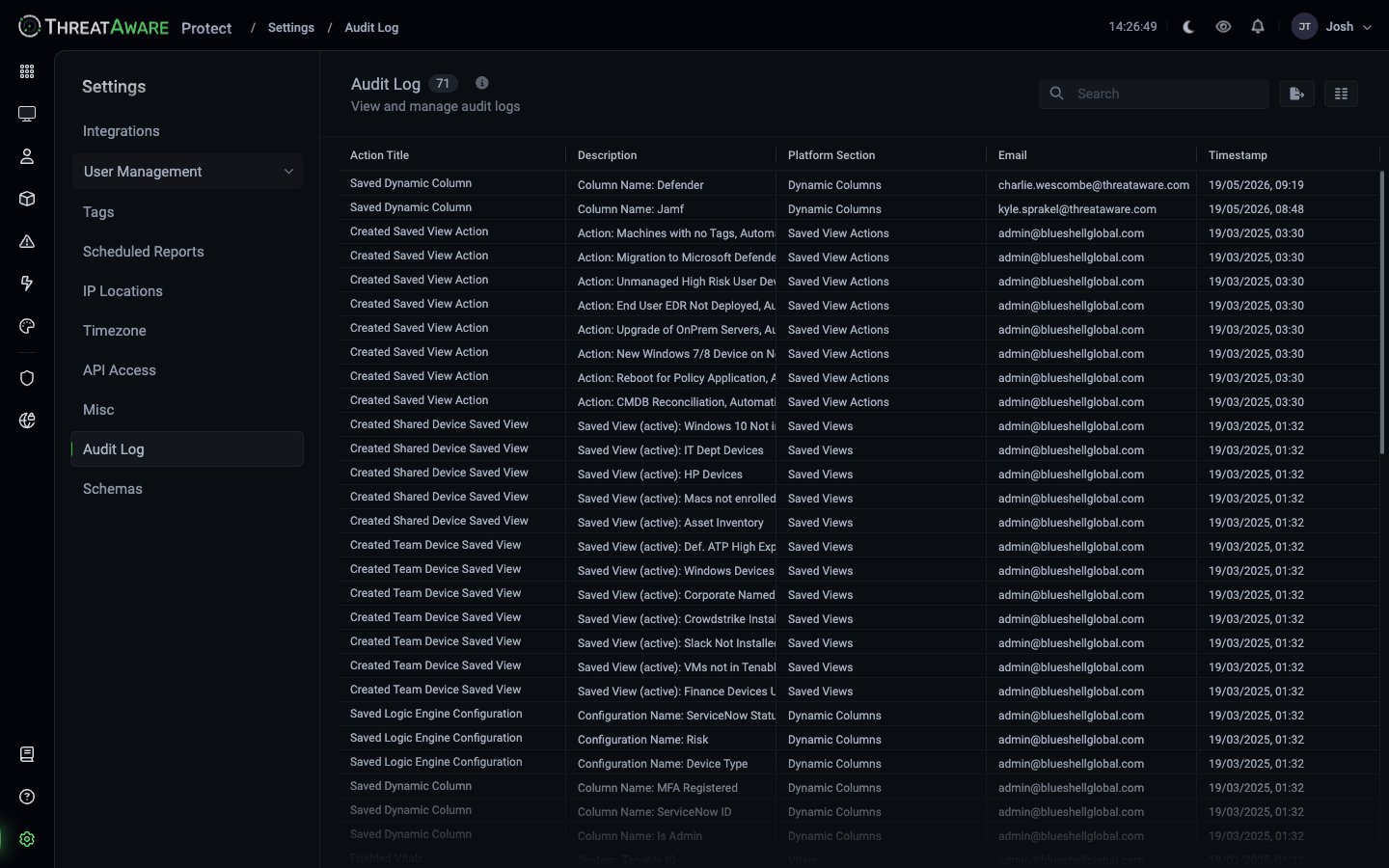 The audit log records every meaningful action across:
| Category | Examples |
| ------------------------- | ----------------------------------------------------------------------------------------- |
| **Configuration changes** | Vitals configuration edited, integration connected/disconnected, schema or column changes |
| **Saved Views & Actions** | Saved view created / edited, Saved View Action created |
| **Action lifecycle** | Action created / updated / paused |
| **Automation execution** | Email sent, ticket created, webhook fired |
| **API access** | Token usage by name |
(The exact categories visible in your tenant depend on what's been done — the **Platform Section** column shows the live set.)
## Columns
| Column | Meaning |
| -------------------- | ------------------------------------------------------------------------------- |
| **Action Title** | Short label (e.g. "Created Saved View Action", "Edited Vitals Configuration") |
| **Description** | One-line context (e.g. "System: Crowdstrike", "Column Name: Licences") |
| **Platform Section** | Top-level area — Saved Views, Saved View Actions, Dynamic Columns, Vitals, etc. |
| **Email** | User who performed the action |
| **Timestamp** | When it happened, in your locale (e.g. `21/05/2026, 13:28`) |
## Filtering
The Audit Log grid uses a **plain-text search** box at the top — it is **not** the [field-based query language](/query-language) used on Devices / Users / Software / Issues. Type a substring and the grid filters across the visible columns.
For more complex filtering (date ranges, IN-clauses, multiple conditions) export and filter externally, or use the API for structured queries.
## Retention
Audit log retention is set by your tenant policy. The default behaviour is to retain entries indefinitely; check with your tenant admin if you need to confirm the exact retention applied.
## Export
The toolbar at the top-right of the grid offers buttons for refresh and download. Common use cases:
* **SIEM ingest** — bulk export to Splunk, Sentinel, QRadar, Elastic
* **Audit deliverable** — period-specific extract for an external auditor
* **Investigation** — full-tenant pull around an incident
For SIEM you would normally prefer pulling via the API rather than manual exports — see [API Reference](/api-reference/introduction).
## Privacy considerations
The audit log includes the email of every user. For tenants with strict access requirements:
* The Audit Log permission itself can be restricted — not every role should see the log. The **Analyst** role sees "own" entries only by default; **Viewer** / **Limited Viewer** see nothing. See [Role Permissions](/reference/role-permissions).
* For external auditors, consider an anonymised export (replace emails with IDs).
## Best practices
Don't wait for the first incident. Get an export pipeline running during initial setup so historical context is available when needed.
Notable events — role creation, integration disconnect, large export — should trigger a real-time alert. Wire that via the API + your existing alerting stack.
Pair with [Settings → Users](/settings/users) to identify who's actually using the platform versus who's just been granted access.
The audit log records every meaningful action across:
| Category | Examples |
| ------------------------- | ----------------------------------------------------------------------------------------- |
| **Configuration changes** | Vitals configuration edited, integration connected/disconnected, schema or column changes |
| **Saved Views & Actions** | Saved view created / edited, Saved View Action created |
| **Action lifecycle** | Action created / updated / paused |
| **Automation execution** | Email sent, ticket created, webhook fired |
| **API access** | Token usage by name |
(The exact categories visible in your tenant depend on what's been done — the **Platform Section** column shows the live set.)
## Columns
| Column | Meaning |
| -------------------- | ------------------------------------------------------------------------------- |
| **Action Title** | Short label (e.g. "Created Saved View Action", "Edited Vitals Configuration") |
| **Description** | One-line context (e.g. "System: Crowdstrike", "Column Name: Licences") |
| **Platform Section** | Top-level area — Saved Views, Saved View Actions, Dynamic Columns, Vitals, etc. |
| **Email** | User who performed the action |
| **Timestamp** | When it happened, in your locale (e.g. `21/05/2026, 13:28`) |
## Filtering
The Audit Log grid uses a **plain-text search** box at the top — it is **not** the [field-based query language](/query-language) used on Devices / Users / Software / Issues. Type a substring and the grid filters across the visible columns.
For more complex filtering (date ranges, IN-clauses, multiple conditions) export and filter externally, or use the API for structured queries.
## Retention
Audit log retention is set by your tenant policy. The default behaviour is to retain entries indefinitely; check with your tenant admin if you need to confirm the exact retention applied.
## Export
The toolbar at the top-right of the grid offers buttons for refresh and download. Common use cases:
* **SIEM ingest** — bulk export to Splunk, Sentinel, QRadar, Elastic
* **Audit deliverable** — period-specific extract for an external auditor
* **Investigation** — full-tenant pull around an incident
For SIEM you would normally prefer pulling via the API rather than manual exports — see [API Reference](/api-reference/introduction).
## Privacy considerations
The audit log includes the email of every user. For tenants with strict access requirements:
* The Audit Log permission itself can be restricted — not every role should see the log. The **Analyst** role sees "own" entries only by default; **Viewer** / **Limited Viewer** see nothing. See [Role Permissions](/reference/role-permissions).
* For external auditors, consider an anonymised export (replace emails with IDs).
## Best practices
Don't wait for the first incident. Get an export pipeline running during initial setup so historical context is available when needed.
Notable events — role creation, integration disconnect, large export — should trigger a real-time alert. Wire that via the API + your existing alerting stack.
Pair with [Settings → Users](/settings/users) to identify who's actually using the platform versus who's just been granted access.