> ## Documentation Index
> Fetch the complete documentation index at: https://docs.threataware.com/llms.txt
> Use this file to discover all available pages before exploring further.
# Settings → Integrations
> The integration card list — connect, modify, monitor every external tool feeding Protect
## The page
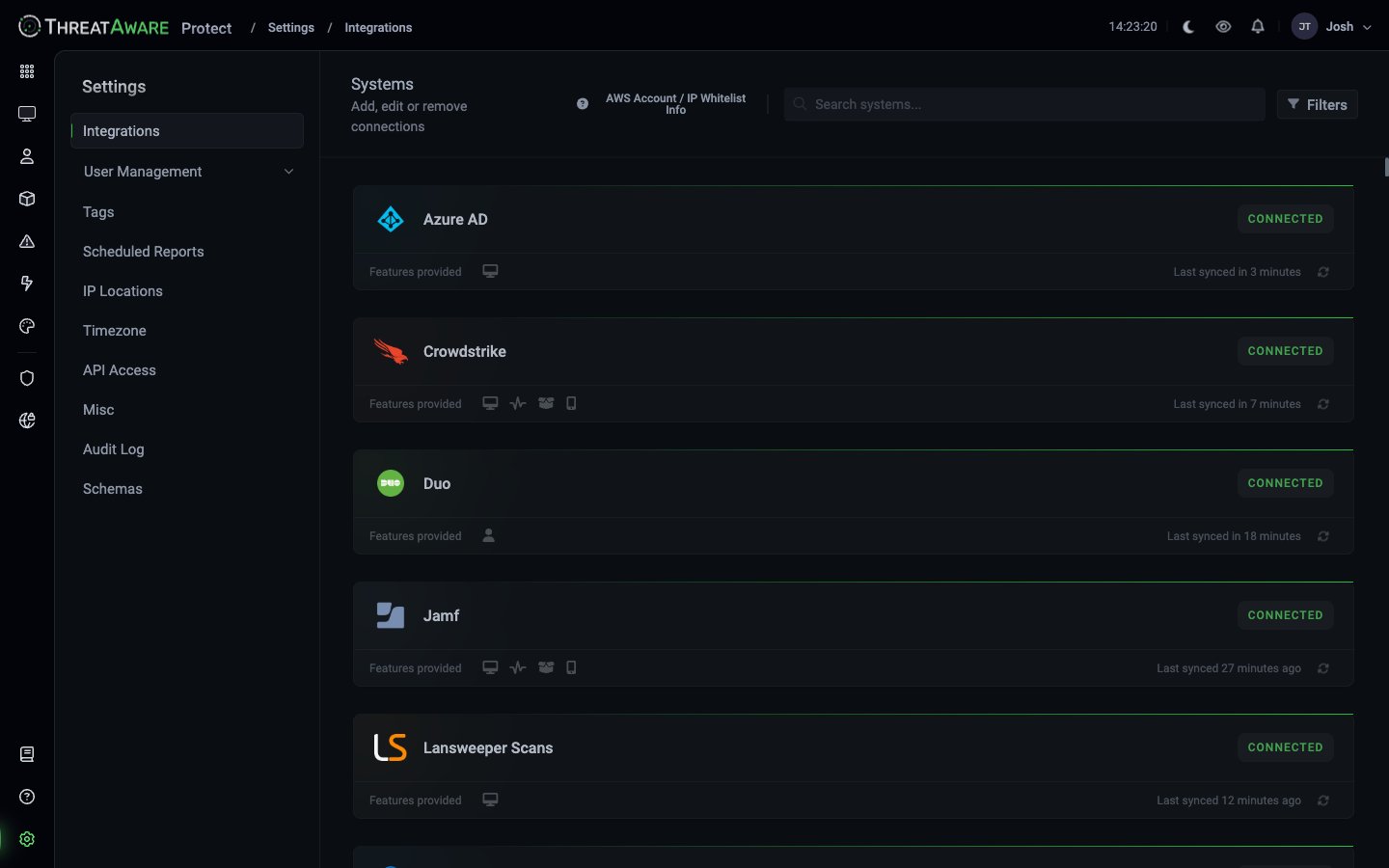
At `/settings/connections` (linked from the sidebar as "Integrations"; the page itself is titled **Systems** with the strap-line "Add, edit or remove connections"), each connected integration shows as a card:
 | Card element | Meaning |
| --------------------------- | ------------------------------------------------- |
| Vendor logo | Integration identity |
| Vendor name | Display name |
| **CONNECTED** badge | Shown when the integration is healthy and syncing |
| **Features provided** icons | What this integration contributes — see below |
| **Last synced** | "Last synced in N minutes" (or hours / days) |
| **Modify** button | Open the detail / configuration drawer |
## Page-level controls
* **AWS Account / IP Whitelist Info** (top — small i-in-circle) — opens a dialog listing egress IP ranges for firewall whitelisting
* **Search systems...** — filter the card list by integration name
* **Filters** — narrow by status / category / feature
## Feature icons (after "Features provided")
Each integration declares which Protect features it contributes to:
| Icon | Capability | Examples |
| ---------------- | -------------------------- | ------------------------------ |
| 💻 Desktop | Device inventory | Every device-aware integration |
| 📈 Signal/health | Vitals (functional health) | EDR, MDM, encryption tools |
| 🗂 Stack | Software inventory | Intune, SCCM, Jamf, Lansweeper |
| 📱 Mobile | Mobile device support | Intune, JAMF, MaaS360 |
| 👤 Person | User / identity | Entra ID, Okta, AD, Duo |
A CrowdStrike card with all four icons confirms it feeds device, Vitals, software, and mobile data. A Duo card with only the person icon confirms it's identity-only.
## Connecting a new integration
Use the search box at the top of the page.
A connect / configure flow opens. The exact flow depends on the integration's authentication model — OAuth, API key, basic auth, or PowerShell relay.
See the integration-specific guide in the **Connection Guides** tab for the exact fields.
For integrations that contribute to Vitals (the signal icon), use the column-gear in Devices to set per-tag requirements. See [Vitals Configuration](/vitals-configuration).
Initial sync can take 15-60 minutes. Watch the Last synced timestamp.
## Modifying an existing integration
Click any **CONNECTED** card to open the integration detail page:
* View sync history (last 10 runs with success/failure)
* Test the connection (forces a fresh API call without waiting for the next scheduled sync)
* Update credentials
* Configure feature toggles (which data types to pull)
* Pause the integration (stops syncs without deleting it)
* Disconnect (removes the integration and clears its data after a grace period)
* **Sync Now** — trigger an immediate refresh
## Health & alerts
Stale or broken integrations are surfaced in three places:
| Where | What you'll see |
| ------------------------------------------------------------------- | ------------------------------------------------- |
| **This page** | DISCONNECTED / WARNING badge |
| **[Device Explorer](/device-explorer)** | Integration row at the top shows stale timestamps |
| **[Dashboard → Integration Control](/platform-overview#dashboard)** | Cards highlight reduced health |
Best practice: set a [Continuous Action](/automation) that emails when any integration's last sync is > 24 hours old.
## Multi-tenancy
For integrations that support multiple tenants (Azure AD with multiple directories, CrowdStrike with multiple instances), click the connected card → **Modify** → toggle **Multi-Tenant**. See [Multi-Tenancy](/multi-tenancy).
## See also
Concepts and category catalogue
For on-prem integrations
Step-by-step per vendor
| Card element | Meaning |
| --------------------------- | ------------------------------------------------- |
| Vendor logo | Integration identity |
| Vendor name | Display name |
| **CONNECTED** badge | Shown when the integration is healthy and syncing |
| **Features provided** icons | What this integration contributes — see below |
| **Last synced** | "Last synced in N minutes" (or hours / days) |
| **Modify** button | Open the detail / configuration drawer |
## Page-level controls
* **AWS Account / IP Whitelist Info** (top — small i-in-circle) — opens a dialog listing egress IP ranges for firewall whitelisting
* **Search systems...** — filter the card list by integration name
* **Filters** — narrow by status / category / feature
## Feature icons (after "Features provided")
Each integration declares which Protect features it contributes to:
| Icon | Capability | Examples |
| ---------------- | -------------------------- | ------------------------------ |
| 💻 Desktop | Device inventory | Every device-aware integration |
| 📈 Signal/health | Vitals (functional health) | EDR, MDM, encryption tools |
| 🗂 Stack | Software inventory | Intune, SCCM, Jamf, Lansweeper |
| 📱 Mobile | Mobile device support | Intune, JAMF, MaaS360 |
| 👤 Person | User / identity | Entra ID, Okta, AD, Duo |
A CrowdStrike card with all four icons confirms it feeds device, Vitals, software, and mobile data. A Duo card with only the person icon confirms it's identity-only.
## Connecting a new integration
Use the search box at the top of the page.
A connect / configure flow opens. The exact flow depends on the integration's authentication model — OAuth, API key, basic auth, or PowerShell relay.
See the integration-specific guide in the **Connection Guides** tab for the exact fields.
For integrations that contribute to Vitals (the signal icon), use the column-gear in Devices to set per-tag requirements. See [Vitals Configuration](/vitals-configuration).
Initial sync can take 15-60 minutes. Watch the Last synced timestamp.
## Modifying an existing integration
Click any **CONNECTED** card to open the integration detail page:
* View sync history (last 10 runs with success/failure)
* Test the connection (forces a fresh API call without waiting for the next scheduled sync)
* Update credentials
* Configure feature toggles (which data types to pull)
* Pause the integration (stops syncs without deleting it)
* Disconnect (removes the integration and clears its data after a grace period)
* **Sync Now** — trigger an immediate refresh
## Health & alerts
Stale or broken integrations are surfaced in three places:
| Where | What you'll see |
| ------------------------------------------------------------------- | ------------------------------------------------- |
| **This page** | DISCONNECTED / WARNING badge |
| **[Device Explorer](/device-explorer)** | Integration row at the top shows stale timestamps |
| **[Dashboard → Integration Control](/platform-overview#dashboard)** | Cards highlight reduced health |
Best practice: set a [Continuous Action](/automation) that emails when any integration's last sync is > 24 hours old.
## Multi-tenancy
For integrations that support multiple tenants (Azure AD with multiple directories, CrowdStrike with multiple instances), click the connected card → **Modify** → toggle **Multi-Tenant**. See [Multi-Tenancy](/multi-tenancy).
## See also
Concepts and category catalogue
For on-prem integrations
Step-by-step per vendor