> ## Documentation Index
> Fetch the complete documentation index at: https://docs.threataware.com/llms.txt
> Use this file to discover all available pages before exploring further.
# Settings → IP Locations
> Define public IP locations for accurate device geolocation
## What this page is for
At `/settings/ip-location` (singular), the IP Locations page lets you define **Public Locations** — IP ranges mapped to friendly named locations.
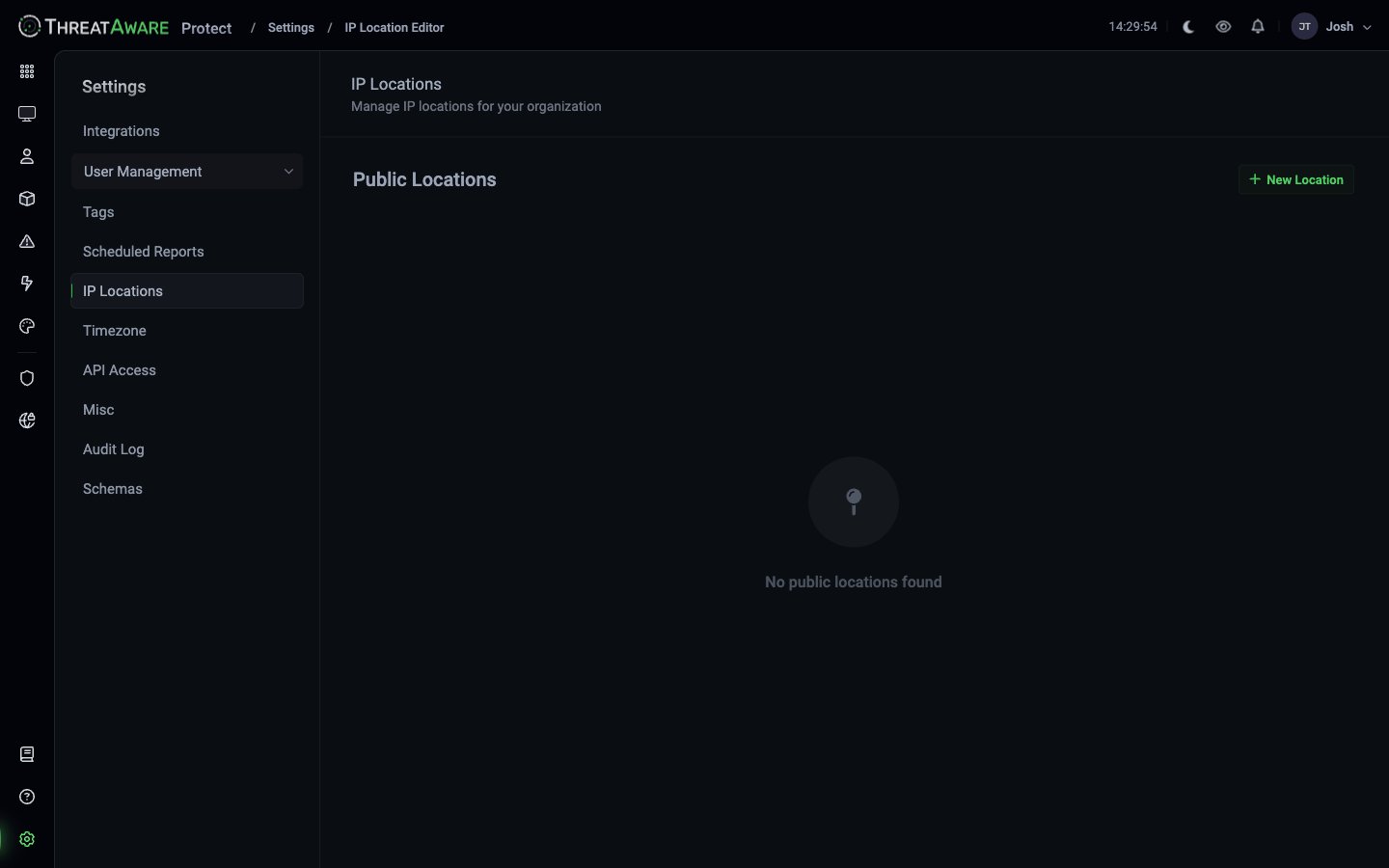 By default, Protect geolocates devices using their public IP via standard databases (e.g. resolving `203.0.113.x` to "London, United Kingdom"). That works for most cases but misses some realities:
* VPN egress IPs lump remote workers into one city
* Branch offices on shared upstreams look like the head office
* Cloud-NAT'd traffic gets attributed to the provider's region
Public Locations override the default geolocation for specific IP ranges with your real-world names.
## Adding a location
Top-right.
* **Name** — friendly label (e.g. `HQ London`, `Branch — Manchester`, `VPN — Engineering`)
* **Public IP / range** — single IP or CIDR (`203.0.113.0/24`)
* **City** / **Region** / **Country** — what Protect will display for devices behind this IP
Latitude / longitude for accurate map plotting (Device Explorer's globe).
Devices currently appearing as the default-geolocated location will re-attribute on the next sync.
## Common patterns
| Pattern | Example |
| --------------- | ------------------------------------------------- |
| **Office IP** | `203.0.113.5` → `HQ — London` |
| **Office /24** | `203.0.113.0/24` → `Branch — Manchester` |
| **VPN gateway** | `198.51.100.0/29` → `VPN — Corporate (egress UK)` |
| **Cloud NAT** | `35.205.0.0/16` → `Cloud — eu-west-1` |
## Why it matters
The `location.country` and `location.city` fields are used in many places:
* **Devices grid** Location column
* **Tag rules** like `location.country:United Kingdom`
* **Dashboard** Tag Coverage Map (when location-based tags exist)
* **Geographic risk reporting** — "devices in restricted countries"
* **Saved views** filtered by region
A device incorrectly attributed to "Mountain View, US" because it's behind a VPN to a different region pollutes every downstream view. Correct IP-Locations fix this cleanly.
## Best practices
The most common geolocation surprise — remote workers appearing to be in the VPN exit's city. Configure these first.
Cloud-hosted servers behind NAT or load balancers can attribute to the cloud provider's data centre, not your business region. Override.
Once you've got accurate locations, build location-based tags (`UK`, `EMEA`, `APAC`) and use them in Vitals requirements.
When you change ISPs, restructure NAT, or migrate offices, re-validate your IP Locations.
## Cross-references
Where the map view uses these locations
Location-based tag rules
Filter by `location.*` fields
By default, Protect geolocates devices using their public IP via standard databases (e.g. resolving `203.0.113.x` to "London, United Kingdom"). That works for most cases but misses some realities:
* VPN egress IPs lump remote workers into one city
* Branch offices on shared upstreams look like the head office
* Cloud-NAT'd traffic gets attributed to the provider's region
Public Locations override the default geolocation for specific IP ranges with your real-world names.
## Adding a location
Top-right.
* **Name** — friendly label (e.g. `HQ London`, `Branch — Manchester`, `VPN — Engineering`)
* **Public IP / range** — single IP or CIDR (`203.0.113.0/24`)
* **City** / **Region** / **Country** — what Protect will display for devices behind this IP
Latitude / longitude for accurate map plotting (Device Explorer's globe).
Devices currently appearing as the default-geolocated location will re-attribute on the next sync.
## Common patterns
| Pattern | Example |
| --------------- | ------------------------------------------------- |
| **Office IP** | `203.0.113.5` → `HQ — London` |
| **Office /24** | `203.0.113.0/24` → `Branch — Manchester` |
| **VPN gateway** | `198.51.100.0/29` → `VPN — Corporate (egress UK)` |
| **Cloud NAT** | `35.205.0.0/16` → `Cloud — eu-west-1` |
## Why it matters
The `location.country` and `location.city` fields are used in many places:
* **Devices grid** Location column
* **Tag rules** like `location.country:United Kingdom`
* **Dashboard** Tag Coverage Map (when location-based tags exist)
* **Geographic risk reporting** — "devices in restricted countries"
* **Saved views** filtered by region
A device incorrectly attributed to "Mountain View, US" because it's behind a VPN to a different region pollutes every downstream view. Correct IP-Locations fix this cleanly.
## Best practices
The most common geolocation surprise — remote workers appearing to be in the VPN exit's city. Configure these first.
Cloud-hosted servers behind NAT or load balancers can attribute to the cloud provider's data centre, not your business region. Override.
Once you've got accurate locations, build location-based tags (`UK`, `EMEA`, `APAC`) and use them in Vitals requirements.
When you change ISPs, restructure NAT, or migrate offices, re-validate your IP Locations.
## Cross-references
Where the map view uses these locations
Location-based tag rules
Filter by `location.*` fields