> ## Documentation Index
> Fetch the complete documentation index at: https://docs.threataware.com/llms.txt
> Use this file to discover all available pages before exploring further.
# Settings → Roles
> The four default roles (Super Admin, Analyst, Viewer, Limited Viewer) and how to define custom roles
## The four default roles
At `/settings/roles`:
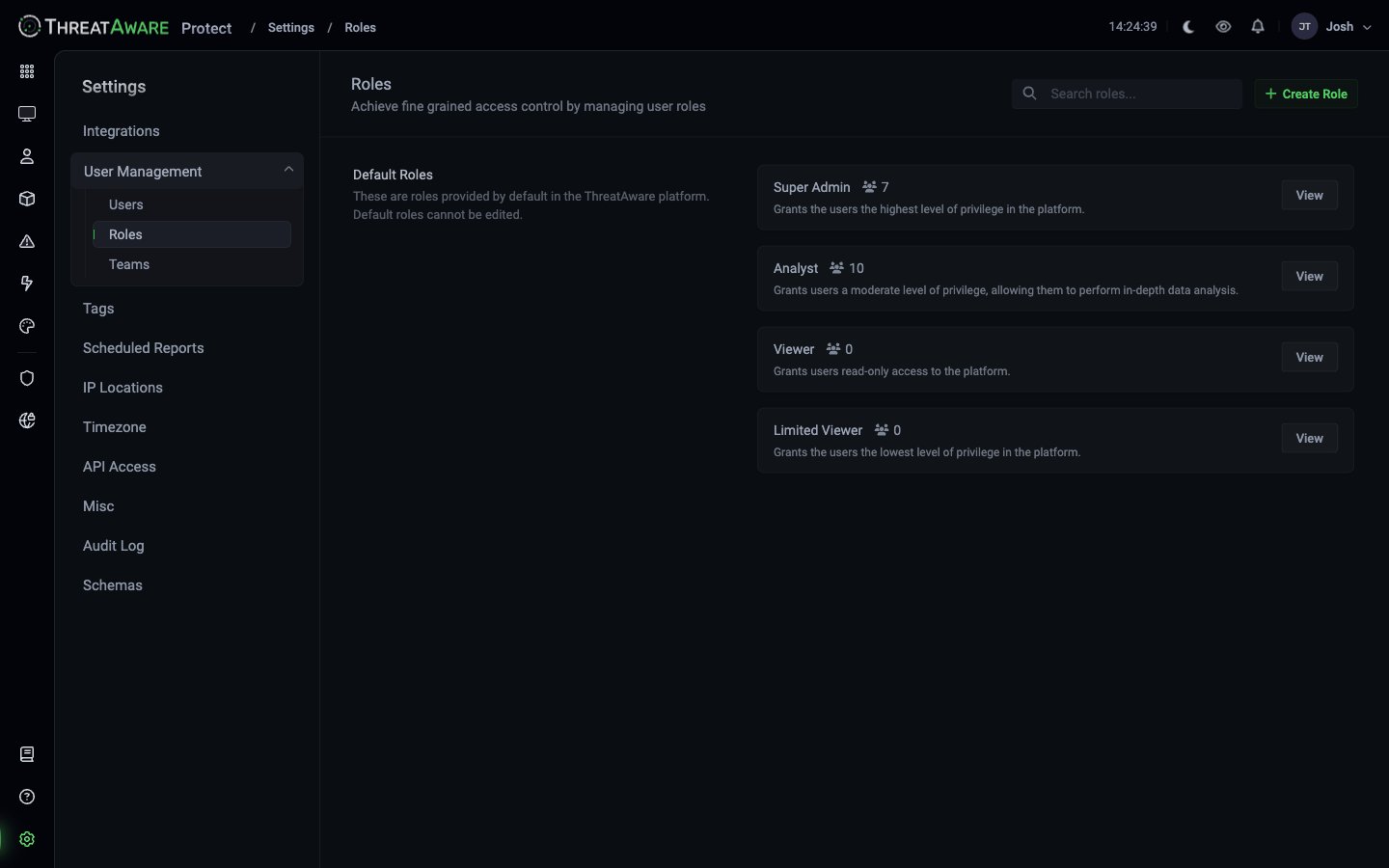 The page is split into **Default Roles** (the four built-ins, *"Default roles cannot be edited"*) and any custom roles you create:
| Role | Tagline (verbatim) | Best for |
| ------------------ | ------------------------------------------------------------------------------------------------ | ----------------------------------------------------------------------- |
| **Super Admin** | *"Grants the users the highest level of privilege in the platform."* | Platform owners, IT leadership, the initial setup team |
| **Analyst** | *"Grants users a moderate level of privilege, allowing them to perform in-depth data analysis."* | SOC analysts, security engineers, IT operations |
| **Viewer** | *"Grants users read-only access to the platform."* | Compliance, audit, leadership who consume but don't change |
| **Limited Viewer** | *"Grants the users the lowest level of privilege in the platform."* | External parties, narrowly-scoped reviewers, auto-provisioned new users |
The user count badge next to each role shows how many users currently hold that role.
## Why default roles are immutable
Default roles are guaranteed-shape — Protect's documentation, support, and example flows all assume their permissions exactly as shipped. If you need a tweak, **clone the role** by creating a custom role and copying the permissions to start from a known baseline.
## Creating a custom role
Top-right of the page.
Give the role a clear name (e.g. `MSP Technician — Client Acme`) and a description that explains its intended use.
Tick / untick capabilities across these areas:
* **Device visibility** (all / filtered by tag-location-class)
* **Issue management** (view / create / pause / delete)
* **Action management** (view / create / pause / delete)
* **Reporting** (view / export / schedule)
* **Integrations** (view / connect / configure)
* **Studio** (view apps / build / publish)
* **Settings** (none / subset / all)
* **User management** (none / invite / manage roles)
* **Audit log** (none / view / export)
The role appears below the default roles and is immediately assignable.
## Editing custom roles
Click any custom role's **Edit** to modify its permissions. Existing users with the role get the new permissions on their next sign-in.
Removing permissions from a role affects every user holding it. Test in a non-production environment, or create a v2 of the role, migrate users, then retire the v1.
## Role design patterns
* Device visibility: filtered to `tags:Client-Acme`
* Reporting: view + export (within filter)
* Actions: view only
* Settings: none
* Audit log: none
Create one of these per client. Pair with [Teams](/settings/teams) so technicians can share saved views among themselves.
* Device visibility: `tags:End-User` (or specific device-class tags configured for your tenant)
* Actions: create, manage, pause (but not delete others')
* Studio: view + build, no publish
* Settings: none except own profile
Lets engineers act on their part of the estate without touching servers or platform config.
* Device visibility: all, but **field-level** hide of `metadata.serial_number`, `macAddress`, `lastUser.email`
* Reporting: view only — no export
* Audit log: view only
* Auto-expire after 60 days (set in user-level permissions)
Useful when granting time-bound auditor access. Pair with [Settings → Users](/settings/users) → expiration date on the user.
* Device visibility: all
* Actions: view only
* Reporting: full export access, schedule access
* Studio: view + clone, no publish
* Audit log: full
Read-deep, write-shallow — what compliance teams actually do.
## Best practice: keep it minimal
Most organisations need at most:
* 4 defaults + 3-4 custom roles
If you find yourself creating a fifth or sixth custom role, ask whether the difference is better expressed as a data filter on the user instead — Protect's per-user data filter capability often eliminates the need for many parallel role definitions.
## Cross-references
The conceptual model
Assign roles to users
Permission matrix
The page is split into **Default Roles** (the four built-ins, *"Default roles cannot be edited"*) and any custom roles you create:
| Role | Tagline (verbatim) | Best for |
| ------------------ | ------------------------------------------------------------------------------------------------ | ----------------------------------------------------------------------- |
| **Super Admin** | *"Grants the users the highest level of privilege in the platform."* | Platform owners, IT leadership, the initial setup team |
| **Analyst** | *"Grants users a moderate level of privilege, allowing them to perform in-depth data analysis."* | SOC analysts, security engineers, IT operations |
| **Viewer** | *"Grants users read-only access to the platform."* | Compliance, audit, leadership who consume but don't change |
| **Limited Viewer** | *"Grants the users the lowest level of privilege in the platform."* | External parties, narrowly-scoped reviewers, auto-provisioned new users |
The user count badge next to each role shows how many users currently hold that role.
## Why default roles are immutable
Default roles are guaranteed-shape — Protect's documentation, support, and example flows all assume their permissions exactly as shipped. If you need a tweak, **clone the role** by creating a custom role and copying the permissions to start from a known baseline.
## Creating a custom role
Top-right of the page.
Give the role a clear name (e.g. `MSP Technician — Client Acme`) and a description that explains its intended use.
Tick / untick capabilities across these areas:
* **Device visibility** (all / filtered by tag-location-class)
* **Issue management** (view / create / pause / delete)
* **Action management** (view / create / pause / delete)
* **Reporting** (view / export / schedule)
* **Integrations** (view / connect / configure)
* **Studio** (view apps / build / publish)
* **Settings** (none / subset / all)
* **User management** (none / invite / manage roles)
* **Audit log** (none / view / export)
The role appears below the default roles and is immediately assignable.
## Editing custom roles
Click any custom role's **Edit** to modify its permissions. Existing users with the role get the new permissions on their next sign-in.
Removing permissions from a role affects every user holding it. Test in a non-production environment, or create a v2 of the role, migrate users, then retire the v1.
## Role design patterns
* Device visibility: filtered to `tags:Client-Acme`
* Reporting: view + export (within filter)
* Actions: view only
* Settings: none
* Audit log: none
Create one of these per client. Pair with [Teams](/settings/teams) so technicians can share saved views among themselves.
* Device visibility: `tags:End-User` (or specific device-class tags configured for your tenant)
* Actions: create, manage, pause (but not delete others')
* Studio: view + build, no publish
* Settings: none except own profile
Lets engineers act on their part of the estate without touching servers or platform config.
* Device visibility: all, but **field-level** hide of `metadata.serial_number`, `macAddress`, `lastUser.email`
* Reporting: view only — no export
* Audit log: view only
* Auto-expire after 60 days (set in user-level permissions)
Useful when granting time-bound auditor access. Pair with [Settings → Users](/settings/users) → expiration date on the user.
* Device visibility: all
* Actions: view only
* Reporting: full export access, schedule access
* Studio: view + clone, no publish
* Audit log: full
Read-deep, write-shallow — what compliance teams actually do.
## Best practice: keep it minimal
Most organisations need at most:
* 4 defaults + 3-4 custom roles
If you find yourself creating a fifth or sixth custom role, ask whether the difference is better expressed as a data filter on the user instead — Protect's per-user data filter capability often eliminates the need for many parallel role definitions.
## Cross-references
The conceptual model
Assign roles to users
Permission matrix