> ## Documentation Index
> Fetch the complete documentation index at: https://docs.threataware.com/llms.txt
> Use this file to discover all available pages before exploring further.
# Settings → Scheduled Reports
> Recurring email exports of saved views — CSV, JSON, XLSX on daily, weekly, monthly, or quarterly schedules
## The page
`/settings/scheduled-reports` — *"Manage and schedule recurring reports for timely insights."*
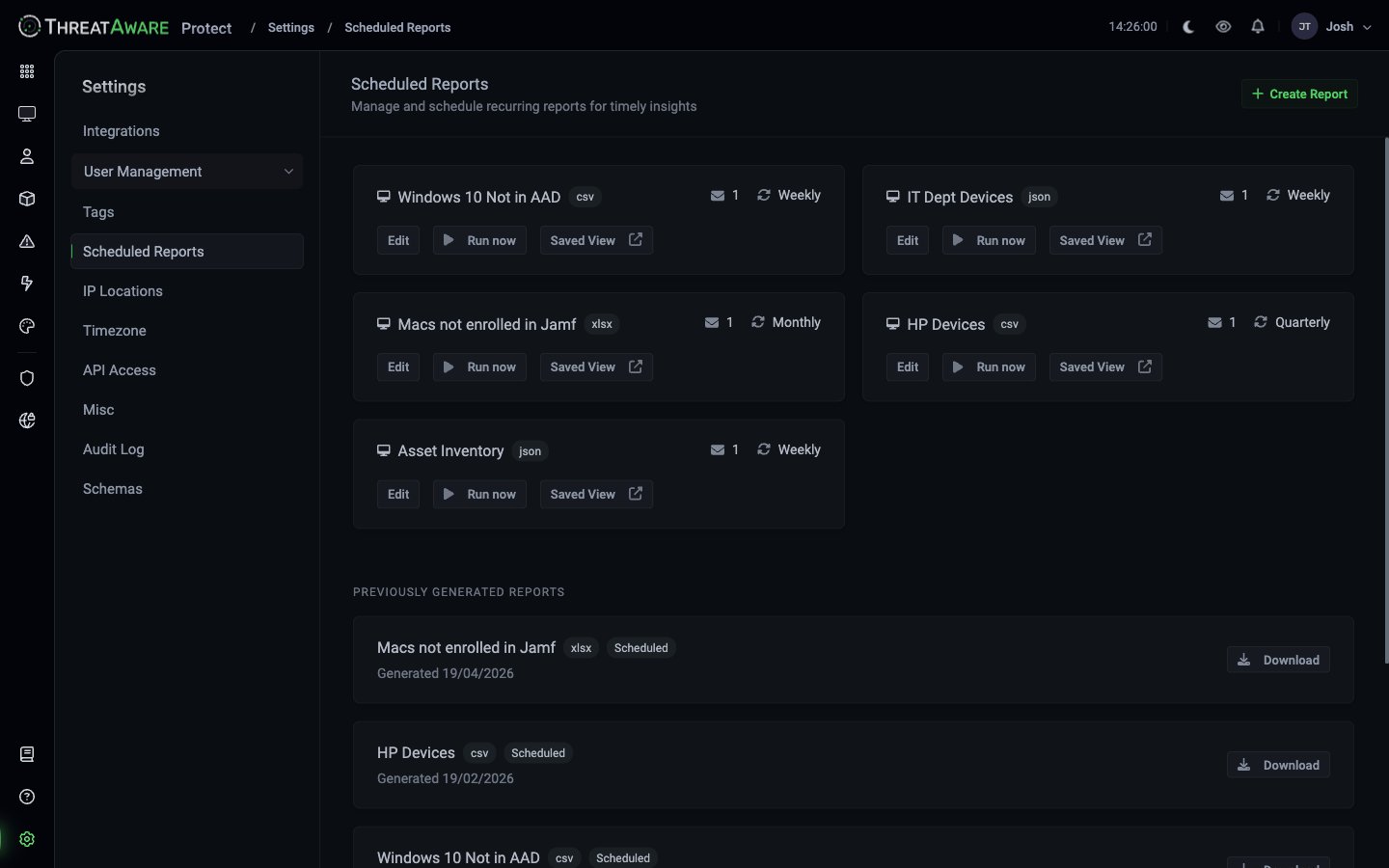 Each card represents one scheduled report:
| Element | Meaning |
| ---------------- | ------------------------------------------ |
| Report name | The Saved View this report exports |
| Format badge | CSV / JSON / XLSX |
| ✉️ N | Number of recipients |
| Schedule | Daily / Weekly / Monthly / Quarterly |
| **Edit** | Modify schedule, format, recipients |
| **Run now** | Trigger an immediate export + email |
| **Saved View ↗** | Jump to the underlying view in the product |
Top-right: **+ Create Report**.
Below the active schedules: **PREVIOUSLY GENERATED REPORTS** — every past delivery with a Download button.
## How scheduled reports work
A scheduled report has three configured parts — **Saved View** + **Format** + **Schedule** — which combine to produce an email delivery at the scheduled time.
At the scheduled time, Protect:
1. Re-runs the saved view's query against current data
2. Renders the result in the chosen format (CSV / JSON / XLSX)
3. Emails the file to all recipients
4. Stores a copy in **PREVIOUSLY GENERATED REPORTS** for download
## Creating a scheduled report
Top-right.
Dropdown of all saved views you have access to. If you haven't saved one yet, do so in [Devices](/device-management) / [Users](/user-inventory) / [Issues](/issues) / [Software](/software-inventory) first.
* **CSV** — best for Excel, easy import into BI tools
* **JSON** — best for scripts, automation, data warehouse
* **XLSX** — best for direct Excel consumption with formatting preserved
* **Daily** + time
* **Weekly** + day-of-week + time
* **Monthly** + day-of-month (or "last day") + time
* **Quarterly** + day-of-quarter
Comma-separated email list. External addresses are fine.
The schedule is live. Click **Run now** to verify the email pipeline before waiting for the scheduled time.
## Common scheduled reports
Example schedules include:
| Report | Format | Schedule | Pattern |
| ------------------------- | ------ | -------- | -------------------------------------------- |
| Macs not enrolled in Jamf | json | Weekly | Tag-based Vitals — Macs requiring MDM |
| HP Devices | xlsx | Monthly | Hardware asset audit |
| Windows 10 Not in AAD | xlsx | Weekly | Coverage gap |
| Asset Inventory | json | Monthly | Full estate inventory for the data warehouse |
| IT Dept Devices | csv | Weekly | Department slice for IT inventory tracking |
Replicate any of these patterns:
| Pattern | Example query |
| ---------------------- | ------------------------------------------------------------------------------------------ |
| Coverage gap | `tags:End-User AND system.crowdstrike.required:true AND system.crowdstrike.deployed:false` |
| Broken agents | `system.crowdstrike.deployed:true AND system.crowdstrike.functioning:false` |
| Compliance snapshot | All required Vitals = Healthy / by tag |
| OS migration | `osVersion:Windows 10` for Win10 → Win11 tracker (uses `:` not `contains`) |
| Software audit | Software Inventory filter for a specific package |
| MSP client deliverable | `tags:Client-Acme`, branded |
## Limitations
**Snapshot, not live.** Each delivery is point-in-time. Recipients can't drill into the data; they get a static file.
**Row limit.** Max 100,000 rows per report. Larger sets either split by tag or use the [API](/api-reference/introduction).
**Email size limits.** Recipient mail providers typically cap attachments around 25 MB. If your XLSX is over this, switch to CSV (more compact) or hand off to a Power Automate flow that writes to SharePoint.
## Best practices
Operational reports: Monday morning. Leadership reports: first business day of the month. Avoid Friday afternoon.
A daily report to 30 people is mostly noise. Three close partners + a shared inbox usually serves the audience without burying it.
If you're emailing a list of broken devices weekly, you should also have an Action driving remediation. Reports without ownership become wallpaper.
The PREVIOUSLY GENERATED REPORTS list is convenience. For compliance archives, configure the recipient list to include a shared mailbox that forwards to your audit retention system.
## Cross-references
Conceptual view of reporting surfaces
Prerequisite for scheduling
For richer / interactive reports
Each card represents one scheduled report:
| Element | Meaning |
| ---------------- | ------------------------------------------ |
| Report name | The Saved View this report exports |
| Format badge | CSV / JSON / XLSX |
| ✉️ N | Number of recipients |
| Schedule | Daily / Weekly / Monthly / Quarterly |
| **Edit** | Modify schedule, format, recipients |
| **Run now** | Trigger an immediate export + email |
| **Saved View ↗** | Jump to the underlying view in the product |
Top-right: **+ Create Report**.
Below the active schedules: **PREVIOUSLY GENERATED REPORTS** — every past delivery with a Download button.
## How scheduled reports work
A scheduled report has three configured parts — **Saved View** + **Format** + **Schedule** — which combine to produce an email delivery at the scheduled time.
At the scheduled time, Protect:
1. Re-runs the saved view's query against current data
2. Renders the result in the chosen format (CSV / JSON / XLSX)
3. Emails the file to all recipients
4. Stores a copy in **PREVIOUSLY GENERATED REPORTS** for download
## Creating a scheduled report
Top-right.
Dropdown of all saved views you have access to. If you haven't saved one yet, do so in [Devices](/device-management) / [Users](/user-inventory) / [Issues](/issues) / [Software](/software-inventory) first.
* **CSV** — best for Excel, easy import into BI tools
* **JSON** — best for scripts, automation, data warehouse
* **XLSX** — best for direct Excel consumption with formatting preserved
* **Daily** + time
* **Weekly** + day-of-week + time
* **Monthly** + day-of-month (or "last day") + time
* **Quarterly** + day-of-quarter
Comma-separated email list. External addresses are fine.
The schedule is live. Click **Run now** to verify the email pipeline before waiting for the scheduled time.
## Common scheduled reports
Example schedules include:
| Report | Format | Schedule | Pattern |
| ------------------------- | ------ | -------- | -------------------------------------------- |
| Macs not enrolled in Jamf | json | Weekly | Tag-based Vitals — Macs requiring MDM |
| HP Devices | xlsx | Monthly | Hardware asset audit |
| Windows 10 Not in AAD | xlsx | Weekly | Coverage gap |
| Asset Inventory | json | Monthly | Full estate inventory for the data warehouse |
| IT Dept Devices | csv | Weekly | Department slice for IT inventory tracking |
Replicate any of these patterns:
| Pattern | Example query |
| ---------------------- | ------------------------------------------------------------------------------------------ |
| Coverage gap | `tags:End-User AND system.crowdstrike.required:true AND system.crowdstrike.deployed:false` |
| Broken agents | `system.crowdstrike.deployed:true AND system.crowdstrike.functioning:false` |
| Compliance snapshot | All required Vitals = Healthy / by tag |
| OS migration | `osVersion:Windows 10` for Win10 → Win11 tracker (uses `:` not `contains`) |
| Software audit | Software Inventory filter for a specific package |
| MSP client deliverable | `tags:Client-Acme`, branded |
## Limitations
**Snapshot, not live.** Each delivery is point-in-time. Recipients can't drill into the data; they get a static file.
**Row limit.** Max 100,000 rows per report. Larger sets either split by tag or use the [API](/api-reference/introduction).
**Email size limits.** Recipient mail providers typically cap attachments around 25 MB. If your XLSX is over this, switch to CSV (more compact) or hand off to a Power Automate flow that writes to SharePoint.
## Best practices
Operational reports: Monday morning. Leadership reports: first business day of the month. Avoid Friday afternoon.
A daily report to 30 people is mostly noise. Three close partners + a shared inbox usually serves the audience without burying it.
If you're emailing a list of broken devices weekly, you should also have an Action driving remediation. Reports without ownership become wallpaper.
The PREVIOUSLY GENERATED REPORTS list is convenience. For compliance archives, configure the recipient list to include a shared mailbox that forwards to your audit retention system.
## Cross-references
Conceptual view of reporting surfaces
Prerequisite for scheduling
For richer / interactive reports