> ## Documentation Index
> Fetch the complete documentation index at: https://docs.threataware.com/llms.txt
> Use this file to discover all available pages before exploring further.
# Software Inventory
> Tag-scoped software list — every application installed on every device, per device-group
**Tier:** Software Inventory is included in the **Protect** tier. Customers on Connect or Discover see device inventory only — talk to your account team about upgrading if you need software visibility.
## Why tag-first
Unlike Devices or Users, **Software Inventory** opens with a tag picker rather than a giant table:
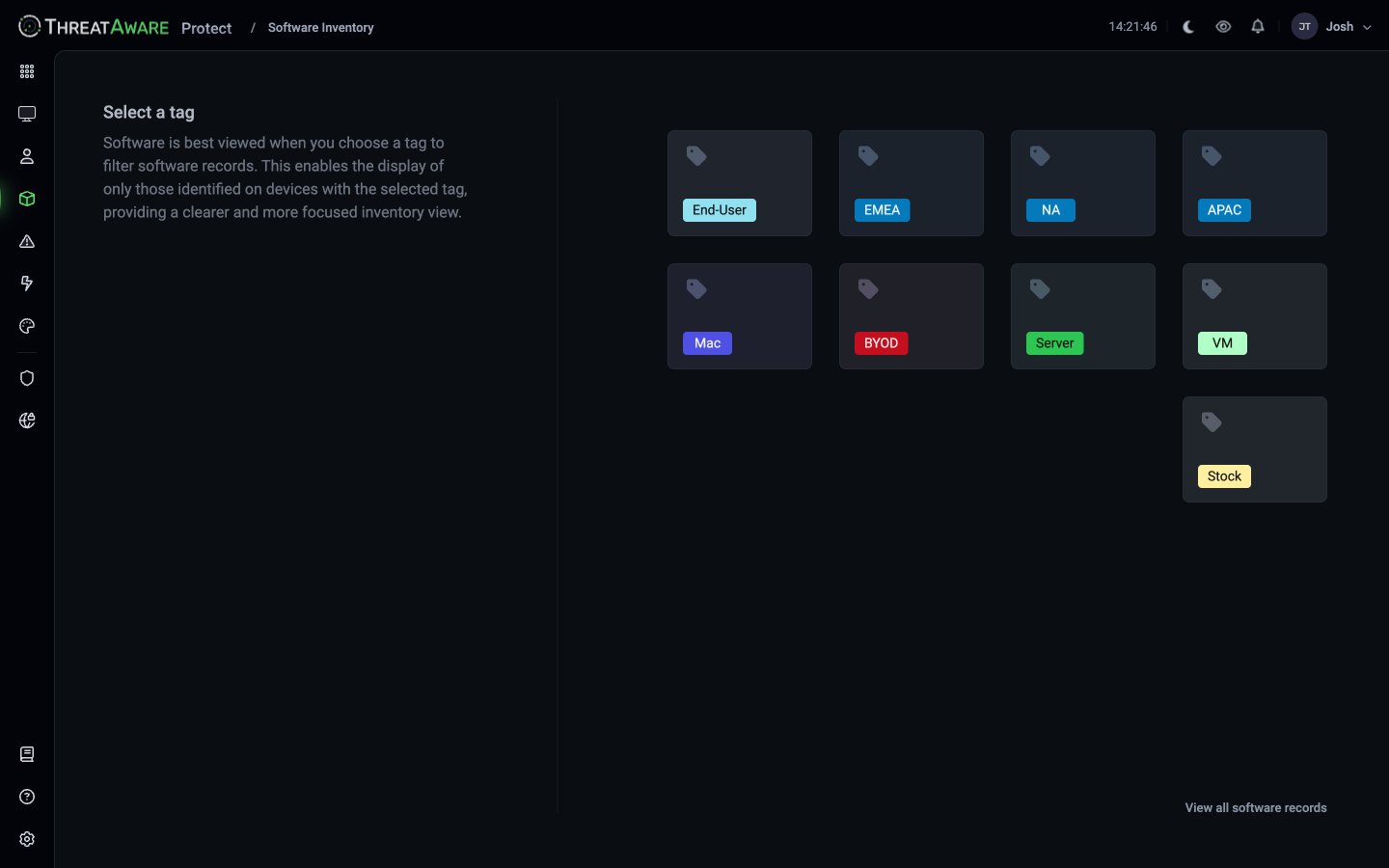 This is by design. Across a 10,000-device estate the raw software inventory is huge and rarely useful in aggregate. Almost every meaningful question is *"what's installed across my \[tag] devices?"* — so the picker forces you to scope first.
The screen text explains it:
> Software is best viewed when you choose a tag to filter software records. This enables the display of only those identified on devices with the selected tag, providing a clearer and more focused inventory view.
Pick a tag → the software grid loads for the matching devices.
## Tag-first behaviour can be turned off
If you'd rather always land on the full grid:
1. Go to [Settings → Misc](/settings/misc)
2. Find **Show Software Inventory tag selector**
3. Switch from `Select by tag` to `Show all` (or similar — the dropdown options match your version)
This skips the picker and loads all software records.
## Grid columns
Once scoped, the inventory shows four columns:
| Column | What it is |
| ----------- | ----------------------------------------------------------------------------------------------------------------- |
| **Product** | Application name as reported by source integrations |
| **Status** | Per-software workflow status — typical values seen: `Not reviewed`, `Has conditional rules` |
| **Version** | Number of distinct version strings observed across the estate (click the row to expand the per-version breakdown) |
| **Devices** | Per-version device count plus its review state (e.g. "584 not reviewed") |
A row at the bottom shows the source filter ("All Sources") and the device-state filter ("Active Devices") that scope the totals.
Custom columns are added via the column editor.
## Common workflows
| Goal | Approach |
| ------------------------------------- | ------------------------------------------------------------------------------------------------------------------------------ |
| Find vulnerable versions of a package | Pick the relevant tag → type the product name into the **Search software...** box → expand the row to see version distribution |
| Identify shadow IT | Pick the relevant tag → scan the Product column for unexpected vendors |
| Track migration to a new app | Compare device counts in old vs new version rows |
| Software audit per region | Pick `EMEA` → export the grid |
| Inactive licenses | Sort the **Devices** column ascending and review the lowest-device-count entries |
The search box is a plain-text substring filter on the Product column — it is **not** the [field-based query language](/query-language).
## Investigating a software entry
Click a row to open the software detail panel:
* **Devices** — every device in scope that has this software, with version per device
* **Cross-source confidence** — which integrations confirm this software (more sources = higher confidence)
* **Activity** — install/uninstall timeline
This is where Protect's cross-tool model pays off — a software entry confirmed by both Intune and Lansweeper is higher signal than one reported only by a single network scan.
## When software inventory comes from where
Different integrations report software differently:
| Source | What it reports | Caveats |
| -------------------------- | ------------------------------------------------------------ | -------------------------------------------------- |
| **Microsoft Intune** | Apps managed via Intune, plus discovered apps on Win/Mac/iOS | Windows discovered-apps requires advanced config |
| **Microsoft Defender ATP** | Inventory via vulnerability management | Highest fidelity for vuln correlation |
| **Jamf Pro** | macOS application inventory | Strong for Apple estates |
| **Lansweeper** | Network-discovered + agent-reported software | Catches unmanaged devices |
| **SCCM / Config Manager** | Programs and features on Windows | Requires the [PowerShell Relay](/powershell-relay) |
| **Qualys / Tenable** | Software detected during vulnerability scans | Coverage tied to scan schedule |
If you don't see expected software, check which integrations actually expose a software endpoint. The [Integrations](/integrations) page lists the feature icons each source provides — the "stack" icon indicates software inventory.
## Next steps
Define the tags that scope this page
Vulnerable software often shows up here too
Schedule software-inventory exports
This is by design. Across a 10,000-device estate the raw software inventory is huge and rarely useful in aggregate. Almost every meaningful question is *"what's installed across my \[tag] devices?"* — so the picker forces you to scope first.
The screen text explains it:
> Software is best viewed when you choose a tag to filter software records. This enables the display of only those identified on devices with the selected tag, providing a clearer and more focused inventory view.
Pick a tag → the software grid loads for the matching devices.
## Tag-first behaviour can be turned off
If you'd rather always land on the full grid:
1. Go to [Settings → Misc](/settings/misc)
2. Find **Show Software Inventory tag selector**
3. Switch from `Select by tag` to `Show all` (or similar — the dropdown options match your version)
This skips the picker and loads all software records.
## Grid columns
Once scoped, the inventory shows four columns:
| Column | What it is |
| ----------- | ----------------------------------------------------------------------------------------------------------------- |
| **Product** | Application name as reported by source integrations |
| **Status** | Per-software workflow status — typical values seen: `Not reviewed`, `Has conditional rules` |
| **Version** | Number of distinct version strings observed across the estate (click the row to expand the per-version breakdown) |
| **Devices** | Per-version device count plus its review state (e.g. "584 not reviewed") |
A row at the bottom shows the source filter ("All Sources") and the device-state filter ("Active Devices") that scope the totals.
Custom columns are added via the column editor.
## Common workflows
| Goal | Approach |
| ------------------------------------- | ------------------------------------------------------------------------------------------------------------------------------ |
| Find vulnerable versions of a package | Pick the relevant tag → type the product name into the **Search software...** box → expand the row to see version distribution |
| Identify shadow IT | Pick the relevant tag → scan the Product column for unexpected vendors |
| Track migration to a new app | Compare device counts in old vs new version rows |
| Software audit per region | Pick `EMEA` → export the grid |
| Inactive licenses | Sort the **Devices** column ascending and review the lowest-device-count entries |
The search box is a plain-text substring filter on the Product column — it is **not** the [field-based query language](/query-language).
## Investigating a software entry
Click a row to open the software detail panel:
* **Devices** — every device in scope that has this software, with version per device
* **Cross-source confidence** — which integrations confirm this software (more sources = higher confidence)
* **Activity** — install/uninstall timeline
This is where Protect's cross-tool model pays off — a software entry confirmed by both Intune and Lansweeper is higher signal than one reported only by a single network scan.
## When software inventory comes from where
Different integrations report software differently:
| Source | What it reports | Caveats |
| -------------------------- | ------------------------------------------------------------ | -------------------------------------------------- |
| **Microsoft Intune** | Apps managed via Intune, plus discovered apps on Win/Mac/iOS | Windows discovered-apps requires advanced config |
| **Microsoft Defender ATP** | Inventory via vulnerability management | Highest fidelity for vuln correlation |
| **Jamf Pro** | macOS application inventory | Strong for Apple estates |
| **Lansweeper** | Network-discovered + agent-reported software | Catches unmanaged devices |
| **SCCM / Config Manager** | Programs and features on Windows | Requires the [PowerShell Relay](/powershell-relay) |
| **Qualys / Tenable** | Software detected during vulnerability scans | Coverage tied to scan schedule |
If you don't see expected software, check which integrations actually expose a software endpoint. The [Integrations](/integrations) page lists the feature icons each source provides — the "stack" icon indicates software inventory.
## Next steps
Define the tags that scope this page
Vulnerable software often shows up here too
Schedule software-inventory exports