> ## Documentation Index
> Fetch the complete documentation index at: https://docs.threataware.com/llms.txt
> Use this file to discover all available pages before exploring further.
# Tags & Logic Engine
> Dynamic tagging and computed columns — how the Logic Engine drives Vitals scope, action targeting, access control, and the Devices grid
**Tier:** Static tagging is available at all tiers. The **Logic Engine** — the rule builder behind dynamic tag membership and computed columns — is included in the **Discover** and **Protect** tiers.
## Tags drive everything
Almost every cross-cutting feature in Protect is tag-scoped:
* **Vitals** — different tags require different controls (`End-User` needs EDR + encryption; `Server` needs EDR + patch management; `BYOD` may need only conditional access)
* **Software Inventory** opens with a tag picker
* **Action targeting** typically narrows by tag (`tags:End-User`)
* **Access control** can restrict a user's data filter to specific tags (`tags:Client-Acme` for an MSP technician)
* **Dashboards** filter by tag from the chip strip at the bottom
That's why tag design is the first strategic decision after onboarding.
## The Tag Management page
At [Settings → Tags](/settings/tags):
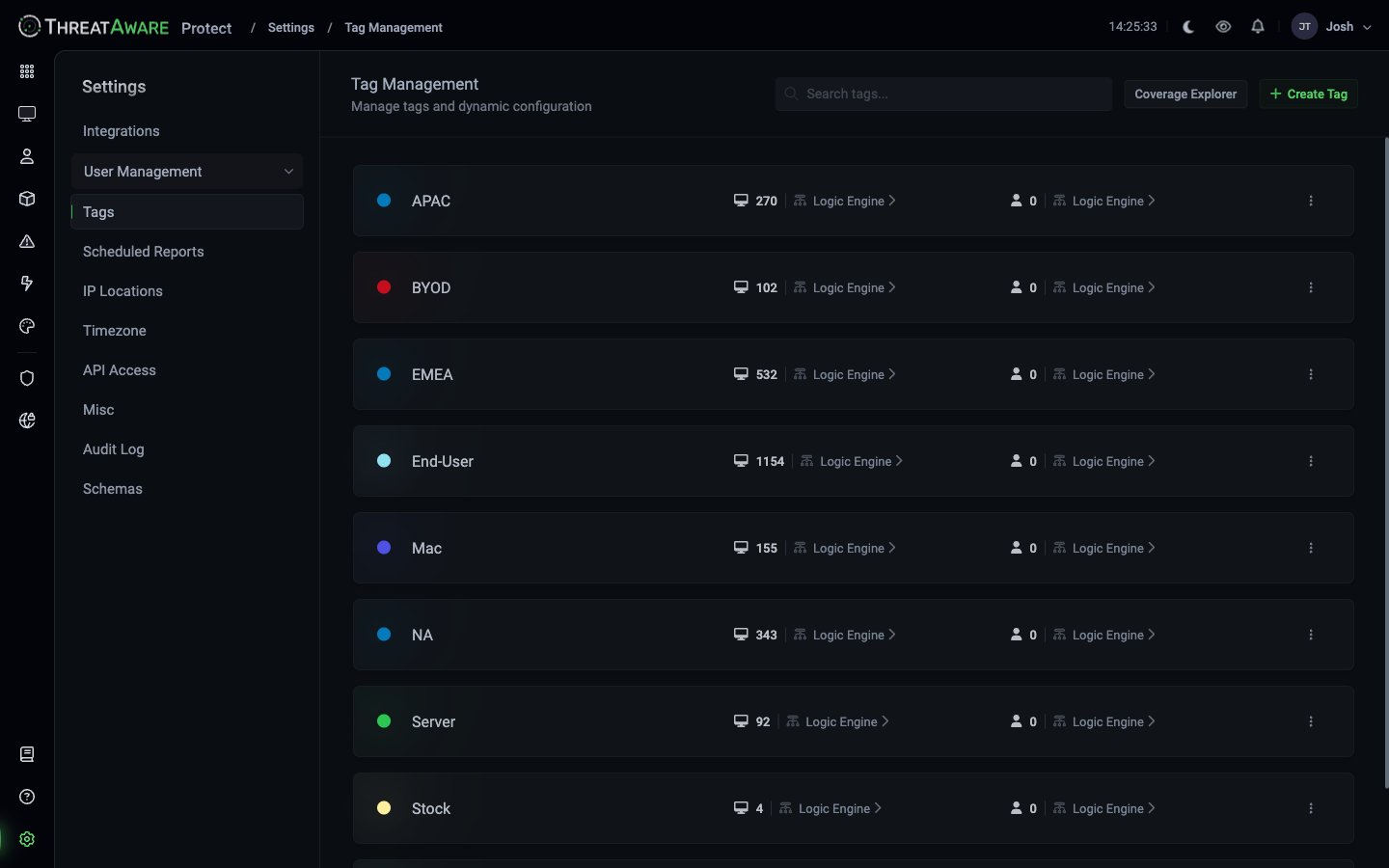 Each tag row shows:
| Element | Meaning |
| -------------------------------- | --------------------------------------------------- |
| **Coloured dot** | The colour Protect uses everywhere this tag appears |
| **Tag name** | The string used in grid queries (`tags:End-User`) |
| **Device count** | How many devices currently carry this tag |
| **Logic Engine ▸** (device side) | Open the flow that decides device membership |
| **User count** | How many users carry this tag |
| **Logic Engine ▸** (user side) | Open the flow that decides user membership |
| **⋮** menu | Edit, Delete, change colour |
Top-right buttons:
* **Coverage Explorer** — visualise overlap between tags (which devices are in multiple tags, which are uncategorised)
* **+ Create Tag** — define a new tag, then build its Logic Engine flow
## The Logic Engine
The **Logic Engine** is a visual rule builder, and it's a generic capability with two jobs:
* **Automatic tag membership** — decide which devices or users carry a tag
* **Dynamic columns** — compute a new column value on the Devices grid (see [Dynamic columns and AI Transform](#dynamic-columns-and-ai-transform))
Both are built the same way: you assemble a flow on a canvas rather than writing a query.
Each tag row shows:
| Element | Meaning |
| -------------------------------- | --------------------------------------------------- |
| **Coloured dot** | The colour Protect uses everywhere this tag appears |
| **Tag name** | The string used in grid queries (`tags:End-User`) |
| **Device count** | How many devices currently carry this tag |
| **Logic Engine ▸** (device side) | Open the flow that decides device membership |
| **User count** | How many users carry this tag |
| **Logic Engine ▸** (user side) | Open the flow that decides user membership |
| **⋮** menu | Edit, Delete, change colour |
Top-right buttons:
* **Coverage Explorer** — visualise overlap between tags (which devices are in multiple tags, which are uncategorised)
* **+ Create Tag** — define a new tag, then build its Logic Engine flow
## The Logic Engine
The **Logic Engine** is a visual rule builder, and it's a generic capability with two jobs:
* **Automatic tag membership** — decide which devices or users carry a tag
* **Dynamic columns** — compute a new column value on the Devices grid (see [Dynamic columns and AI Transform](#dynamic-columns-and-ai-transform))
Both are built the same way: you assemble a flow on a canvas rather than writing a query.
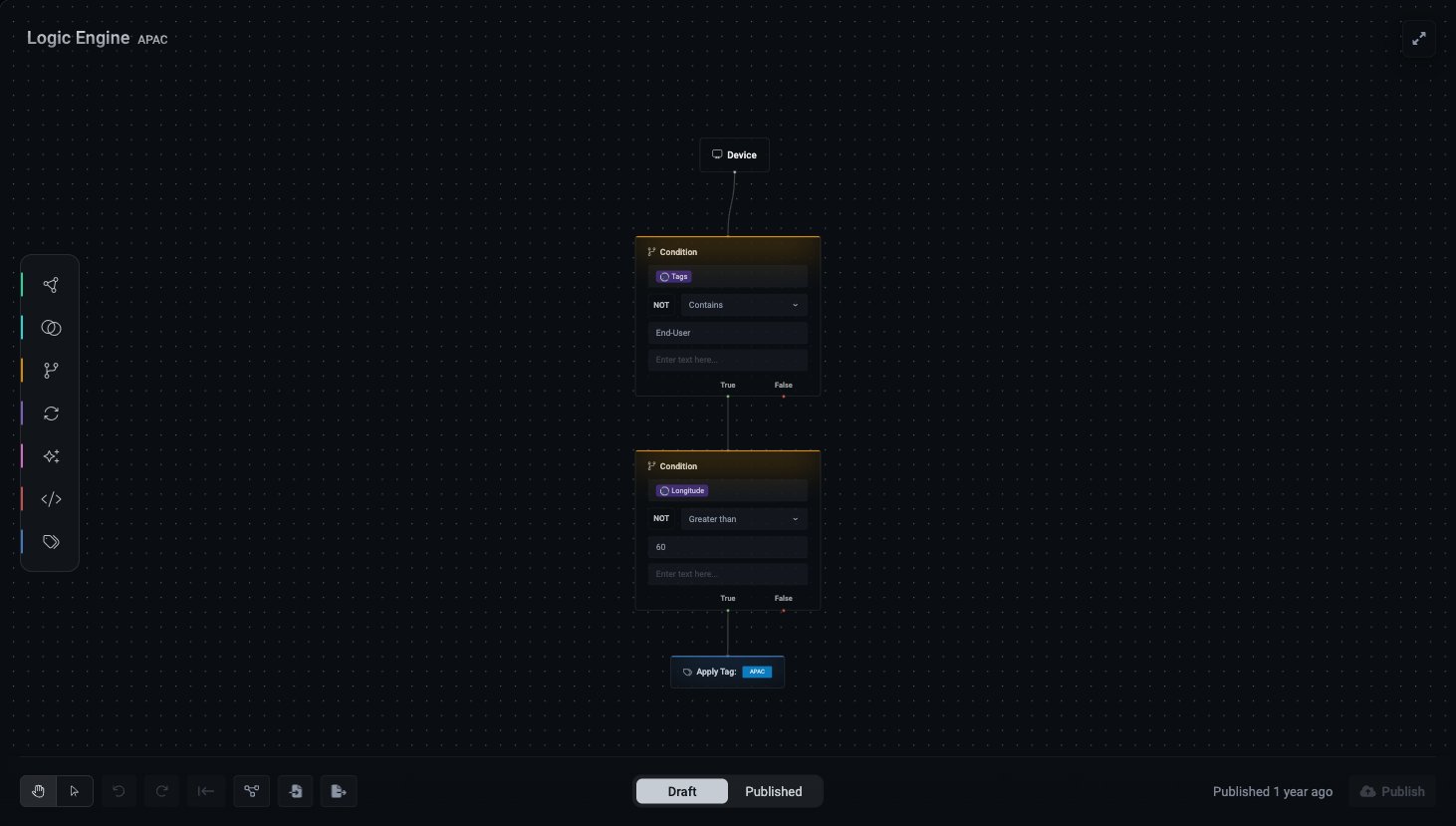 A flow reads top to bottom:
1. A **source** node — the `Device` or `User` record being evaluated
2. One or more **Condition** nodes — each tests a field with an operator (for example `Contains` or `Greater than`) against a value, optionally negated with **NOT**, and branches **True** / **False**
3. Optional **AI Transform** and other nodes that derive values along the way
4. An **output** node — **Apply Tag** when building a tag, or **Output** when building a column
Each flow has a **Draft** and a **Published** state, so a half-built rule never goes live until you click **Publish**.
The Logic Engine is **not** the [query language](/query-language). The query bar searches and filters the grid; the Logic Engine builds the rules behind tags and columns. They are separate capabilities with different operators — the Logic Engine offers comparisons like `Contains` and `Greater than` that the query bar doesn't support.
### Live re-evaluation
The Logic Engine runs whenever underlying data changes. There's no manual refresh. When a device gets a new department assignment in Entra ID, the flow re-evaluates within the next sync window — typically within an hour. A device entering the matching set gets the tag automatically; a device leaving it loses the tag. **No manual tag application** — critical at scale, because a 10,000-device estate cannot be hand-tagged.
## Tagging strategy
A good tag taxonomy mixes orthogonal dimensions. Common ones:
| Dimension | Examples |
| ---------------------------- | ----------------------------------------------- |
| **Device class** | `Laptop`, `Desktop`, `Server`, `VM`, `Mobile` |
| **Region / geography** | `EMEA`, `NA`, `APAC` |
| **Ownership** | `End-User`, `BYOD`, `Stock`, `Loaner` |
| **OS family** | `Windows`, `Mac`, `Linux` |
| **Lifecycle** | `Production`, `Staging`, `Test`, `Decommission` |
| **Business unit / customer** | `Acme-Corp`, `Engineering`, `Finance` |
| **Sensitivity** | `Executive`, `PCI`, `HIPAA` |
A device can carry many tags simultaneously. Most analysis takes the form *"of devices in this dimension, what's the state of this control?"* — so good orthogonal tags multiply the analysis surface.
## Worked example: the "End-User" tag
The `End-User` device flow chains **Condition** nodes off the `Device` source and ends in an **Apply Tag: End-User** node — a device that satisfies the chain is tagged automatically. How the conditions are written is up to you: one tenant excludes stock, BYOD, servers, and VMs; another matches on device-name prefixes per site. Each test is one Condition node (a field, an operator, and a value), and a device passing the chain lands on the Apply Tag node.
Open the live flow for your tenant at [Settings → Tags](/settings/tags) → the **Logic Engine ▸** link on the `End-User` row.
Pair this tag with Vitals requirements like *"End-User devices must have CrowdStrike `deployed:true AND functioning:true`"* and you've defined your end-user baseline declaratively. See [Vitals Configuration](/vitals-configuration) for setup.
## Coverage Explorer
The Coverage Explorer (top-right of the Tags page) is invaluable when designing tags:
* See which devices match *multiple* tags
* See which devices match *zero* tags (the un-tagged residue is often your action item)
* See overlap between tag pairs (e.g. how many `EMEA` are also `Server`)
Use it after any Logic Engine change to confirm the matching behaves as expected.
## Tag-based Vitals requirements
This is the magic. In each integration's settings, you can declare *"for devices carrying tag X, this control is required"*:
| Tag | Required controls |
| ---------- | ------------------------------------------------------------------------------ |
| `End-User` | EDR (CrowdStrike or Defender), MDM (Intune or Jamf), Encryption, Web filtering |
| `Server` | EDR, patch management, vulnerability scanning |
| `BYOD` | Conditional access only |
| `Stock` | *No requirements — not yet deployed* |
| `VM` | EDR (if persistent), vulnerability scanning |
A device only fails Vitals against the controls its tags require. This eliminates noise — a stock laptop without EDR isn't a finding because EDR isn't required for stock devices. The same control can be required differently per tag — for example servers might need EDR in detection-only mode, while end-user devices require prevention mode.
## Dynamic columns and AI Transform
The Logic Engine's other job is building **dynamic columns** on the Devices grid. Open the **Column Editor** from the grid; columns listed under the **Logic Engine** heading are computed by a flow, not raw integration fields. The flow is the same shape as a tag flow, but it ends in an **Output** node instead of **Apply Tag**:
1. A **source** node (the device record) supplies fields
2. One or more **Condition** or **AI Transform** nodes derive a value
3. An **Output** node writes the result into the column
### The AI Transform node
An **AI Transform** node sends the device fields you reference to an AI model with a natural-language prompt, and writes the model's answer into the column. Use it for *fuzzy* classification — judgements that are hard to express as a chain of conditions.
The shipped **AI Device type** column is the canonical example. Its flow is `Device → AI Transform → Output`:
A flow reads top to bottom:
1. A **source** node — the `Device` or `User` record being evaluated
2. One or more **Condition** nodes — each tests a field with an operator (for example `Contains` or `Greater than`) against a value, optionally negated with **NOT**, and branches **True** / **False**
3. Optional **AI Transform** and other nodes that derive values along the way
4. An **output** node — **Apply Tag** when building a tag, or **Output** when building a column
Each flow has a **Draft** and a **Published** state, so a half-built rule never goes live until you click **Publish**.
The Logic Engine is **not** the [query language](/query-language). The query bar searches and filters the grid; the Logic Engine builds the rules behind tags and columns. They are separate capabilities with different operators — the Logic Engine offers comparisons like `Contains` and `Greater than` that the query bar doesn't support.
### Live re-evaluation
The Logic Engine runs whenever underlying data changes. There's no manual refresh. When a device gets a new department assignment in Entra ID, the flow re-evaluates within the next sync window — typically within an hour. A device entering the matching set gets the tag automatically; a device leaving it loses the tag. **No manual tag application** — critical at scale, because a 10,000-device estate cannot be hand-tagged.
## Tagging strategy
A good tag taxonomy mixes orthogonal dimensions. Common ones:
| Dimension | Examples |
| ---------------------------- | ----------------------------------------------- |
| **Device class** | `Laptop`, `Desktop`, `Server`, `VM`, `Mobile` |
| **Region / geography** | `EMEA`, `NA`, `APAC` |
| **Ownership** | `End-User`, `BYOD`, `Stock`, `Loaner` |
| **OS family** | `Windows`, `Mac`, `Linux` |
| **Lifecycle** | `Production`, `Staging`, `Test`, `Decommission` |
| **Business unit / customer** | `Acme-Corp`, `Engineering`, `Finance` |
| **Sensitivity** | `Executive`, `PCI`, `HIPAA` |
A device can carry many tags simultaneously. Most analysis takes the form *"of devices in this dimension, what's the state of this control?"* — so good orthogonal tags multiply the analysis surface.
## Worked example: the "End-User" tag
The `End-User` device flow chains **Condition** nodes off the `Device` source and ends in an **Apply Tag: End-User** node — a device that satisfies the chain is tagged automatically. How the conditions are written is up to you: one tenant excludes stock, BYOD, servers, and VMs; another matches on device-name prefixes per site. Each test is one Condition node (a field, an operator, and a value), and a device passing the chain lands on the Apply Tag node.
Open the live flow for your tenant at [Settings → Tags](/settings/tags) → the **Logic Engine ▸** link on the `End-User` row.
Pair this tag with Vitals requirements like *"End-User devices must have CrowdStrike `deployed:true AND functioning:true`"* and you've defined your end-user baseline declaratively. See [Vitals Configuration](/vitals-configuration) for setup.
## Coverage Explorer
The Coverage Explorer (top-right of the Tags page) is invaluable when designing tags:
* See which devices match *multiple* tags
* See which devices match *zero* tags (the un-tagged residue is often your action item)
* See overlap between tag pairs (e.g. how many `EMEA` are also `Server`)
Use it after any Logic Engine change to confirm the matching behaves as expected.
## Tag-based Vitals requirements
This is the magic. In each integration's settings, you can declare *"for devices carrying tag X, this control is required"*:
| Tag | Required controls |
| ---------- | ------------------------------------------------------------------------------ |
| `End-User` | EDR (CrowdStrike or Defender), MDM (Intune or Jamf), Encryption, Web filtering |
| `Server` | EDR, patch management, vulnerability scanning |
| `BYOD` | Conditional access only |
| `Stock` | *No requirements — not yet deployed* |
| `VM` | EDR (if persistent), vulnerability scanning |
A device only fails Vitals against the controls its tags require. This eliminates noise — a stock laptop without EDR isn't a finding because EDR isn't required for stock devices. The same control can be required differently per tag — for example servers might need EDR in detection-only mode, while end-user devices require prevention mode.
## Dynamic columns and AI Transform
The Logic Engine's other job is building **dynamic columns** on the Devices grid. Open the **Column Editor** from the grid; columns listed under the **Logic Engine** heading are computed by a flow, not raw integration fields. The flow is the same shape as a tag flow, but it ends in an **Output** node instead of **Apply Tag**:
1. A **source** node (the device record) supplies fields
2. One or more **Condition** or **AI Transform** nodes derive a value
3. An **Output** node writes the result into the column
### The AI Transform node
An **AI Transform** node sends the device fields you reference to an AI model with a natural-language prompt, and writes the model's answer into the column. Use it for *fuzzy* classification — judgements that are hard to express as a chain of conditions.
The shipped **AI Device type** column is the canonical example. Its flow is `Device → AI Transform → Output`:
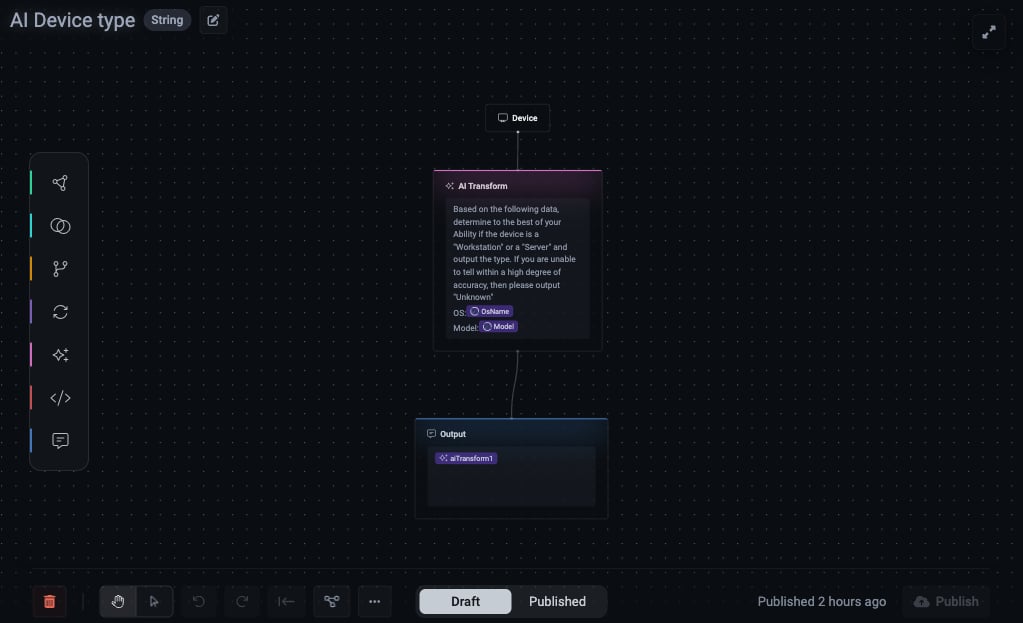 Its AI Transform node uses a prompt like:
```text theme={null}
Based on the following data, determine to the best of your ability
whether the device is a "Workstation" or a "Server" and output the type.
If you are unable to tell within a high degree of accuracy, then please
output "Unknown".
OS: OsName
Model: Model
```
The source node supplies `OsName` and `Model`, the prompt references them, and the result — `Workstation`, `Server`, or `Unknown` — populates the column.
### When to use AI Transform vs a Condition flow
| Use a Condition flow | Use AI Transform |
| ---------------------------------------------------------------- | ---------------------------------------------------------------------------- |
| The logic is deterministic (field comparisons you can enumerate) | The input is messy free text or model strings that don't map cleanly |
| Every case is knowable up front | The set of inputs is open-ended (e.g. thousands of distinct `Model` strings) |
| You need instant, predictable results | A best-effort classification is acceptable |
Prefer plain Condition nodes whenever the logic *can* be expressed as field comparisons — they're faster, free, and fully predictable. Reach for AI Transform only when conditions would be brittle.
### Best-practice prompt patterns
Tell the model exactly which values it may return. The AI Device type column returns only `Workstation`, `Server`, or `Unknown` — never free prose. A bounded output keeps the column filterable and safe to build saved views, Vitals, and Actions on.
*"If you are unable to tell within a high degree of accuracy, output Unknown."* Without this the model guesses, and a confident-but-wrong value is worse than an honest gap. You can then filter the column for `Unknown` to measure how much you're relying on the model.
Pass the smallest set of fields that answers the question (here, `OsName` + `Model`). Extra fields add noise and processing cost without improving the judgement.
Use the flow's **Debug** option to run it against a real device and check the output. Keep the column in **Draft** until the results look right, then **Publish**.
Sort or filter on the new column and confirm the distribution is sane — a large `Unknown` share usually means the prompt needs more context or a sharper instruction.
Unlike [Reporting](/reporting) — where the AI sees only the schema — an AI Transform sends the **actual values** of the fields you reference to the model. Reference only fields you're comfortable processing this way, and don't pipe sensitive identifiers into the prompt.
### What you can build with it
The power of AI Transform is turning **messy, open-ended input** — model strings, hostnames, job titles, OS builds — into a **clean, filterable value** that drives tags, Vitals, Actions, and saved views. Each example below follows the same safe pattern: reference a few fields, constrain the output, and give an `Unknown` escape hatch.
**Spot unsupported operating systems.** A condition can match the OS name, but it can't know *which* builds are past vendor support — that's world knowledge a rule can't hold.
```text theme={null}
Using the OS name and build below, classify the operating system's
vendor support status. Output exactly one of: "Supported",
"Approaching end-of-life", "Unsupported", or "Unknown".
OS: OsName
Build: OsBuild
```
Feed the column into an `Unsupported-OS` tag and a Snapshot Action to drive the upgrade project. *Sense-check the model's verdict against your own end-of-life calendar before relying on it for compliance.*
**Decode your hostname naming convention.** Most estates encode site, role, or build year in device names — but every org's scheme differs, so a fixed pattern needs hand-coding for each one. Describe the scheme in plain English instead:
```text theme={null}
Device names follow the pattern --,
e.g. "ACS-31-0G29W" is site "ACS", floor "31". Output just the
site code, or "Unknown" if the name doesn't match the pattern.
Name: Name
```
Now you can tag and report by site without touching your naming convention or your CMDB.
**Flag hardware due for refresh.** Knowing that a "ProBook 640 G2" is years past its prime is world knowledge. AI Transform reads the make and model and tiers it:
```text theme={null}
Based on the manufacturer and model, estimate where this hardware
sits in its lifecycle. Output one of: "Current", "Due for refresh",
"End-of-life", or "Unknown".
Manufacturer: Manufacturer
Model: Model
```
Sort the column and you have a refresh-budget candidate list in one click.
**Tag VIP devices from the user's role.** Job titles are gloriously inconsistent — "CRO", "Chief Revenue Officer", "VP Sales", "Head of Revenue". Maintaining a list is a losing battle; let the model read intent:
```text theme={null}
Decide whether the primary user is a senior executive or VIP, based
on their job title and department. Output "VIP" or "Standard".
Job title: LastUser.JobTitle
Department: LastUser.Department
```
Tag the `VIP` results and require stricter Vitals on just those devices — encryption, EDR in prevention mode, and conditional access.
**Canonicalise messy vendor names.** `"Dell Inc."`, `"Dell Incorporated"`, and `"DELL"` are three values for one vendor. Collapse them for clean grouping and reporting:
```text theme={null}
Normalise the manufacturer below to a single canonical brand
(e.g. "Dell", "HP", "Lenovo", "Apple", "Microsoft"). If it doesn't
match a known hardware vendor, output "Other".
Manufacturer: Manufacturer
```
The common thread: each of these would be brittle or impossible as a fixed rule, because the input is unbounded free text or the judgement needs outside knowledge. That's the sweet spot for AI Transform — and because every output is a constrained value, the column stays as filterable and dependable as any raw field.
## Best practices
Four to six tags covers most teams on day one. Common starter set: `End-User`, `Server`, `VM`, `Mac`, `BYOD`, plus regional tags if relevant. Add complexity only when a question can't be answered with existing tags.
Move freshly-discovered devices into a `Stock` (or similar) tag where security controls are not required. Move them out (via the Logic Engine, not manual tagging) only when baseline deployment is complete. This avoids Vitals firing on devices mid-deployment.
If you find yourself reaching for manual tag application, that's a signal to refine the Logic Engine flow. Manual tags drift; rules don't.
Good: `End-User`, `Production-Server`, `Executive`. Bad: `Intune-Compliant`, `CrowdStrike-Deployed` (you can already query those directly). Tags are for *intent*; queries are for *state*.
Devices in zero tags are your most common surprise. Either they need a tag, or your rules need fixing.
## Cross-references
The admin page for tag definitions
Tag-based requirements per control
Grid search syntax — separate from the Logic Engine
Its AI Transform node uses a prompt like:
```text theme={null}
Based on the following data, determine to the best of your ability
whether the device is a "Workstation" or a "Server" and output the type.
If you are unable to tell within a high degree of accuracy, then please
output "Unknown".
OS: OsName
Model: Model
```
The source node supplies `OsName` and `Model`, the prompt references them, and the result — `Workstation`, `Server`, or `Unknown` — populates the column.
### When to use AI Transform vs a Condition flow
| Use a Condition flow | Use AI Transform |
| ---------------------------------------------------------------- | ---------------------------------------------------------------------------- |
| The logic is deterministic (field comparisons you can enumerate) | The input is messy free text or model strings that don't map cleanly |
| Every case is knowable up front | The set of inputs is open-ended (e.g. thousands of distinct `Model` strings) |
| You need instant, predictable results | A best-effort classification is acceptable |
Prefer plain Condition nodes whenever the logic *can* be expressed as field comparisons — they're faster, free, and fully predictable. Reach for AI Transform only when conditions would be brittle.
### Best-practice prompt patterns
Tell the model exactly which values it may return. The AI Device type column returns only `Workstation`, `Server`, or `Unknown` — never free prose. A bounded output keeps the column filterable and safe to build saved views, Vitals, and Actions on.
*"If you are unable to tell within a high degree of accuracy, output Unknown."* Without this the model guesses, and a confident-but-wrong value is worse than an honest gap. You can then filter the column for `Unknown` to measure how much you're relying on the model.
Pass the smallest set of fields that answers the question (here, `OsName` + `Model`). Extra fields add noise and processing cost without improving the judgement.
Use the flow's **Debug** option to run it against a real device and check the output. Keep the column in **Draft** until the results look right, then **Publish**.
Sort or filter on the new column and confirm the distribution is sane — a large `Unknown` share usually means the prompt needs more context or a sharper instruction.
Unlike [Reporting](/reporting) — where the AI sees only the schema — an AI Transform sends the **actual values** of the fields you reference to the model. Reference only fields you're comfortable processing this way, and don't pipe sensitive identifiers into the prompt.
### What you can build with it
The power of AI Transform is turning **messy, open-ended input** — model strings, hostnames, job titles, OS builds — into a **clean, filterable value** that drives tags, Vitals, Actions, and saved views. Each example below follows the same safe pattern: reference a few fields, constrain the output, and give an `Unknown` escape hatch.
**Spot unsupported operating systems.** A condition can match the OS name, but it can't know *which* builds are past vendor support — that's world knowledge a rule can't hold.
```text theme={null}
Using the OS name and build below, classify the operating system's
vendor support status. Output exactly one of: "Supported",
"Approaching end-of-life", "Unsupported", or "Unknown".
OS: OsName
Build: OsBuild
```
Feed the column into an `Unsupported-OS` tag and a Snapshot Action to drive the upgrade project. *Sense-check the model's verdict against your own end-of-life calendar before relying on it for compliance.*
**Decode your hostname naming convention.** Most estates encode site, role, or build year in device names — but every org's scheme differs, so a fixed pattern needs hand-coding for each one. Describe the scheme in plain English instead:
```text theme={null}
Device names follow the pattern --,
e.g. "ACS-31-0G29W" is site "ACS", floor "31". Output just the
site code, or "Unknown" if the name doesn't match the pattern.
Name: Name
```
Now you can tag and report by site without touching your naming convention or your CMDB.
**Flag hardware due for refresh.** Knowing that a "ProBook 640 G2" is years past its prime is world knowledge. AI Transform reads the make and model and tiers it:
```text theme={null}
Based on the manufacturer and model, estimate where this hardware
sits in its lifecycle. Output one of: "Current", "Due for refresh",
"End-of-life", or "Unknown".
Manufacturer: Manufacturer
Model: Model
```
Sort the column and you have a refresh-budget candidate list in one click.
**Tag VIP devices from the user's role.** Job titles are gloriously inconsistent — "CRO", "Chief Revenue Officer", "VP Sales", "Head of Revenue". Maintaining a list is a losing battle; let the model read intent:
```text theme={null}
Decide whether the primary user is a senior executive or VIP, based
on their job title and department. Output "VIP" or "Standard".
Job title: LastUser.JobTitle
Department: LastUser.Department
```
Tag the `VIP` results and require stricter Vitals on just those devices — encryption, EDR in prevention mode, and conditional access.
**Canonicalise messy vendor names.** `"Dell Inc."`, `"Dell Incorporated"`, and `"DELL"` are three values for one vendor. Collapse them for clean grouping and reporting:
```text theme={null}
Normalise the manufacturer below to a single canonical brand
(e.g. "Dell", "HP", "Lenovo", "Apple", "Microsoft"). If it doesn't
match a known hardware vendor, output "Other".
Manufacturer: Manufacturer
```
The common thread: each of these would be brittle or impossible as a fixed rule, because the input is unbounded free text or the judgement needs outside knowledge. That's the sweet spot for AI Transform — and because every output is a constrained value, the column stays as filterable and dependable as any raw field.
## Best practices
Four to six tags covers most teams on day one. Common starter set: `End-User`, `Server`, `VM`, `Mac`, `BYOD`, plus regional tags if relevant. Add complexity only when a question can't be answered with existing tags.
Move freshly-discovered devices into a `Stock` (or similar) tag where security controls are not required. Move them out (via the Logic Engine, not manual tagging) only when baseline deployment is complete. This avoids Vitals firing on devices mid-deployment.
If you find yourself reaching for manual tag application, that's a signal to refine the Logic Engine flow. Manual tags drift; rules don't.
Good: `End-User`, `Production-Server`, `Executive`. Bad: `Intune-Compliant`, `CrowdStrike-Deployed` (you can already query those directly). Tags are for *intent*; queries are for *state*.
Devices in zero tags are your most common surprise. Either they need a tag, or your rules need fixing.
## Cross-references
The admin page for tag definitions
Tag-based requirements per control
Grid search syntax — separate from the Logic Engine