

What “Vitals” means in ThreatAware
Vitals is ThreatAware’s continuous, per-device check that your security tools are doing their job. Each Vital is one integration’s view of one device, shown as a state such as Healthy, Misconfigured, Not Functioning, Not Deployed or Not Required. For the full list and how each state is worked out, see Vitals states. Vitals fire continuously — every integration sync recomputes the state. There’s no manual refresh.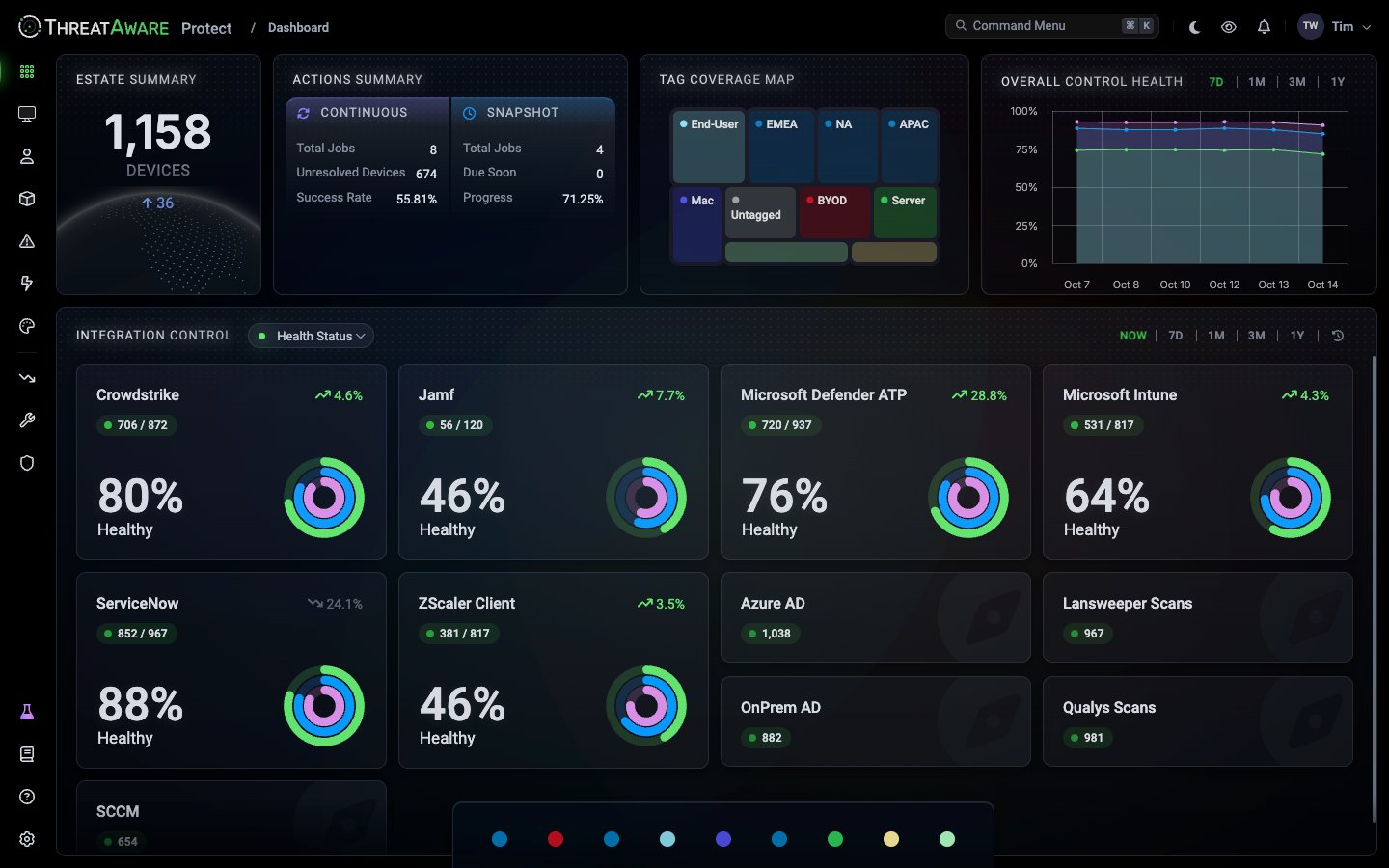
Why Vitals matters
Traditional posture monitoring stops at “is the agent installed?” That’s the bare minimum and it misses the most common failure mode in security: Endpoint Detection and Response (EDR) agents that look healthy in their own console but stopped protecting weeks ago.
The single-tool console can’t tell you the agent is broken because it doesn’t have a reference frame. ThreatAware does — by comparing the agent’s own activity timeline against the device’s activity timeline across all other tools. If Intune saw the device this morning but CrowdStrike hasn’t seen it in 12 days, that’s the diagnosis.
This is silent failure detection: finding agents that are installed but no longer working. See Silent failure.
The three stages
1. Deployed
Is the tool on this device at all? ThreatAware compares the devices your other tools know about with the ones this tool reports.
2. Functioning
Is the tool still working? ThreatAware compares when this tool last saw the device with when your other tools did. Stale data on an active device means it’s broken.
3. Configured Correctly
Is it set up properly? The device must pass the integration’s configuration checks, such as CrowdStrike’s Prevention Policy Applied, plus any Custom Vitals you’ve added.
Tag-scoped requirements
Not every device needs every control. A server doesn’t need Mobile Device Management (MDM). A stock laptop doesn’t need anything yet because it isn’t deployed. Vitals respect this via Tags:
A device’s tags decide what’s required of it. A device only fails Vitals against the controls its tags require. Get the tags right and Vitals are quiet by default — alerts are exclusively meaningful gaps.
The two grid modes
In Devices, the footer toggle switches between two integration-column views:
Start in Deployment to confirm coverage, then switch to Vitals to find what’s actually broken. For what each Vitals icon means, see Vitals Configuration.
Dashboard integration health
The Dashboard’s Integration Control panel shows Vitals across your whole estate: one card per integration, with its health percentage, healthy device count and trend. Switch between health, deployment and function status, and choose a time range from NOW to 1Y. Click a card to open Devices filtered to that integration.What controls ThreatAware monitors
ThreatAware can compute Vitals on any integration that exposes:- A per-device data feed (so we can compute Deployment + Function)
- Configuration / policy fields (so we can compute Configuration)
The checks come from what each tool’s API reports, so they differ by integration. Open an integration’s Vitals and click Expand under Configured Correctly to see its list. ThreatAware only reports what the source tool exposes: it doesn’t, for example, track patch deployment deadlines.
Vitals are per-device: they check the security tools on each device. Identity sources such as Microsoft Entra ID and on-premises Active Directory enrich device records and show who uses each device. On a device they show as Functioning when they’ve seen it recently, but they aren’t security controls you require.
If your integration is in the Integrations directory but isn’t listed above, check whether Vitals can apply — open a ticket if you need confirmation. New categories are added regularly.
Need a check that no integration covers? On Protect, you can write your own with Custom Vitals.
Configuration approach: declarative
You describe what should be true, and ThreatAware keeps checking it. For each integration, you choose:- Which tags require it, such as CrowdStrike on
End-UserandServer, but notMacorStock - Which stages and checks to monitor, such as Deployed, Functioning and Prevention Policy Applied
The Vitals lifecycle
Common misconfigurations to avoid
No grace period for new devices
No grace period for new devices
Newly-discovered devices instantly fail Vitals before deployment finishes. Use a
Stock tag (or similar) for not-yet-deployed devices where no Vitals are required, and move them out only when baseline is complete.Checks the tool can't report on
Checks the tool can't report on
ThreatAware can only check what an integration’s API reports. If you need something it doesn’t expose, it can’t be a check on that integration. Look for the data in another tool, and build a Custom Vital on that one.
Cross-references
Vitals Configuration
Step-by-step setup
Tags
Define scope per control
Reference → Vitals states
Canonical state table
Issues
The operational queue Vitals feeds
Action Center
Auto-remediate unhealthy states
X-Ray
Root-cause any unhealthy device