

Tier: Static tagging is available at all tiers. The Logic Engine — the rule builder behind dynamic tag membership and computed columns — is included in the Discover and Protect tiers.
Tags drive everything
Almost every cross-cutting feature in Protect is tag-scoped:- Vitals — different tags require different controls (
End-Userneeds EDR + encryption;Serverneeds EDR + patch management;BYODmay need only conditional access) - Software Inventory opens with a tag picker
- Action targeting typically narrows by tag (
tags:End-User) - Access control can restrict a user’s data filter to specific tags (
tags:Client-Acmefor an MSP technician) - Dashboards filter by tag from the chip strip at the bottom
The Tag Management page
At Settings → Tags: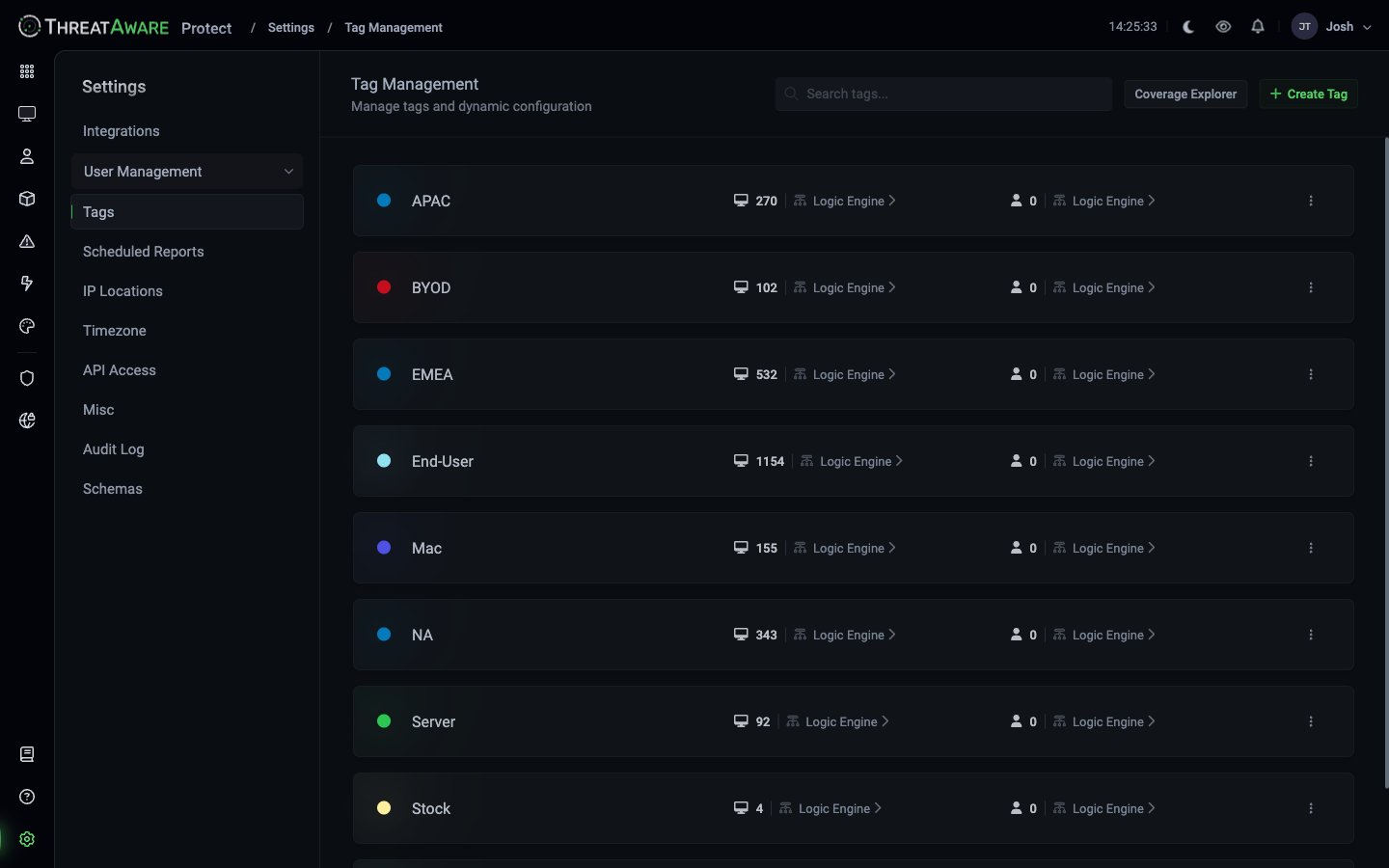
Top-right buttons:
- Coverage Explorer — visualise overlap between tags (which devices are in multiple tags, which are uncategorised)
- + Create Tag — define a new tag, then build its Logic Engine flow
The Logic Engine
The Logic Engine is a visual rule builder, and it’s a generic capability with two jobs:- Automatic tag membership — decide which devices or users carry a tag
- Dynamic columns — compute a new column value on the Devices grid (see Dynamic columns and AI Transform)
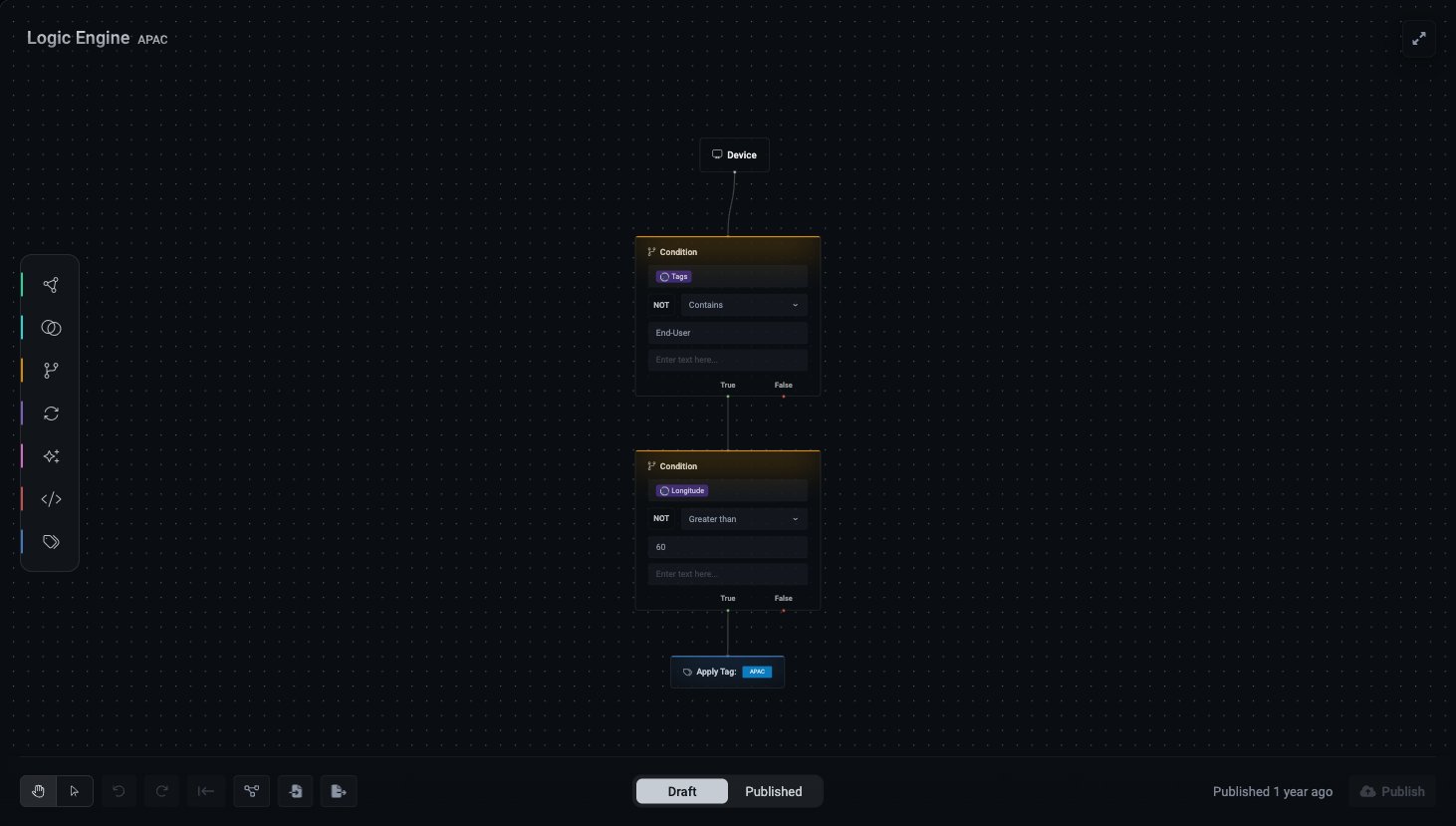
- A source node — the
DeviceorUserrecord being evaluated - One or more Condition nodes — each tests a field with an operator (for example
ContainsorGreater than) against a value, optionally negated with NOT, and branches True / False - Optional AI Transform and other nodes that derive values along the way
- An output node — Apply Tag when building a tag, or Output when building a column
The Logic Engine is not the query language. The query bar searches and filters the grid; the Logic Engine builds the rules behind tags and columns. They are separate capabilities with different operators — the Logic Engine offers comparisons like
Contains and Greater than that the query bar doesn’t support.Live re-evaluation
The Logic Engine runs whenever underlying data changes. There’s no manual refresh. When a device gets a new department assignment in Entra ID, the flow re-evaluates within the next sync window — typically within an hour. A device entering the matching set gets the tag automatically; a device leaving it loses the tag. No manual tag application — critical at scale, because a 10,000-device estate cannot be hand-tagged.Tagging strategy
A good tag taxonomy mixes orthogonal dimensions. Common ones:
A device can carry many tags simultaneously. Most analysis takes the form “of devices in this dimension, what’s the state of this control?” — so good orthogonal tags multiply the analysis surface.
Worked example: the “End-User” tag
TheEnd-User device flow chains Condition nodes off the Device source and ends in an Apply Tag: End-User node — a device that satisfies the chain is tagged automatically. How the conditions are written is up to you: one tenant excludes stock, BYOD, servers, and VMs; another matches on device-name prefixes per site. Each test is one Condition node (a field, an operator, and a value), and a device passing the chain lands on the Apply Tag node.
Open the live flow for your tenant at Settings → Tags → the Logic Engine ▸ link on the End-User row.
Pair this tag with Vitals requirements like “End-User devices must have CrowdStrike deployed:true AND functioning:true” and you’ve defined your end-user baseline declaratively. See Vitals Configuration for setup.
Coverage Explorer
The Coverage Explorer (top-right of the Tags page) is invaluable when designing tags:- See which devices match multiple tags
- See which devices match zero tags (the un-tagged residue is often your action item)
- See overlap between tag pairs (e.g. how many
EMEAare alsoServer)
Tag-based Vitals requirements
This is the magic. In each integration’s settings, you can declare “for devices carrying tag X, this control is required”:
A device only fails Vitals against the controls its tags require. This eliminates noise — a stock laptop without EDR isn’t a finding because EDR isn’t required for stock devices. The same control can be required differently per tag — for example servers might need EDR in detection-only mode, while end-user devices require prevention mode.
Dynamic columns and AI Transform
The Logic Engine’s other job is building dynamic columns on the Devices grid. Open the Column Editor from the grid; columns listed under the Logic Engine heading are computed by a flow, not raw integration fields. The flow is the same shape as a tag flow, but it ends in an Output node instead of Apply Tag:- A source node (the device record) supplies fields
- One or more Condition or AI Transform nodes derive a value
- An Output node writes the result into the column
The AI Transform node
An AI Transform node sends the device fields you reference to an AI model with a natural-language prompt, and writes the model’s answer into the column. Use it for fuzzy classification — judgements that are hard to express as a chain of conditions. The shipped AI Device type column is the canonical example. Its flow isDevice → AI Transform → Output:
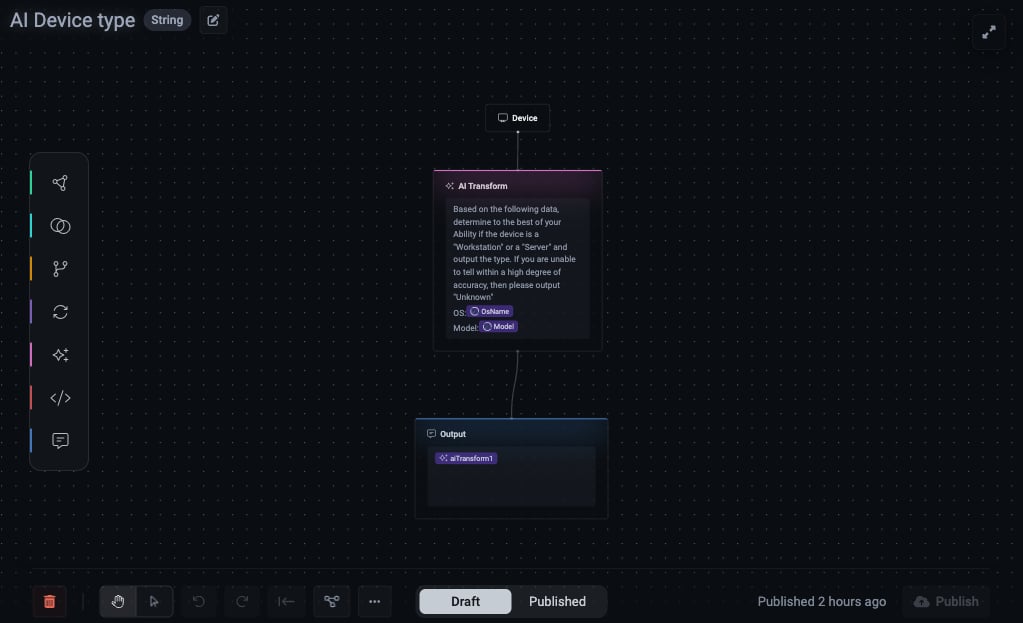
OsName and Model, the prompt references them, and the result — Workstation, Server, or Unknown — populates the column.
When to use AI Transform vs a Condition flow
Prefer plain Condition nodes whenever the logic can be expressed as field comparisons — they’re faster, free, and fully predictable. Reach for AI Transform only when conditions would be brittle.
Best-practice prompt patterns
Constrain the output to a fixed set
Constrain the output to a fixed set
Tell the model exactly which values it may return. The AI Device type column returns only
Workstation, Server, or Unknown — never free prose. A bounded output keeps the column filterable and safe to build saved views, Vitals, and Actions on.Always give an explicit 'Unknown' fallback
Always give an explicit 'Unknown' fallback
“If you are unable to tell within a high degree of accuracy, output Unknown.” Without this the model guesses, and a confident-but-wrong value is worse than an honest gap. You can then filter the column for
Unknown to measure how much you’re relying on the model.Reference only the fields that matter
Reference only the fields that matter
Pass the smallest set of fields that answers the question (here,
OsName + Model). Extra fields add noise and processing cost without improving the judgement.Validate in Draft before publishing
Validate in Draft before publishing
Use the flow’s Debug option to run it against a real device and check the output. Keep the column in Draft until the results look right, then Publish.
Re-check coverage after publishing
Re-check coverage after publishing
Sort or filter on the new column and confirm the distribution is sane — a large
Unknown share usually means the prompt needs more context or a sharper instruction.Unlike Reporting — where the AI sees only the schema — an AI Transform sends the actual values of the fields you reference to the model. Reference only fields you’re comfortable processing this way, and don’t pipe sensitive identifiers into the prompt.
What you can build with it
The power of AI Transform is turning messy, open-ended input — model strings, hostnames, job titles, OS builds — into a clean, filterable value that drives tags, Vitals, Actions, and saved views. Each example below follows the same safe pattern: reference a few fields, constrain the output, and give anUnknown escape hatch.
Spot unsupported operating systems. A condition can match the OS name, but it can’t know which builds are past vendor support — that’s world knowledge a rule can’t hold.
Unsupported-OS tag and a Snapshot Action to drive the upgrade project. Sense-check the model’s verdict against your own end-of-life calendar before relying on it for compliance.
Decode your hostname naming convention. Most estates encode site, role, or build year in device names — but every org’s scheme differs, so a fixed pattern needs hand-coding for each one. Describe the scheme in plain English instead:
VIP results and require stricter Vitals on just those devices — encryption, EDR in prevention mode, and conditional access.
Canonicalise messy vendor names. "Dell Inc.", "Dell Incorporated", and "DELL" are three values for one vendor. Collapse them for clean grouping and reporting:
Best practices
Start with a small core taxonomy
Start with a small core taxonomy
Four to six tags covers most teams on day one. Common starter set:
End-User, Server, VM, Mac, BYOD, plus regional tags if relevant. Add complexity only when a question can’t be answered with existing tags.Use a Stock tag as your grace period
Use a Stock tag as your grace period
Move freshly-discovered devices into a
Stock (or similar) tag where security controls are not required. Move them out (via the Logic Engine, not manual tagging) only when baseline deployment is complete. This avoids Vitals firing on devices mid-deployment.Never hand-tag at scale
Never hand-tag at scale
If you find yourself reaching for manual tag application, that’s a signal to refine the Logic Engine flow. Manual tags drift; rules don’t.
Review the Coverage Explorer monthly
Review the Coverage Explorer monthly
Devices in zero tags are your most common surprise. Either they need a tag, or your rules need fixing.
Cross-references
Settings → Tags
The admin page for tag definitions
Vitals Configuration
Tag-based requirements per control
Query Language
Grid search syntax — separate from the Logic Engine