

How integrations show in ThreatAware
At Settings → Integrations you’ll see a card for each connected integration, then the full catalogue of integrations you can add: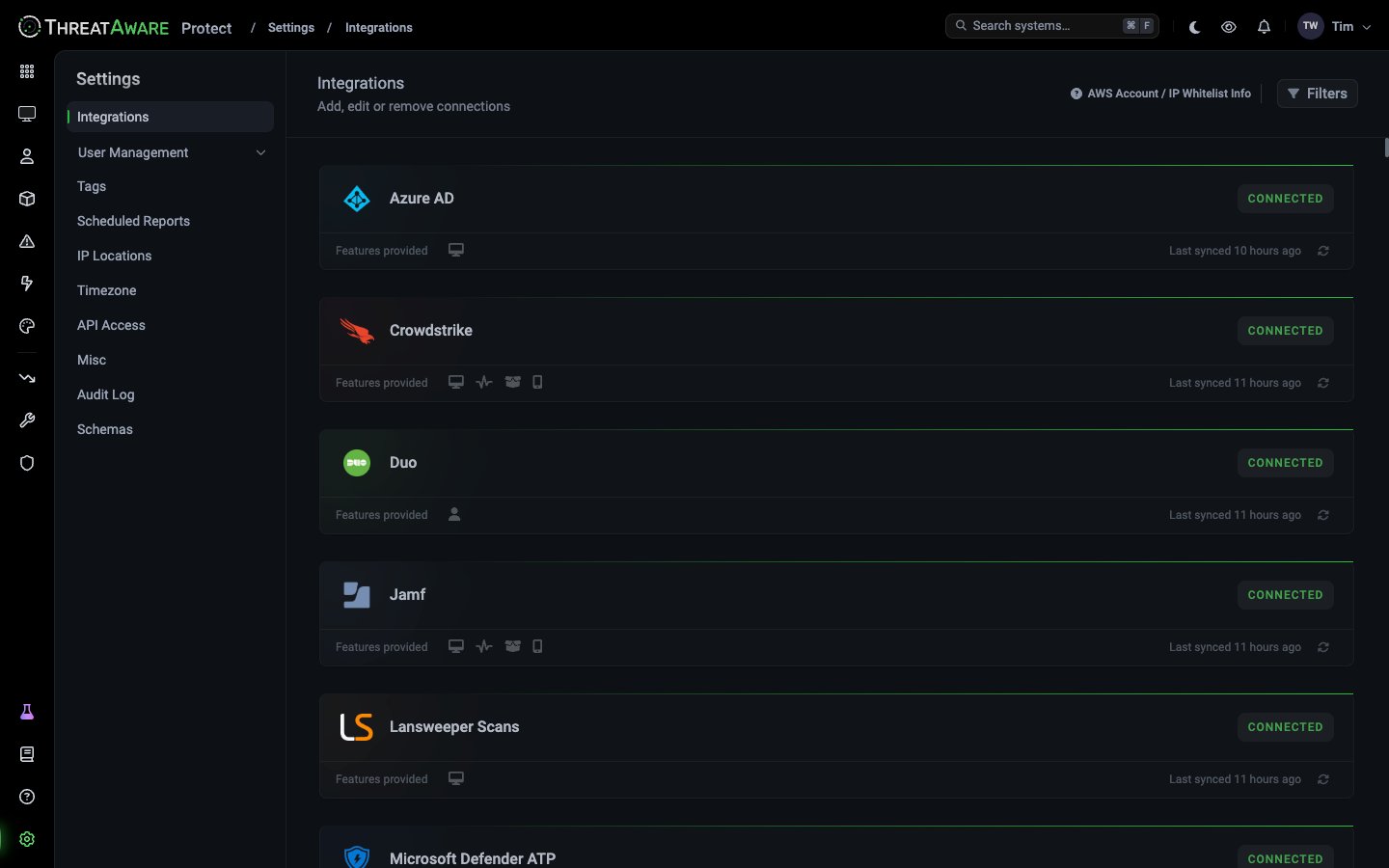
Feature icons explained
Hover over an icon to see its name. Use Filters at the top of the page to show only integrations that provide a feature.
A CrowdStrike card with four icons feeds devices, Vitals, software and mobile data. A Duo card with only User Inventory is identity-only.
Core principles
- Read-only by default
- API-first
- Hourly sync
- Incremental where possible
Every integration uses read-only API credentials, so the sync itself can’t push changes, delete data, or modify configuration in your connected tools. ThreatAware itself is read-only — Actions can trigger outbound automations only with your explicit approval. Even if a token were compromised, the blast radius is limited to reading what the tool already exposes.
The integration catalogue
ThreatAware supports over 200 integrations. On Settings → Integrations, your connected ones come first, then Most Popular, then everything else from A to Z. Some show Request Access: ask your account team to turn them on. If yours isn’t listed, Other Integration at the bottom lets you request it. The categories include:EDR / Endpoint Security
CrowdStrike Falcon, Microsoft Defender ATP, SentinelOne, Cortex XDR (Extended Detection and Response), Carbon Black, Sophos, Cylance, Bitdefender, McAfee, Trend Micro, plus 30+ more
MDM
Microsoft Intune, JAMF Pro, MaaS360, Workspace ONE, Kandji, MobileIron
Identity & Directory
Microsoft Entra ID, OnPrem AD, Okta, OneLogin, JumpCloud, Google Workspace, Duo
Vulnerability Management
Qualys VM, Rapid7, Tenable.io / Nessus, Edgescan
Network / Web Security
ZScaler, Cisco Umbrella, Cloudflare Zero Trust, Netskope, DNS Filter, Meraki, SonicWall
Patch / Config Management
SCCM (Config Manager), Tanium, Microsoft Intune, ManageEngine Patch, Syxsense
ITSM
ServiceNow, Halo Service Desk, Freshservice, Datto Autotask PSA (Professional Services Automation)
Network Scanning
Lansweeper, PDQ Inventory, Device42, SolarWinds
Cloud Infrastructure
Azure (IaaS, Entra), AWS EC2 / Systems Manager, Google (Devices & Users), Microsoft 365, Dropbox
DLP / Backup
Druva, McAfee MVISION
Privileged Access
CyberArk, BeyondTrust, Admin By Request
Specialised
Darktrace, Heimdal, Huntress, Illumio, KnowBe4, ThreatLocker, and more
Connecting an integration
Each integration has its own connection flow, but the high-level shape is consistent:1
Open the integration card
In Settings → Integrations, find the integration (press ⌘ F to search) and click its card.
2
Provide read-only credentials
Each integration has a specific authentication model:
- OAuth (Entra ID, Microsoft Intune, Microsoft Defender ATP, Microsoft 365) — Global Admin consent flow
- API Key (CrowdStrike, Qualys, ZScaler) — generate in the vendor console, paste into ThreatAware
- Basic Auth (some on-prem tools) — username + password
- PowerShell Relay (on-prem AD, SCCM, on-prem Lansweeper) — see PowerShell Relay
3
(Optional) set up Vitals
For integrations with Controls Monitoring, choose which tags need the tool and which checks to monitor, from the integration’s Vitals in Devices. See Vitals Configuration.
4
Wait for initial sync
First sync pulls the full inventory and can take 15-60 minutes for large datasets. Watch the “Last synced” timestamp on the card.
5
Validate via X-Ray
Open a device you know, click the new integration under Vitals, then View in X-Ray to check the data coming through. See X-Ray.
Multi-tenancy
See dedicated page → Many vendors support multiple tenants, such as Azure AD with several directories or CrowdStrike with several instances. To connect more than one, click Modify on the integration and choose Enable Multi-Tenancy.Health & troubleshooting
Last-synced thresholds
- < 1 hour: normal
- 1-3 hours: monitor — slow API or rate limited
- 3-24 hours: investigate — check Connection card’s detail view
- > 24 hours: alert — credentials may have expired or API permissions changed
- Dashboard → Integration Control panel highlights cards with stale data
- Device Explorer → integration row shows the same “Now / 13h” pattern at-a-glance
Common failure modes
OAuth consent expired
OAuth consent expired
Some Microsoft Graph permissions need authorising again from time to time. Click Modify, then Reauthorise.
API key revoked or rotated in source tool
API key revoked or rotated in source tool
The vendor’s key or password rotation policy kicked in. Generate a new key in their console, then click Modify → Reauthorise and enter it.
Account lost permissions
Account lost permissions
The service account used for the integration was modified in a role change. Restore the read scopes documented in the Connection Guide.
PowerShell relay stopped
PowerShell relay stopped
The scheduled task on the relay server stopped running. RDP in, verify the task and underlying script. See PowerShell Relay troubleshooting.
Rate-limit lockout
Rate-limit lockout
Heavy vendor API load is throttling ThreatAware. Usually self-resolves; if persistent, contact support for sync-cadence tuning.
AWS account and IP allowlist
Some tools only accept API calls from known addresses. Click AWS Account / IP Whitelist Info at the top of Settings → Integrations to see ThreatAware’s AWS account ID and the IP addresses ThreatAware connects from. Add those addresses to the allowlist in the management console of each tool you’re connecting.Custom integration requests
Need an integration we don’t yet support? Open a request via your account manager or support — you’ll be asked for:- Vendor name and product
- Public API documentation URL
- Sample API responses (or a temporary sandbox account)
- Read-only credentials for testing
Cross-references
Settings → Integrations
The admin page
PowerShell Relay
On-prem connectivity
Multi-tenancy
Multiple tenants per integration
Connection Guides
Step-by-step per vendor
X-Ray
Validate what’s coming in
Vitals
What checks each integration exposes