

New in 3.3 Action Center has been rebuilt around a node-based flow editor. Tracking which devices enter and leave a saved view is no longer an Action: it’s now its own feature, Tracked Views. See What changed in 3.3. Still on 3.2? See Action Center on ThreatAware 3.2.
What Action Center does
Action Center turns what ThreatAware finds into something that happens. Remediation that many teams run outside ThreatAware today, in tools like Power Automate, can now start here. It works in two steps:- Track a view. Filter the devices that need attention and click Track View. See Tracked Views.
- Attach a flow. In Action Center, build a flow that runs against that tracked view. When devices are in the view, the flow’s steps run, such as emailing your team or creating a ticket.
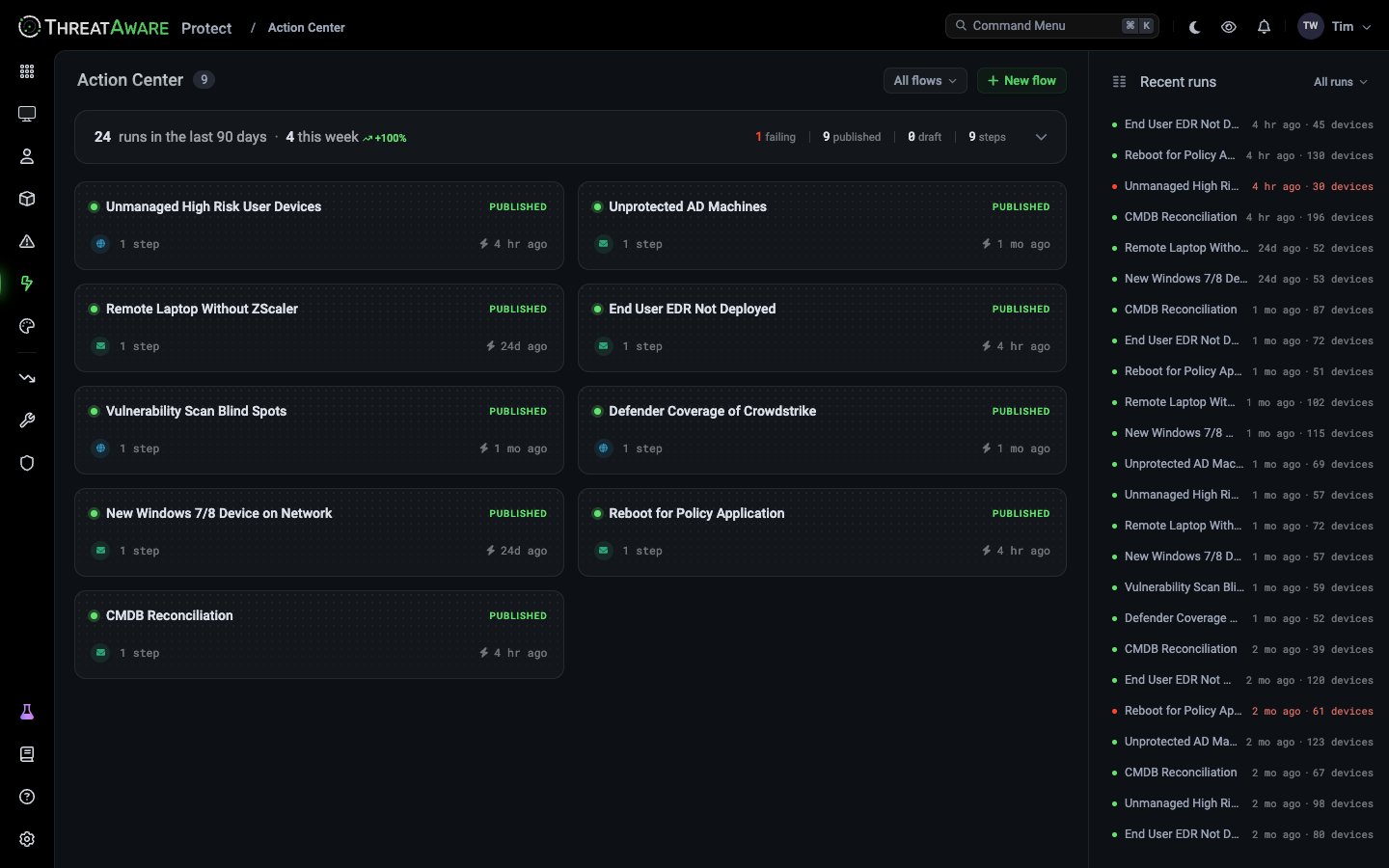
What changed in the new Action Center
The way you build automation has changed. What it can do hasn’t, yet.- Same capability, new editor. Flows send the same emails and HTTP requests that Actions did, and the code that runs them hasn’t changed. The new editor is groundwork for more powerful flows, with more step types on the way.
- Two steps instead of one. You used to create an Action straight from a view. Now you track the view first, then build a flow in Action Center that’s triggered from it. Tracking is separate because future flows won’t all depend on a view.
- Your existing Actions carry over. When your tenant moves to 3.3, each Action gets a tracked view and a matching flow automatically. You don’t need to rebuild anything.
- The ready-made Teams, Slack, Power Automate and ticketing options are gone. They only ever sent an email or an HTTP request behind the scenes, so the same thing is now done with an HTTP request step. See Common patterns for how to set each one up.
- Reuse a step with a template. Flows can’t be duplicated yet. To use the same step in several flows, save it as a template, then add that template to the other flows. You still set the triggers for each flow. See Templates.
Steps
A flow starts at Start of action and runs its steps in order. There are two kinds of step, with more planned:Device details in a step
To include device details in an HTTP body, click + in the body and choose Insert merge field. Merge fields look like{{Name}}. You can use:
- Count (
{{count}}): how many devices the run covers - CSV Table, HTML Table and Formatted: the run’s devices as a table or a formatted list, for All at once runs
- Name, and any device columns you add under Custom columns in Triggers (up to 10)
Templates
Right-click a step and choose Save as template. To use one, click ⋯ at the bottom of the step palette: templates are listed under Shared Templates. Drag one onto the canvas, or pin it to the palette for quick access.Secrets
Values you enter in Headers, such as anAuthorization token, are saved as secrets: they’re masked and locked once saved. Secrets belong to the URL they were entered for, so editing the URL removes them and you’ll need to enter them again.
Build a flow
1
Create the flow
In Action Center, click New flow and name it with the pencil next to its title.
2
Add steps
Add an HTTP request or Send email step from the palette on the left, or a saved template from ⋯, and connect it to Start of action. Click + on a step’s output to add the next one.
3
Set up each step
For HTTP request, choose the method, enter the URL (it must use
https) and add any headers. Click + Add to add query Params or a JSON Body. For Send email, add recipients: ThreatAware users, or external addresses.4
Choose when it runs
Click Triggers in the top right. See Triggers below.
5
Test it
Click Debug on Start of action to try the flow with device data from its tracked view, and check the email or ticket arrives as expected.
6
Publish
Click Publish. Flows save as a draft while you edit, and only the published version runs.
https URL on every HTTP request, valid JSON in every body and a tracked view in Triggers.
Triggers
Triggers sets how the flow runs against its tracked view. A published flow’s triggers are locked: unpublish it to change them.
Each run shows one of these results under Recent runs and All runs: Success, Partial success, Failed or Emergency stop.
Common patterns with the HTTP request step
The HTTP request step replaces the separate ticket, Teams/Slack, Power Automate and webhook options from earlier versions. Anything with an HTTP endpoint can be reached from a flow.Post to Microsoft Teams or Slack
Post to Microsoft Teams or Slack
Create an incoming webhook in the channel, then add an HTTP request step that sends a
POST to the webhook URL with a JSON body containing your message.Trigger a Power Automate flow
Trigger a Power Automate flow
Start your Power Automate flow with the When an HTTP request is received trigger. Copy its URL into an HTTP request step and send the device details as JSON. Power Automate can then do the rest, such as updating Intune, Entra ID or SharePoint.
Create a ticket in your ITSM tool
Create a ticket in your ITSM tool
Customers already raise tickets this way in Jira, ServiceNow and Freshservice. Any ticketing tool with a REST API works the same way, such as Halo or Autotask. Point an HTTP request step at the create-ticket endpoint, add an authentication header, and map the device details into the request body.For ServiceNow, follow the step-by-step guide: Create ServiceNow tickets.ServiceNow also supports two-way sync: closing the ticket in ServiceNow resolves the device in ThreatAware.
Call your own automation
Call your own automation
Send a
POST to Tines, a SOAR platform, an AWS Lambda function or an internal API, with the device details in the body.Tracking devices over time
To follow a group of devices through to a fix, use Tracked Views. A Tracked View runs as Continuous (no end date) or Snapshot (a fixed set of devices burned down by a deadline), and reports unresolved devices, success rate and mean time to resolve. In ThreatAware 3.2 this was done with Continuous and Snapshot Actions. Existing Continuous and Snapshot Actions carry over as Tracked Views when your tenant moves to 3.3, keeping their history.Best practices
Start with email
Start with email
Make the first version of any flow a Send email step to yourself. Check it fires for the right devices, then add the HTTP request steps that create tickets or call other systems.
Test against a small set first
Test against a small set first
Point a new flow at a narrow tag or a handful of devices before you widen it, so a mistake creates five tickets, not five thousand.
Keep secrets in headers
Keep secrets in headers
Put API keys and bearer tokens in HTTP request step headers rather than URLs or message bodies.
Cross-references
Tracked Views
Follow devices in and out of a view
Issues
The detection source
Security Monitoring
Vitals drive most flows
Tags
Target the right devices
Webhook payload
Payload reference
Action Center on ThreatAware 3.2
For tenants not yet on 3.3