

What templates are
When you create an Action, you choose one or more automation channels (email, ticket, webhook, etc.). Automation Templates are pre-built configurations for common patterns — pick a template instead of starting from scratch. The templates panel sits on the right of the Action Center: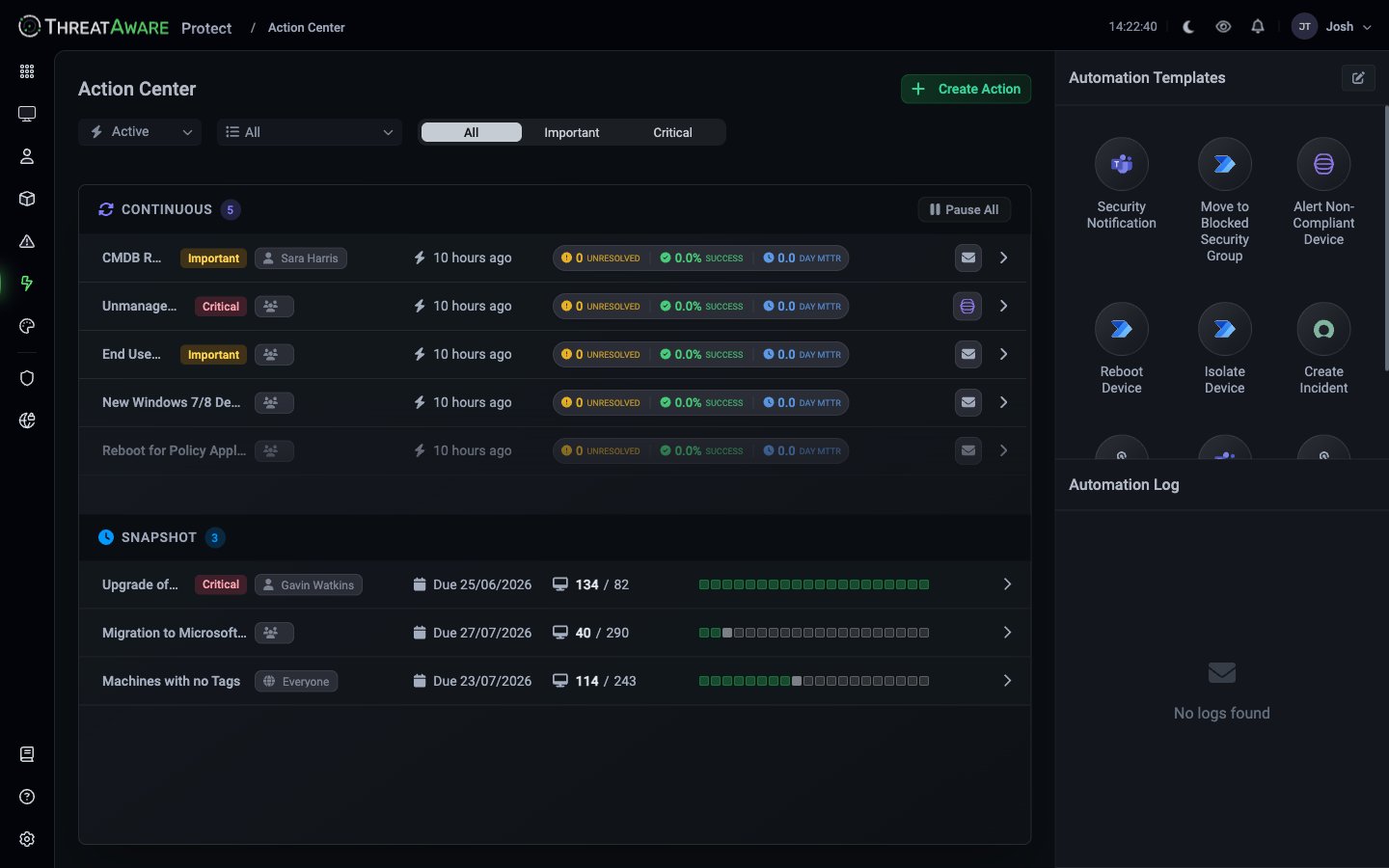
Built-in templates
How to use a template
1
Open the Automation Templates panel
Visible by default in the Action Center.
2
Click a template tile
A guided flow opens with the template’s defaults pre-filled.
3
Pick the underlying query
Same query builder as a from-scratch Action. The template only governs automation — what to do; you still define when to do it.
4
Customise as needed
Templates ship with sensible defaults but everything is editable — recipient lists, message templates, escalation timing.
5
Save and activate
Same as any Action.
Template details
Security Notification
Automation: Email Default recipients: Empty (you must add) Default subject:Security Alert: [Device Name] requires attention
Default body: Includes device name, user, last online, issue description, and a link back to the device in ThreatAware
Best for: Critical issues where someone needs to look at the device immediately. Email is the lowest-friction channel.
Move to Blocked Security Group
Automation: Power Automate webhook → AD / Entra ID group change Default behaviour: Add device to a configurable security group (e.g.BlockedDevices)
Effect: When this group is referenced in your conditional access policies, the device immediately loses access
Best for: Containing a device with active security issues without manual intervention. Pair with conditional access rules that gate sensitive applications.
Alert Non-Compliant Device
Automation: Teams / Slack webhook Default channel: Configurable Default message: Markdown card with device fields and a link Best for: Team-level visibility. Less formal than a ticket; more visible than an email. Great for big-screen SOC displays.Reboot Device
Automation: Power Automate → Intune / SCCM device action Default behaviour: Trigger a remote reboot Best for: Configuration changes that require restart (policy pushes, encryption updates, agent installs).Isolate Device
Automation: EDR API call (CrowdStrike, Defender, SentinelOne) Default behaviour: Network-isolate the device — block all traffic except management Resolution: Manual un-isolate after investigation Best for: Active threats — when an EDR detection or Vital fires Critical, isolate first, investigate second. The most aggressive built-in template.Create Incident
Automation: ServiceNow / Halo / Jira / Datto AutoTask API call Default behaviour: Create a ticket with device context, assigned to a default group Resolution sync: Optional — closing the ticket can resolve the device Best for: Formal ITSM workflow. When work needs to be tracked through your existing service-management process.Customising templates
Every template field is editable when you instantiate it. Common customisations:- Recipients — match your team structure
- Message body — include department, user contact, severity rationale
- Conditional logic — e.g. only create tickets between 9am-5pm; route to different groups based on department
- Escalation — different automation at different times in view (email at 24h, ticket at 72h, isolation at 7 days)
Creating your own templates
Beyond the built-in templates, any Action you create can be exported as a template for re-use by your team. The template appears in the same panel for everyone with appropriate permissions. To save a custom template:- Build an Action with the automation pattern you want to reuse
- From the Action’s 3-dot menu, choose Save as Template
- Name the template; choose visibility (Team or Everyone)
- Future Action creators see it alongside the built-ins
See also
Action Center
Conceptual overview
Continuous Actions
Ongoing patterns
Snapshot Actions
Project patterns