

End-User, Server or EMEA. Each tag has a rule, and anything that matches the rule carries the tag. As your data changes, devices and users move in and out of tags on their own.
What tags are used for
- Vitals: each security control is required only for the tags you choose, so a stock laptop without EDR isn’t flagged if EDR isn’t required for
Stock. See Vitals Configuration. - Searching and views: filter Devices or User Inventory with
tags:End-User, then save the view or track it. - Software Inventory: opens with a tag picker, so you see software for one group at a time.
- Access control: limit what a ThreatAware user can see to certain tags, such as one customer’s devices. See Access Control.
- Dashboard and reports: filter the Dashboard by tag, and scope Scheduled Reports with tag-based views.
Create a tag
1
Create the tag
Go to Settings → Tags and click + Create Tag. Enter a Tag name, an optional Tag description and a Colour, then click Create Tag.You can’t rename a tag or change its colour afterwards, so choose carefully. The description can be edited later.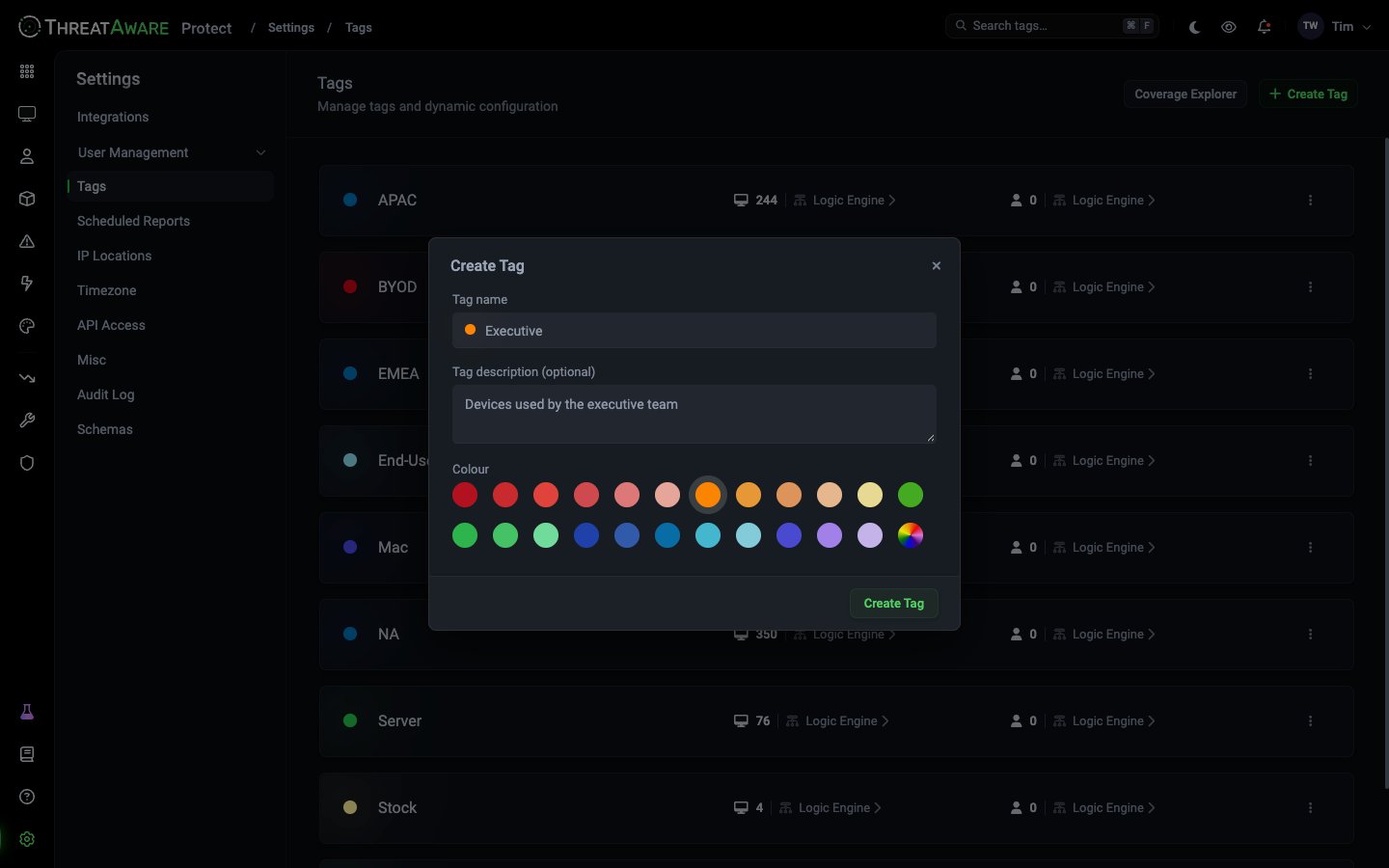
2
Open its rule
The new tag’s row shows Setup Dynamic Targeting › twice: one for devices and one for users. Click the one for what you want to tag. A tag can have a device rule, a user rule or both.
3
Build the rule
The Logic Engine opens with a starter flow: Device (or User) → Condition → Apply Tag. In the Condition, pick a property, an operator and one or more values. Properties are grouped by source, such as Device, OnPrem AD or Microsoft Defender ATP.The operators are Equals, Contains, Starts with, Ends with and Is empty, each with a NOT option. Add more Condition nodes to narrow it down. See Logic Engine for the other node types, or describe the rule to Composer and let it build the flow.On Connect, write the rule as a single query in the Rule Editor instead, such as
os:Windows AND NOT tags:Stock.4
Test it
Right-click the canvas, choose Debug and pick a device or user you expect to match. The flow highlights the path it takes, so you can see whether it reaches Apply Tag. Try one that shouldn’t match too.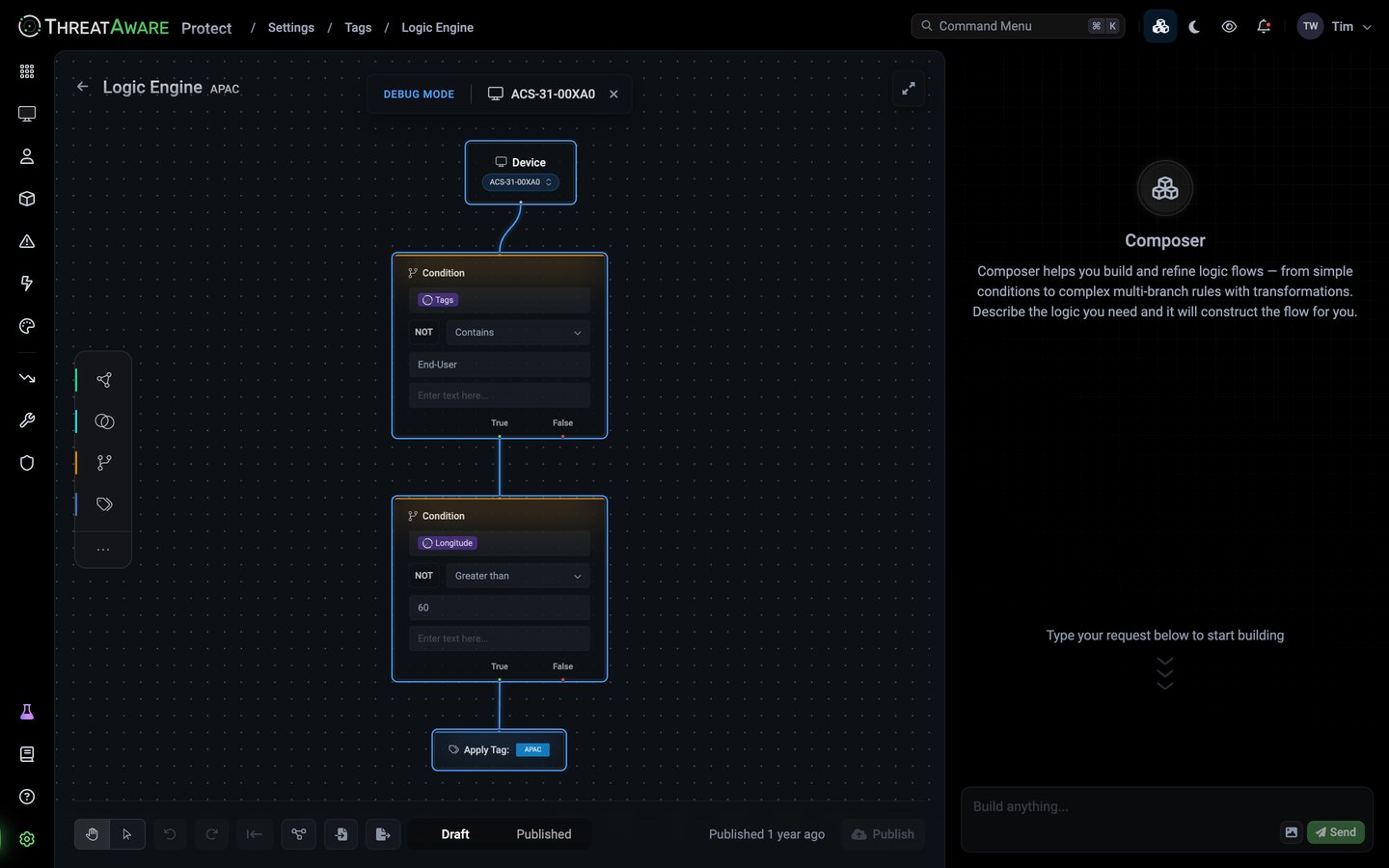
5
Publish
Click Publish. ThreatAware applies the tag straight away, and keeps it up to date as your data changes.
6
Check the result
Search Devices (or User Inventory) for
tags:<name>, and check the counts on Settings → Tags.The device count on Settings → Tags includes inactive devices, while Devices shows active devices by default, so the two numbers can differ.
Device tags and user tags
A tag’s device rule and user rule are separate. Tagging a person doesn’t tag their devices, and tagging a device doesn’t tag its users.- Device tags decide which Vitals are required, and scope Devices, Software Inventory, the Dashboard and access control.
- User tags let you search and report on groups of people in User Inventory, such as executives or people who clicked a phishing link.
Example: an End-User tag
A typicalEnd-User rule tags Windows and Mac devices, then leaves out the ones that aren’t really end-user machines:
Then make your EDR and MDM required for
End-User in Vitals Configuration, and you’ve defined your end-user baseline.
Planning your tags
Good tags describe one thing each. Combine them rather than making compound tags:Mac plus Laptop, not Mac-Laptop.
A device can carry many tags, so each extra dimension multiplies the questions you can answer, such as “how healthy is CrowdStrike on EMEA end-user laptops?”
Check your coverage
Coverage Explorer shows how much of your estate is tagged, broken down by device-name pattern. Untagged devices have no Vitals requirements, so they’re usually the first thing to fix. Check it after you change a tag’s rule.Best practices
Start small
Start small
Four to six tags covers most teams on day one, such as
End-User, Server, VM, Mac and BYOD, plus regional tags if you need them. Add more only when a question can’t be answered with the tags you have.Use a Stock tag as a grace period
Use a Stock tag as a grace period
Tag new or unassigned devices
Stock, and don’t require any controls for it. Let the rule move them out once they’re deployed, so Vitals don’t flag devices that are still being set up.Let rules do the work
Let rules do the work
Prefer rules to tagging devices by hand. Manual tags (for example with Tag by CSV on Devices) don’t update when your data changes, so keep them for genuine one-offs.
Check before you delete
Check before you delete
Deleting a tag removes it from everything it’s applied to, and breaks any Vitals requirements, saved views or tracked views that use it. Update those first.
Next steps
Logic Engine
Build more advanced tag rules
Vitals Configuration
Require controls for each tag
Coverage Explorer
Find untagged devices