

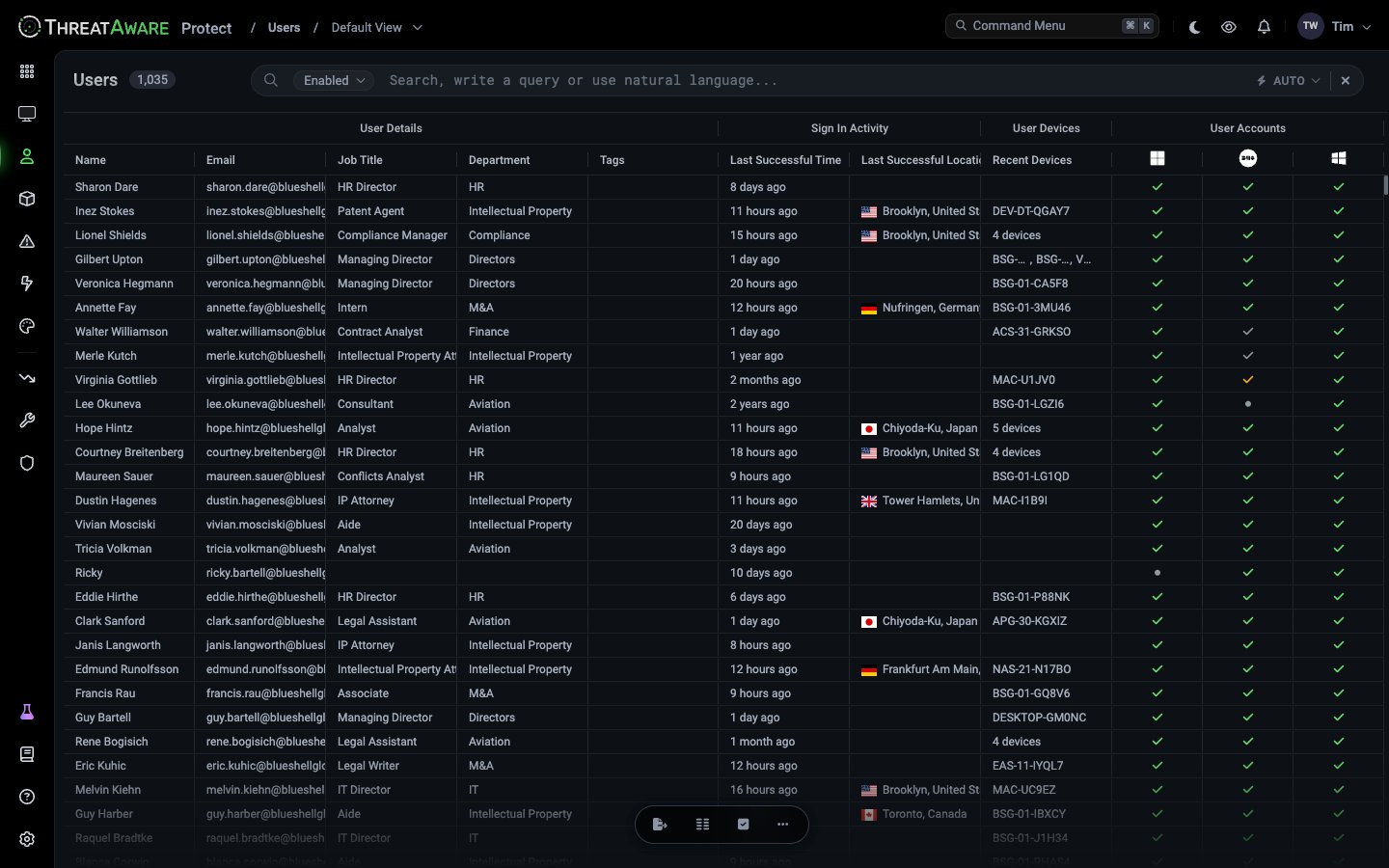
What’s on the page
The grid is organised into four column groups:
Tags come from the Logic Engine. Click a column header to sort by it.
Opening a user
Click a row to open the user’s details:- Profile: name, email, job title and department
- Last Successful Login
- Accounts: each account the user holds, such as Microsoft Office 365, OnPrem AD or Duo
- Recent Devices: every device the user has signed in to, with when it was last seen
Searching and filtering
The status filter at the start of the search bar sets which users you see:
In the search bar, type plain text, a query or a question in natural language. Queries use the same grammar as Devices (
field:value, AND, OR, NOT) with user fields. Click into the search bar and start typing to see the available fields.
- Filter by tag:
tags:Phishing-Campaign-Q2 - Leave a group out:
NOT tags:Stock
Use cases
Offboarding audit
Find users with stale sign-in times who still have a device, and check them against HR records.
VIP coverage check
Tag executives with the Logic Engine, then check every device they use meets your strictest baseline.
Phishing follow-up
Tag users who clicked a phishing link, then check the Vitals on the devices they use.
MFA check
Find users, and especially admins, who haven’t registered for multi-factor authentication. See Find users without MFA.
Find users without MFA
Search the user list for anyone your identity provider reports as not registered for MFA:These fields come from your identity provider, such as Microsoft Entra ID. If a provider doesn’t report MFA registration or admin status, its users won’t match either query, so check the results against your provider’s own MFA report the first time.
Where the data comes from
Users come from your identity sources, such as Microsoft Entra ID, Okta, Google Workspace and on-premises Active Directory, along with job title and department where those sources report them. Sign-in activity and devices come from the integrations that record who signs in to what. ThreatAware matches a person across all of these by email address (themail attribute), not their User Principal Name (UPN), which can differ between tools. If a source doesn’t populate mail, its users can’t be matched to the same person elsewhere.
Two kinds of “users”: this page is about the people in your organisation. To manage the people who sign in to ThreatAware itself, see Access Control and Settings → Users.
Next steps
Device Management
Pivot from users to devices
Tags
Tag users with rules
Software Inventory
See what’s installed across your devices