

The page
Settings → Integrations (titled Integrations, “Add, edit or remove connections”) lists your connected integrations first, then Most Popular, then the full catalogue of over 200 integrations from A to Z.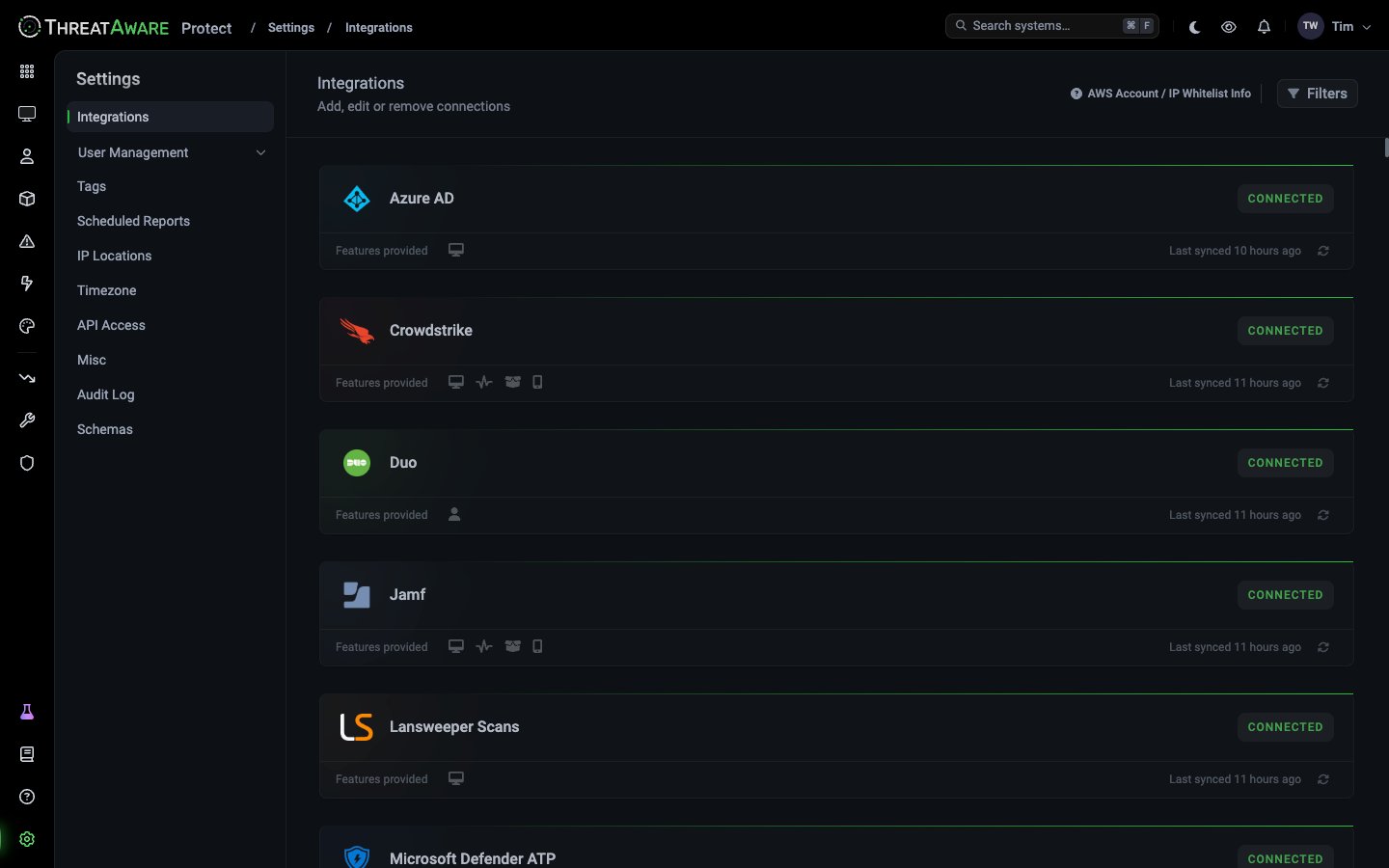
Page controls
- Search: press ⌘ F or use Search systems… in the top bar.
- Filters: show only integrations that provide a feature: Controls Monitoring, Device Inventory, Mobile Inventory, Remote Control, Software Inventory, Ticket Sync or User Inventory. The panel shows how many integrations match.
- AWS Account / IP Whitelist Info: ThreatAware’s AWS account ID and the IP addresses it connects from, to allowlist in your tools’ management consoles. Copy all copies the addresses.
Connecting a new integration
1
Find the integration
Search for it, or scroll the catalogue.
2
Click the card
The connection flow depends on how the tool authenticates: OAuth, an API key, a username and password, or the PowerShell Relay for on-premises tools.
3
Provide credentials
See the tool’s guide in the Connection Guides tab for the exact fields.
4
(Optional) set up Vitals
For integrations with Controls Monitoring, choose which tags need the tool from its Vitals in Devices. See Vitals Configuration.
5
Wait for the first sync
The first sync pulls everything and can take a while on a large estate. Watch Last synced on the card.
Modifying an integration
Hover over a connected card and click Modify:
To sync straight away rather than waiting for the next sync, click the refresh button next to Last synced.
Spotting a stale integration
See also
Integrations overview
Concepts and category catalogue
PowerShell Relay
For on-prem integrations
Connection Guides
Step-by-step per vendor