

What gets logged
At/settings/audit-log:
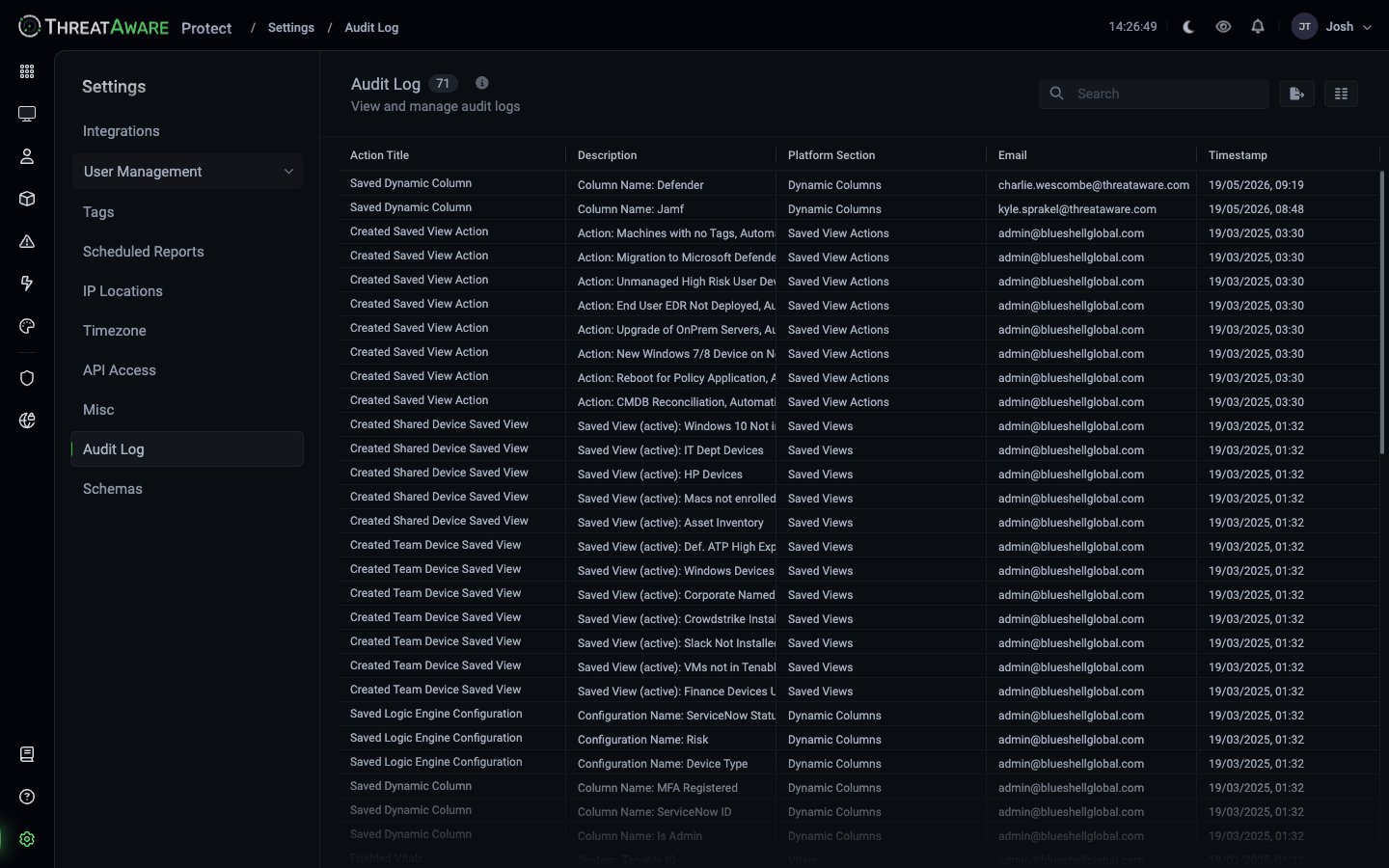
(The exact categories visible in your tenant depend on what’s been done — the Platform Section column shows the live set.)
Columns
Filtering
The Audit Log grid uses a plain-text search box at the top — it is not the field-based query language used on Devices / Users / Software / Issues. Type a substring and the grid filters across the visible columns. For more complex filtering (date ranges, IN-clauses, multiple conditions) export and filter externally, or use the API for structured queries.Retention
Audit log retention is set by your tenant policy. The default behaviour is to retain entries indefinitely; check with your tenant admin if you need to confirm the exact retention applied.Export
The toolbar at the top-right of the grid offers buttons for refresh and download. Common use cases:- SIEM ingest — bulk export to Splunk, Sentinel, QRadar, Elastic
- Audit deliverable — period-specific extract for an external auditor
- Investigation — full-tenant pull around an incident
Privacy considerations
The audit log includes the email of every user. For tenants with strict access requirements:- The Audit Log permission itself can be restricted — not every role should see the log. The Analyst role sees “own” entries only by default; Viewer / Limited Viewer see nothing. See Role Permissions.
- For external auditors, consider an anonymised export (replace emails with IDs).
Best practices
Pull the audit log into your SIEM
Pull the audit log into your SIEM
Don’t wait for the first incident. Get an export pipeline running during initial setup so historical context is available when needed.
Trigger alerts on critical audit events
Trigger alerts on critical audit events
Notable events — role creation, integration disconnect, large export — should trigger a real-time alert. Wire that via the API + your existing alerting stack.
Use the audit log in access reviews
Use the audit log in access reviews
Pair with Settings → Users to identify who’s actually using the platform versus who’s just been granted access.