

The four default roles
At/settings/roles:
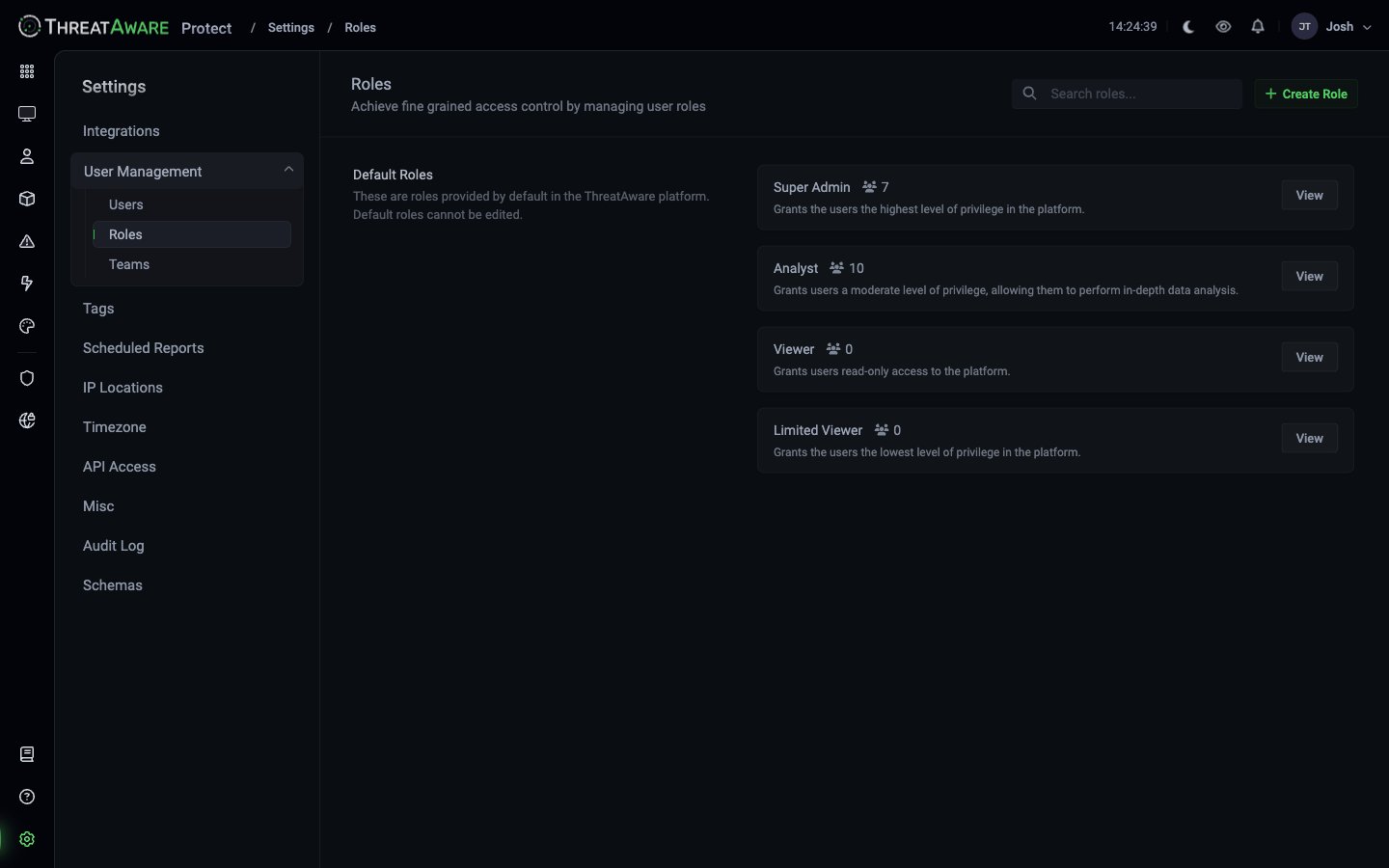
The user count badge next to each role shows how many users currently hold that role.
Why default roles are immutable
Default roles are guaranteed-shape — ThreatAware’s documentation, support, and example flows all assume their permissions exactly as shipped. If you need a tweak, clone the role by creating a custom role and copying the permissions to start from a known baseline.Creating a custom role
1
Click + Create Role
Top-right of the page.
2
Name and describe
Give the role a clear name (e.g.
MSP Technician — Client Acme) and a description that explains its intended use.3
Set permissions
Tick / untick capabilities across these areas:
- Data Visibility: which devices, users and network devices the role can see (all, all except selected tags, or selected tags)
- Issue management (view / create / pause / delete)
- Action management (view / create / pause / delete)
- Reporting (view / export / schedule)
- Integrations (view / connect / configure)
- Studio (view apps / build / publish)
- Settings (none / subset / all)
- User management (none / invite / manage roles)
- Audit log (none / view / export)
4
Save
The role appears below the default roles and is immediately assignable.
Editing custom roles
Click any custom role’s Edit to modify its permissions. Existing users with the role get the new permissions on their next sign-in.Role design patterns
MSP / MSSP technician role
MSP / MSSP technician role
- Device Visibility: Selected tags,
Client-Acme - Reporting: view + export (within filter)
- Actions: view only
- Settings: none
- Audit log: none
Desktop engineer role
Desktop engineer role
- Device visibility:
tags:End-User(or specific device-class tags configured for your tenant) - Actions: create, manage, pause (but not delete others’)
- Studio: view + build, no publish
- Settings: none except own profile
External auditor role
External auditor role
- Device visibility: all, but field-level hide of
metadata.serial_number,macAddress,lastUser.email - Reporting: view only — no export
- Audit log: view only
- Auto-expire after 60 days (set in user-level permissions)
Compliance officer role
Compliance officer role
- Device visibility: all
- Actions: view only
- Reporting: full export access, schedule access
- Studio: view + clone, no publish
- Audit log: full
Best practice: keep it minimal
Most organisations need at most:- 4 defaults + 3-4 custom roles
Cross-references
Access Control
The conceptual model
Settings → Users
Assign roles to users
Reference → Role permissions
Permission matrix