

What Teams are for
Settings → Teams defines logical groupings of users that enable sharing without granting cross-role privileges. A user can belong to multiple Teams.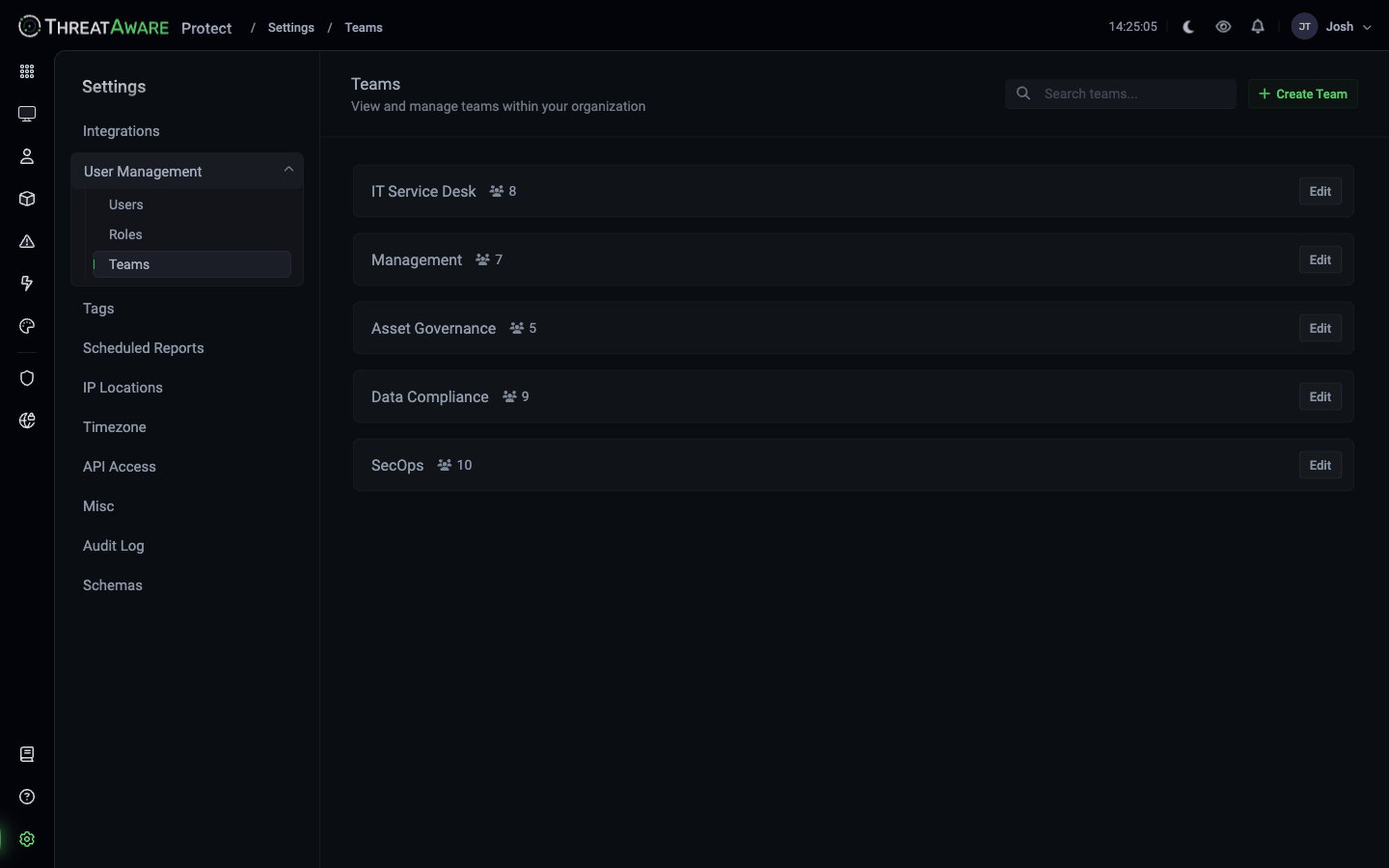
What Teams unlock
Teams are about scope not privilege. A Team doesn’t grant additional permissions — it enables sharing.
Creating a Team
1
Click + Create Team
Top-right.
2
Name
Use a descriptive name aligned to your org chart or function —
SecOps, Asset Governance, Client-Acme.3
Add members
Pick users from your tenant. Search supports name / email.
4
Save
Team is immediately usable in the visibility pickers across the product.
Editing a Team
Click any Team’s Edit to:- Add or remove members
- Rename
- Delete (revokes Team-scope sharing on any view/action/app that referenced this Team)
Team design patterns
Mirror your org chart
Mirror your org chart
Most common: one Team per real-world team (SecOps, Help Desk, Compliance, Engineering Ops). Easy mental model, easy to maintain.
Cross-functional projects
Cross-functional projects
Time-bound Teams for specific projects (
Project-Win11-Migration, Acquisition-Acme-Onboarding). Disband when complete.MSP per-client teams
MSP per-client teams
One Team per client (
Client-Acme, Client-Bravo). Combined with a tag-filtered custom role, you scope both what technicians see and who they share with.Geo / region teams
Geo / region teams
EMEA-Ops, APAC-Ops — useful when regional teams own different bits of the estate.Cross-references
Access Control
Conceptual model
Settings → Users
Assign users to teams
Settings → Roles
Roles grant permissions; teams enable sharing