

What this page is for
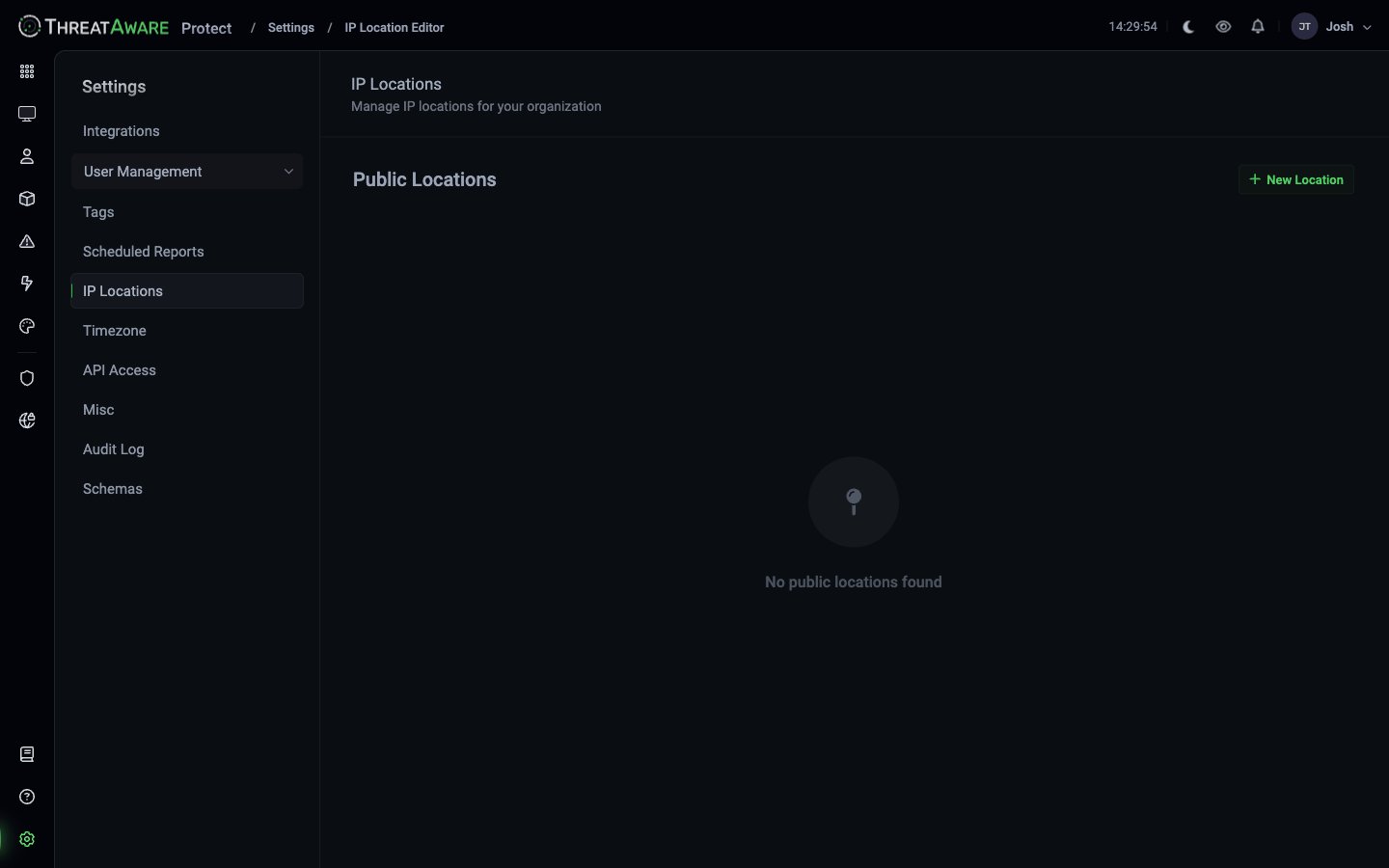
At/settings/ip-location (singular), the IP Locations page lets you define Public Locations — IP ranges mapped to friendly named locations.
203.0.113.x to “London, United Kingdom”). That works for most cases but misses some realities:
- VPN egress IPs lump remote workers into one city
- Branch offices on shared upstreams look like the head office
- Cloud-NAT’d traffic gets attributed to the provider’s region
Adding a location
1
Click + New Location
Top-right.
2
Provide the location details
- Name — friendly label (e.g.
HQ London,Branch — Manchester,VPN — Engineering) - Public IP / range — single IP or CIDR (
203.0.113.0/24) - City / Region / Country — what ThreatAware will display for devices behind this IP
3
(Optional) coordinates
Latitude / longitude for accurate map plotting (Device Explorer’s globe).
4
Save
Devices currently appearing as the default-geolocated location will re-attribute on the next sync.
Common patterns
Why it matters
Thelocation.country and location.city fields are used in many places:
- Devices grid Location column
- Tag rules like
location.country:United Kingdom - Dashboard Tag Coverage Map (when location-based tags exist)
- Geographic risk reporting — “devices in restricted countries”
- Saved views filtered by region
Best practices
Document your VPN egress IPs first
Document your VPN egress IPs first
The most common geolocation surprise — remote workers appearing to be in the VPN exit’s city. Configure these first.
Audit cloud workload IPs
Audit cloud workload IPs
Cloud-hosted servers behind NAT or load balancers can attribute to the cloud provider’s data centre, not your business region. Override.
Re-check after IP changes
Re-check after IP changes
When you change ISPs, restructure NAT, or migrate offices, re-validate your IP Locations.
Cross-references
Device Explorer
Where the map view uses these locations
Tags
Location-based tag rules
Query Language
Filter by
location.* fields