

What this page is
At/settings/schemas:
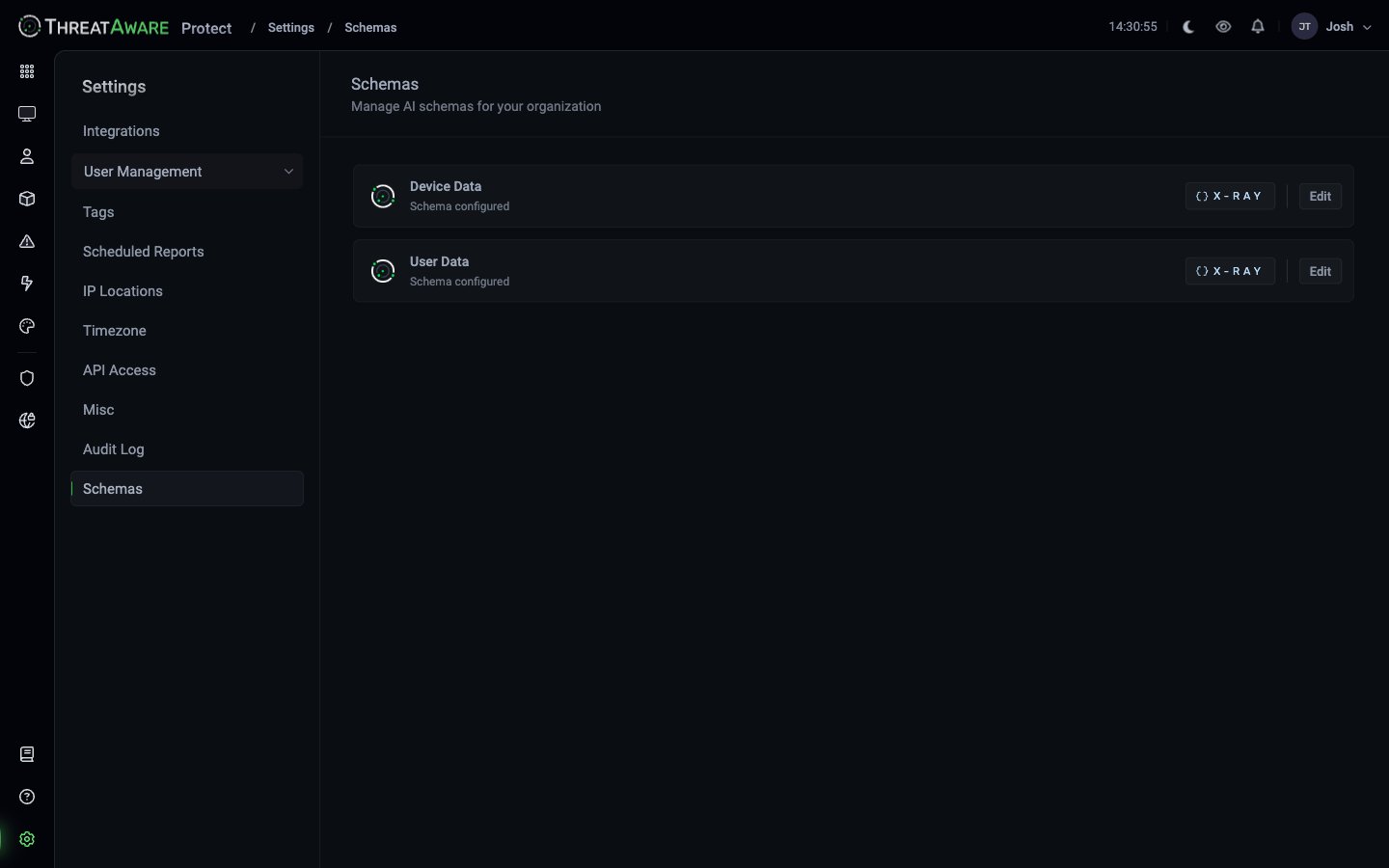
- Device Data — every field on a device record
- User Data — every field on a user record
- Status —
Schema configured(live) - X-RAY button — view the schema structure as JSON
- Edit button — modify which fields are exposed and how
What schemas are used for
The schemas control two related things:What the AI sees
Reporting builds apps with an AI Composer. The AI sees schema only — field names, field types, structure. It does not see actual data values. The Schemas page is where you decide which fields the AI knows exist.What X-Ray reveals
X-Ray shows raw integration data per device. The schemas govern the canonical field paths X-Ray maps to — confirming, for example, thatsystem.crowdstrike.deployed, system.crowdstrike.functioning, system.crowdstrike.configuredCorrectly, system.crowdstrike.required are the consistent shape across the platform.
Editing a schema
1
Click Edit on the schema row
Schema editor opens.
2
Toggle field visibility
For each field, decide:
- Exposed to AI (default for most fields)
- Hidden from AI (sensitive fields like serial numbers in some tenants)
- Hidden entirely (rare — affects API output too)
3
(Optional) add custom fields
Custom metadata fields can be declared in the schema so the AI knows they exist. Their values come from integration data or API uploads.
4
Save
Changes propagate within a few minutes.
The X-RAY button
Clicking X-RAY on a schema row opens a JSON view of the schema: A schema X-Ray view shows the canonical structure — for example, a Device Data schema includes the fields verifiable in the Devices search bar autocomplete:hostName(string)os(enum: Windows / MacOs / Linux)osVersion(string)lastOnline,lastLogin(time)macAddress,privateIp,publicIplocation.country,location.city,location.countryCode,location.coordinateslastUser.email,lastUser.name,lastUser.department,lastUser.jobTitlemetadata.*— hardware and tenant-specific fieldstags(string array)system.<integration>.{deployed,functioning,configuredCorrectly,required}(booleans)issues,software,systems(nested collections)
Privacy: what to consider hiding
For tenants with strict privacy requirements, consider hiding from the AI:
Hiding from the AI doesn’t remove the field from queries or X-Ray for human users — it means Studio apps can’t generate code that uses these fields. There’s no setting to hide individual fields from people. To limit what someone can see, use their role’s Data Visibility.
Cross-references
X-Ray
Per-device raw data view
Studio
Uses the schema to power AI generation
Access Control
User-facing field hiding